Split Payments
Use this page when a customer wants to pay with more than one method — for example, $20 in cash and the rest on a card.
Quick steps
- With the items in the cart, tap Split Payment (in the row of buttons under the main payment buttons).
- Tap the first method — Cash, Card, E-Transfer, Credit, Gift Card or House Acct.
- Type the amount under Payment Amount (or tap Remaining, Half, $20 or $50), then tap Add Payment. For a card on a connected terminal the button reads Send to Terminal.
- Repeat for the next method until Remaining shows $0.00. Tap Remaining to fill in the last part exactly.
- Tap Complete Sale.
Made a mistake? Tap the X next to a payment under Payments Added to take it off before you finish.
Common questions
I don't see the Split Payment button. It only shows when your store has more than one payment method turned on. With cash only, there is nothing to split.
Can the customer use store credit or a gift card for part of it? Yes. Tap Credit (a customer must be on the sale) or Gift Card (type or scan the code and tap Look Up). The amount fills in with what's available, then tap Apply Credit or Apply Gift Card.
How do I give change on the cash part? Type what the customer handed you in Cash Given (optional). The register shows the change. Leave it blank if they gave exact cash.
The card part went through but the customer changed their mind. The card has already been charged. The register warns you with Card payment already charged. Void or refund it on the terminal first, then tap I voided it on the terminal.
More detail: the split payment window and a worked example
When Split Payments Are Available
The Split Payment button appears in the row of buttons under the main payment buttons when more than one payment method is turned on for your store. If only one method is on (e.g., cash only), the button does not appear since there is nothing to split between.
Opening Split Payment
- Ensure items are in the cart and the total is ready.
- Tap Split Payment.
- The Split Payment window opens.
If your store checks ID at checkout, the age check comes up first, just like the other payment buttons.
The Split Payment Window
The window shows:
- Total Due at the top — the full sale amount.
- Total Paid — the total of the payments added so far.
- Remaining — how much is still unpaid (goes down as you add payments).
- Payments Added — a list of the payments you have added so far.
- Payment method buttons — choose the method for the next payment.
- Quick amount buttons — Remaining, Half, $20 and $50 fill in the amount. They never fill in more than is still owed (or more than the customer's store credit or gift card balance).
- Payment Amount — the amount for this part of the payment.
- Add Payment button — adds the amount as a payment entry. Its wording changes with the method: Send to Terminal (card with a PayFacto, Square, Helcim or Kort terminal, or Tap to Pay on iPhone), Apply Credit, Apply Gift Card or Charge House Account.
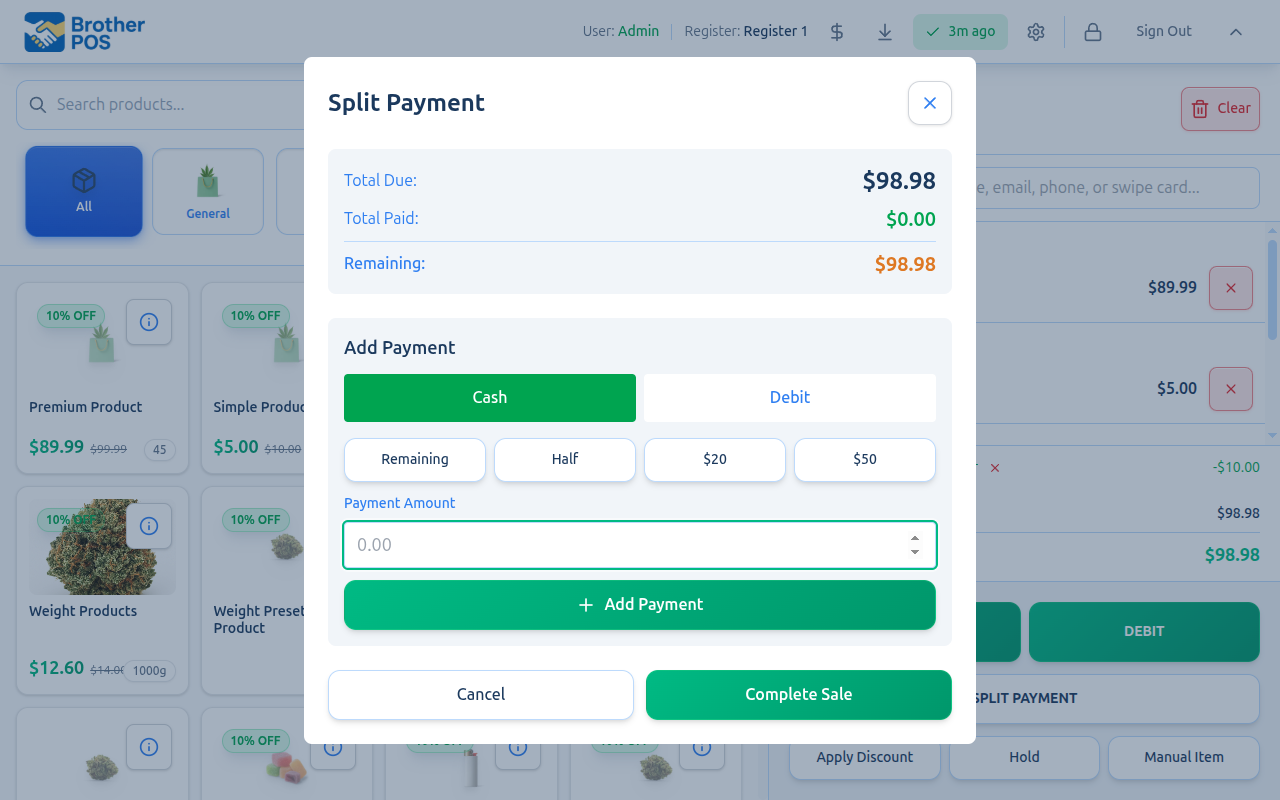
Step-by-Step: Processing a Split Payment
Example: $60 total, customer pays $20 cash and $40 by card
- Tap Split Payment to open the window. Total Due: $60.00, Remaining: $60.00.
- Select Cash.
- Enter 20.00 in the amount field.
- Tap Add Payment. "Cash $20.00" appears under Payments Added. Remaining: $40.00.
- Select Card.
- Enter 40.00, or tap Remaining to fill in the rest.
- Tap Add Payment (or Send to Terminal). "Debit $40.00" appears. Remaining: $0.00.
- Tap Complete Sale to finish the transaction.
The amount field can't be left blank, and you can't add more than the remaining balance — the POS shows "Payment amount exceeds remaining balance".
Payment Method Options
The method buttons match your store's payment settings:
| Button | Available When |
|---|---|
| Cash | Cash payments are on |
| Card | Debit/card payments are on |
| E-Transfer | E-Transfer payments are on |
| Credit (store credit) | Store credit payments are on. A customer must be attached to use it. |
| Gift Card | Gift card payments are on |
| House Acct | House accounts are on. A customer with a house account must be attached. |
Store credit, gift card and house account can each be used once in a split. After you add one, its button goes away.
If your store uses a PayFacto, Square, Helcim or Kort card terminal, or Tap to Pay on iPhone, choosing Card charges that part of the payment there. See Terminal Processing in Split Mode. With any other card setup, the Card entry is recorded as a card payment without being sent to a terminal.
More detail: store credit, gift cards, e-transfer, removing a payment and finishing
Store Credit in Split Payment
When you select Credit:
- The customer's store credit balance is shown, and the amount field fills in with the smaller of their balance and the remaining amount.
- You can lower the amount if the customer wants to use only part of their credit.
- Tap Apply Credit.
- Cover the rest with another method.
If no customer is attached, the window says "A customer must be attached to use store credit". If the customer has no credit, it says "This customer has no store credit balance".
Gift Card in Split Payment
When you select Gift Card:
- Enter or scan the gift card code and tap Look Up.
- The card number and available balance appear, and the amount fills in with the smaller of the card balance and the remaining amount.
- Tap Apply Gift Card.
Expired, inactive or empty cards show a message instead. Tap Use a different gift card to look up another card.
E-Transfer Reference
When you select E-Transfer, an E-Transfer Reference (Optional) field appears so you can record the transaction ID or confirmation code for that part of the payment.
Removing a Payment Entry
If you made a mistake, you can remove a payment entry before completing the sale:
- Find the payment under Payments Added.
- Tap the X next to it.
- The amount goes back into the remaining balance.
Completing the Split Payment
The Complete Sale button only works once the remaining balance reaches $0.00 (all payments add up to the total).
When you tap Complete Sale:
- The sale is recorded with all payment entries, along with the cart's discounts, any promo code and any promo game prize.
- Each payment method is saved separately on the sale.
- The receipt shows all payment methods used.
- The success screen appears.
You cannot complete a split payment until the payments add up to the sale total. The remaining balance must be $0.00.
If the sale takes a customer over the daily cannabis purchase limit, the same Purchase Limit Exceeded window opens as for any other payment, and a manager must enter their PIN to authorize it. See Completing Payment.
More detail: cash, change and cash rounding
Cash in Split Payments
When you select Cash, a Cash Given (optional) field appears:
- Enter the amount the customer hands you, such as a $20 bill for a $12.50 portion.
- The POS shows the Change Due ($7.50 in this example).
- The payment entry shows how much was given and the change.
If you leave Cash Given blank, the cash entry is recorded as exact change.
The cash portion counts toward the drawer's expected cash for reconciliation.
When you complete a split payment that includes cash, the cash drawer opens the same way it does for a cash sale: when the register's printer is on and the register is set to print receipts or to open the drawer. This also happens when the sale is saved offline.
If your store rounds cash to the nearest 5 cents, a Cash rounding line appears once a cash payment is added, and the total due adjusts to match.
More detail: card terminals in a split
Terminal Processing in Split Mode
When your store uses a PayFacto, Square, Helcim or Kort card terminal, or Tap to Pay on iPhone:
- Select Card, enter the amount and tap Send to Terminal.
- What happens next depends on your setup:
- PayFacto: the window shows Waiting for Card and "Present card on terminal...".
- Square: the window shows Waiting for Payment and "Waiting for payment on terminal...". If you have more than one Square terminal, pick the one to use first.
- Helcim or Kort: the Helcim or Kort payment window opens on top of the split window, for that part of the payment only. Closing it takes you back to the split window with the payments you already added still there.
- Tap to Pay on iPhone: the window shows Waiting for Card and "Hold card near the back of this device...". The customer taps their card on the phone. Tap Cancel to stop.
- Once approved, the card payment is added to the list.
- If it's declined, the reason is shown. With PayFacto or Square, tap Try Again to resend, or Cancel to go back and change the amount or choose another method.
You can't close the split window while it's waiting on a PayFacto or Square terminal. Finish or cancel on the terminal itself.
Terminal Status in Split Mode
| Status | Meaning |
|---|---|
| Waiting for Card (PayFacto, Tap to Pay) or Waiting for Payment (Square) | The terminal is ready for the customer |
| Transaction Approved | That part of the payment went through |
| Transaction Declined | That part was declined (the reason is shown) |
| Terminal Busy | PayFacto only: the terminal is finishing another transaction. The POS retries automatically after 30 seconds, or tap Retry Now. |
Once a card payment is approved, the customer has been charged, so finish the sale. If you tap Cancel or the X on the split window, or the X next to that card payment, the POS stops you with Card payment already charged: cancelling or removing it here does not refund the customer.
- Back to sale returns to the split window so you can finish the sale.
- I voided it on the terminal goes ahead with the cancel or removal. Tap it only after you have voided or refunded the charge on the terminal itself. The POS doesn't void it for you.
If completing a split payment fails because the connection is slow and you try again, the register sends it as the same sale. The sale is recorded once, not twice.
More detail: receipts, reports, common situations and limits
Split Payment on Receipts
The printed receipt for a split payment lists each method used:
Payment:            Split
  Cash:            $20.00
  Card:            $40.00
If cash change was given, a Change line appears under the cash amount. A card part paid on a connected terminal also shows the card type, last four digits and authorization code, when the terminal sent them.
Split Payments in Reports
Split payments are recorded with all their payment entries. In the cash drawer session, the cash portion counts toward cash totals and the card portion counts toward card totals, so reconciliation stays accurate.
Common Split Payment Scenarios
Customer Wants to Pay Part Cash, Part E-Transfer
- Open split payment.
- Add the cash portion.
- Add the e-transfer portion with the reference number.
- Complete the sale.
Customer Changes Their Mind
If the customer decides not to split after opening the window:
- Tap Cancel to close it. Payments you added are not kept. If a card payment was already approved, the POS warns you first (see Terminal Processing in Split Mode).
- Use one of the regular payment buttons instead.
Limitations
- Each payment entry must be a positive amount.
- No single entry can be more than the remaining balance.
- The sum of all entries must equal the sale total.
- Split payments cannot be partially completed — you must add entries for the full amount before finishing.
- A single item on a split-payment sale can't be voided afterwards. Use a return for it, which asks how to refund.
- A tip recorded on the success screen after a split payment goes on the part that wasn't cash (usually the card).
What's Next?
- Completing Payment — single-method payment flows
- Receipts — how split payments appear on receipts
- Cash Drawer Sessions — how split cash amounts affect drawer reconciliation
- Sales History — reviewing completed split payment sales