Product Display Settings
Use this page to choose which cannabis detail fields your store uses, hide exact high stock counts on the register, and print a paper menu.
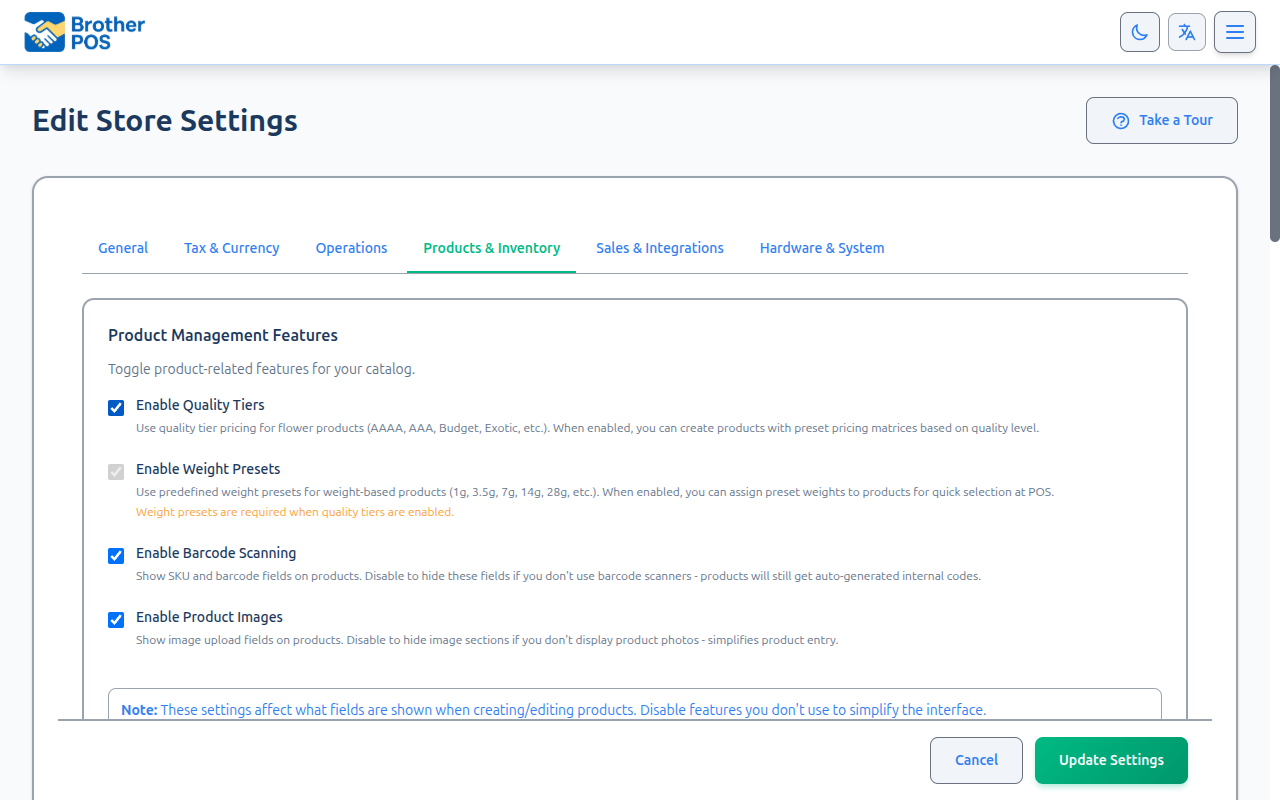
Quick steps
- Go to Settings, click Edit Settings, and open the Products & Inventory tab.
- Under Cannabis Detail Fields (cannabis stores only), untick fields you don't track — for example Show Terpenes or Show Helps With.
- To hide exact high stock counts, enter a number in Global Stock Display Threshold (for example 200 shows 200+). Leave it empty to always show exact counts.
- Click Update Settings at the bottom of the page.
- For a paper menu, click Open Print Menu in the Print Menu section and print with your browser (Ctrl+P, or Cmd+P on a Mac).
Common questions
Does turning a field off delete product data? No. The information stays and comes back when you turn the field on again.
Do these switches hide fields on the register? Not today. They control product entry and your online storefront. The register shows cannabis details whenever a product has them.
Can one category hide stock counts differently? Yes. A category or a single product can have its own threshold. The product's setting wins, then the category's, then the store-wide one.
Can different registers show different fields? No. These settings apply store-wide.
More detail: getting there
Accessing Product Display Settings
- Log in to the Admin Panel.
- Click Settings in the top navigation bar.
- Click Edit Settings, then click the Products & Inventory tab.
More detail: cannabis detail fields and the strain library
Cannabis Detail Fields
The Cannabis Detail Fields section only appears when cannabis features are turned on for your store. Its hint reads: "Choose which cannabis-specific fields to show on products. Disable fields you don't track to simplify product entry."
| Setting | What the setting page says it does |
|---|---|
| Show THC/CBD Fields | Show THC % and CBD % fields |
| Show Strain Type | Show Indica/Sativa/Hybrid/CBD selector |
| Show Strain Library | Show strain name lookup from built-in library |
| Show Effects | Show effects list (Relaxed, Happy, Euphoric, etc.) |
| Show Helps With | Show "Helps With" field (Stress, Pain, Anxiety, etc.) |
| Show Terpenes | Show terpene profile field |
Where they take effect today
- Online storefront — If you use the Storefront, product cards show THC/CBD only when Show THC/CBD Fields is on. Product pages show THC/CBD, strain type, dominant terpene and effects only when Show THC/CBD Fields, Show Strain Type, Show Terpenes and Show Effects are on.
- POS register — The register's product details show strain type, THC/CBD, terpene, effects and Helps With whenever cannabis features are on and the product has that information. These toggles do not currently hide them on the register.
The TV menu board and the printed menu each have their own Show THC/CBD options. See TV Menu Board and Print Menu below.
Some jurisdictions restrict medical claims on recreational cannabis products. Consult your local regulations before showing "Helps With" information to customers.
Strain Library
The strain library lets staff look up a strain by name when entering a product. The Show Strain Library setting covers new products that don't have a category yet. For products in a category, it is controlled by the Show Strain Library checkbox on each category. See Strain Library.
More detail: stock display threshold
Stock Display Threshold
Setting: Global Stock Display Threshold (in the Stock Display Threshold (Security) section)
This is a security / privacy feature that hides exact high-stock quantities on the POS. When a product's stock is at or above the threshold, the POS shows the threshold with a plus sign (e.g., 200+) instead of the exact number. When stock is below the threshold, the POS shows the exact quantity.
- Leave empty to always show exact stock quantities.
- Set to 200 to show
200+whenever a product's stock is 200 or more. - You can set a different threshold on a category or on a single product — for example, a lower threshold for high-value inventory. A product's own setting wins, then its category's, then the store-wide one.
The goal is to prevent staff (and anyone watching the screen) from seeing the exact on-hand quantity of high-value inventory, which reduces theft risk and protects competitive information.
More detail: pricing templates, weight presets and product images
Pricing Templates
Setting: Enable Pricing Templates (in the Product Management Features section)
Pricing templates (internally called "quality tiers") are commonly used for cannabis flower, where different grades have different price points by weight, but any store that sells by weight or by tiers can use them. When enabled, admins and managers can manage templates from Products → More Actions → Tier Pricing. See Pricing Templates for configuration details.
Weight Presets
Setting: Enable Weight Presets (in the Product Management Features section)
Weight presets are standard weights (e.g., 1g, 3.5g, 7g, 14g, 28g) for products sold by weight. The settings page notes they are required when pricing templates are enabled. Once on, admins and managers manage them from Products → More Actions → Weight Presets. See Weight Presets.
Product Images
Setting: Enable Product Images (in the Product Management Features section)
Turns product images on for your catalog. See Product Images.
More detail: print menu
Print Menu
The Print Menu section on the Products & Inventory tab makes a paper menu from your catalog. Click Open Print Menu to open it, then print it with your browser (Ctrl+P, or Cmd+P on a Mac). When digital menu boards are on, the same page is also under Products → More Actions → Print Menu (PDF).
| Setting | What it does |
|---|---|
| Show Prices | Prints prices |
| Show THC/CBD | Prints potency (cannabis stores only) |
| Show Strain Type | Prints Indica / Sativa / Hybrid badges (cannabis stores only) |
| Show Brand | Prints brand names |
| Header Text | An optional line under your store name, e.g. "Fresh Products Daily" |
| Footer Text | An optional line at the bottom, e.g. "Prices subject to change" |
| Print Color Mode | Color (for color printers), Grayscale, or Black & White (ink saver) |
The menu lists active products that are in stock, under your categories in their Sort Order (categories never given one come last), with each subcategory under its main category. A product filed in both a category and one of its subcategories is printed once, under the subcategory. A product sold in several sizes lists every size with its price.
More detail: saving, and more questions
How Changes Take Effect
- Check or uncheck the settings you want.
- Click Update Settings at the bottom of the page.
Not every store needs every field. A cannabis dispensary that doesn't track terpenes can turn off Show Terpenes; a recreational-only shop might turn off Show Helps With.
Common Questions
Do display settings affect my product data? No. Turning a setting off does not delete any product information. You can turn it back on at any time.
Can I show different fields on different registers? No. Product display settings apply store-wide.
What if I enable a field but no products have that data? Nothing is shown for that field — there is no error. You can fill in the data by editing individual products.
What's Next?
- Feature Flags — Enable or disable entire feature modules.
- General Settings — Update your store identity and regional settings.
- Strain Library — Manage your strain data.
- Pricing Templates — Configure pricing template badges and pricing.