Low Stock Alerts
Use this page to set when a product counts as "low", see which products are running low, and get a daily email when it's time to reorder.
Quick steps
To set a product's low stock level:
- Go to Products and open the product.
- Click the Inventory tab.
- Type a number in Low Stock Alert (for example,
25for a fast seller). - Click Update Product.
To see what's running low:
- Click Reports, then Inventory. It opens on the Stock tab.
- Look at the Low Stock Warning card at the top and the Low Stock Products table further down.
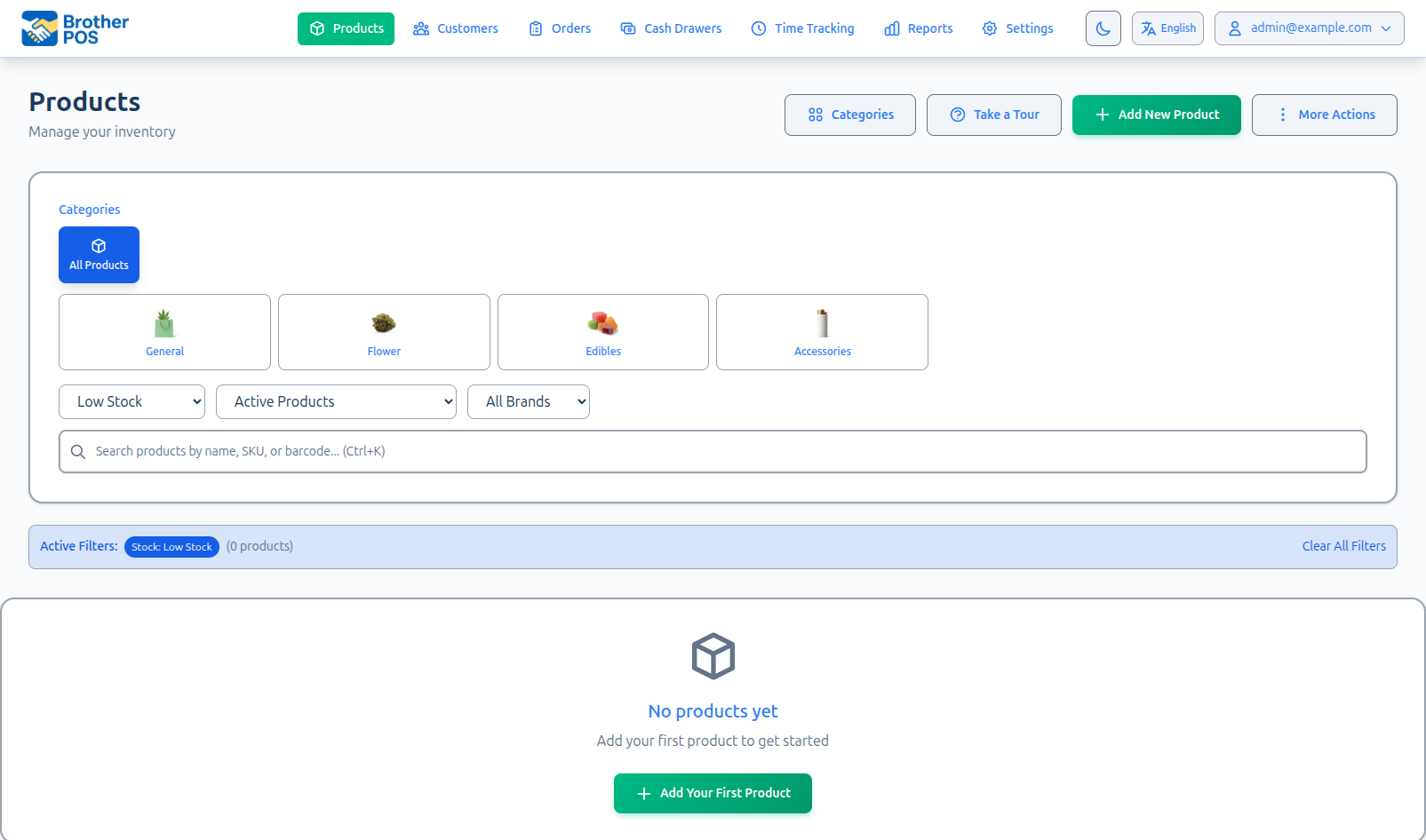
- Or click the Low Stock Items card on the dashboard to open the Products list filtered to low stock.
To get a daily reorder email:
- On each product, open the Inventory tab, set Reorder Point, and click Update Product.
- Go to Settings, open the Notifications tab, and under Auto-Reorder Alerts pick a Reorder Mode (for example, Alert Only (email notification)).
- Click Update Settings.
The Low Stock Alert level only marks a product as low on screens and reports. The daily email uses Reorder Point.
Common questions
Why isn't an empty product on the low stock list? A product with nothing left counts as out of stock, which is shown as its own number. Set the Products page stock filter to Out of Stock to see them.
Why doesn't a low variation show up? Low stock lists only cover top-level products. Check variations from the parent product's Variations tab — each variation has its own Low Stock Alert level.
What level should I pick? Think about how long delivery takes. If delivery takes 3 days and you sell about 5 a day, a level of 15 gives you time to reorder.
How do I stop a product showing as low?
Set its Low Stock Alert to 0, or deactivate the product if you are discontinuing it.
More detail: how low stock is worked out
How Low Stock Is Worked Out
A product counts as low when it still has stock left and that stock is at or below its Low Stock Alert level. A product with nothing left isn't low — it is out of stock, which is counted as its own separate number.
Every place that says "low stock" uses that same rule, so the figures agree with each other: the Low Stock Items card on the dashboard, the Low Stock filter on the Products page, and the Low Stock Warning card and Low Stock Products table on the Inventory report's Stock tab.
Only top-level products are counted — see Variations below.
Stock held for unfinished sales doesn't decide whether a product is listed, but the Inventory report's table still shows Reserved and Available beside each row so you can see when a full-looking shelf is already spoken for. See Stock Reservations.
This is worked out each time you open the page. The Low Stock Alert level on its own doesn't send any notification. For a daily email, see Getting a Daily Reorder Email.
More detail: setting levels, and variations
Setting a Product's Low Stock Level
- Go to Products and open the product.
- Click the Inventory tab.
- Enter a number in Low Stock Alert (e.g.,
25for a fast seller). - Click Update Product.
The note under the box is a reminder that this level only marks the product as low stock. It doesn't send a notification; set a Reorder Point for that (see Getting a Daily Reorder Email).
The new-product form fills in 10, which you can change as you create the product. Products added other ways (for example, by import) start at 5 unless the import sets a level. There is no store-wide setting — each product has its own level.
Think about how long a reorder takes. If a delivery takes 3 days and you sell about 5 a day, a level of 15 gives you time to reorder before you run out.
Variations
Each variation has its own stock and its own Low Stock Alert level. A product might be low on its "1g" variation while its "3.5g" variation is well stocked.
- Open the parent product and click the Variations tab.
- Click the pencil icon next to the variation. This opens the variation's own product page.
- Click the Inventory tab, set Low Stock Alert, and click Update Product.
Low stock counts and lists cover top-level products only, so a variation that is running low is not listed on its own. Check your variations from the parent product's Variations tab.
More detail: the Inventory report and dashboard
Viewing Low Stock Products
- Click Reports in the top navigation bar.
- Click Inventory (it opens on the Stock tab).
When anything is low, a Low Stock Warning card at the top shows how many products are low. If anything is out of stock, that count is shown underneath it. View in products opens the same list on the Products page so you can work through it (this link is shown when the report covers all your stores, not when a single Store is chosen). Further down, the Low Stock Products table lists them, lowest stock first, 25 to a page:
| Column | Shows |
|---|---|
| Product | The product name (click it to open the product) |
| SKU | The product's SKU |
| Current Stock | Units on hand |
| Reserved | Units held for unfinished sales |
| Available | Current stock minus reserved |
| Threshold | The product's Low Stock Alert level |
| Unit Price | The product's selling price |
| Stock Value | Current stock × unit price |
Only active, top-level products are listed. Products with nothing left aren't in the table — they are the out of stock number on the card above. To work through those, set the Products page stock filter to Out of Stock.
Filtering
If your store runs two store types (for example, cannabis and general retail), a Store dropdown appears in the filter bar above Stock Activity. Choosing a store narrows the low stock table too. There are no category or supplier filters on this report.
On the Dashboard
The admin dashboard has a Low Stock Items card. Click it to open the Products list filtered to active, low stock products. The number on the card and the list it opens always match, because both count the same thing. When something is out of stock, the card shows that count underneath as well.
On the Products page you can also set the stock level filter to Low Stock yourself, or to Out of Stock to see the empty ones.
More detail: the daily reorder email
Getting a Daily Reorder Email
Brother POS can email you, or create draft purchase orders, once a day for products that have dropped to their reorder point. This uses a separate field, Reorder Point, not the Low Stock Alert level.
- On each product you want watched, open the Inventory tab, set Reorder Point, and click Update Product.
- Go to Settings and open the Notifications tab.
- Under Auto-Reorder Alerts, choose a Reorder Mode:
- Disabled
- Alert Only (email notification)
- Draft PO (auto-create purchase orders)
- Both (PO + email alert)
- Click Update Settings.
The email goes to the Recipient Emails listed under Scheduled Report Digests on the same tab, or to your store's email address if none are listed.
What gets reordered, and how much
Each day, an active product is picked up when its stock is at or below its Reorder Point. The amount suggested is enough to bring it up to twice its Reorder Point, less anything still to arrive on open purchase orders. Say the Reorder Point is 10, you have 4, and 6 are already on an order that hasn't come in: 20 − 4 − 6 = 10 more. If what's on order already covers it, the product is left out — so an unsent draft isn't copied again the next morning, and stock already on the truck isn't ordered twice.
- Draft purchase orders are made one per supplier, from each product's Preferred supplier. A product with no preferred supplier appears in the email but gets no draft order.
- Bundles and products with variations are never reordered — order the components or the variations, which each have their own Reorder Point.
More detail: reordering, transfers and products you don't want flagged
Taking Action on Low Stock
Reorder From a Supplier
- Note the products and quantities you need from the report.
- Go to Products, open More Actions, and under Ordering & Transfers click Purchase Orders.
- Create a purchase order for the supplier and add the items.
- See Purchase Orders for the full steps.
Transfer From Another Store
If another of your stores has spare stock:
- Go to Products, open More Actions, and click Stock Transfers. This option only appears if you run another store of the same business (as its owner, or an admin or manager there).
- Create a transfer from that store to this one.
- See Stock Transfers for the full steps.
Change the Level
If a product keeps showing as low but you deliberately keep only a few on hand, lower its Low Stock Alert level on the Inventory tab.
Products You Don't Want Flagged
Some products show as low on purpose — a seasonal item you are running down, or one you are discontinuing.
- Set its Low Stock Alert level to
0. It then never shows as low stock; once it runs out it is counted as out of stock instead. - If you are discontinuing it, deactivate the product. Inactive products aren't listed.
Best Practices
- Base levels on real sales. Use how fast a product sells and how long delivery takes, not a round number.
- Check the report regularly, ideally at the start of each business day.
- Give your best sellers their own levels. They can run out faster than the default level allows for.
- Act on it. Create purchase orders as soon as products show up, or turn on Auto-Reorder Alerts so the reminder comes to you.
What's Next?
- Purchase Orders — Order more of your low stock products.
- Stock Reservations — Why available stock can be lower than stock on hand.
- Stock Transfers — Move spare stock from another store.
- Stock Adjustments — Correct stock after a physical count.
- Inventory — The whole report: what your stock is worth, and every movement in a date range.