Stock Transfers
Use this page to move stock from one of your stores to another store of the same business.
Quick steps
To send stock:
- Go to Products, click More Actions, then Stock Transfers.
- Click New Transfer and pick the store in To.
- Add products — tap a product tile (tap again to add one more), search, or scan a barcode.
- Check each line's Quantity to send and the Lands on column, which shows the product it will go into at the other store.
- Click Transfer now (or Send transfer if the other store counts transfers in).
To receive a transfer that's on its way:
- Open Stock Transfers and click Receive next to the transfer.
- Change Arrived on any line where less came, then click Receive stock.
To move stock around inside one store (for example Back Stock to the Sales Floor), use the move tools instead — see Stock Adjustments.
Common questions
Who can send transfers? Owners, admins and managers who run both stores, and only between stores with the same owner. Clerks can't.
Why didn't anything move? Every line is checked first. If any one line can't go, nothing moves — the message says which line to fix.
I sent it by mistake. If it shows In transit, open it and click Cancel transfer. If it already landed, send it back with a new transfer.
Does the other store get the product if it doesn't have it? Yes. A new product is created there with the same name, price, photos and details. Check its price there afterwards.
Why isn't a product in the picker? It has no stock on the shelf picked under Take from, or it's a bundle, a parent with variations (pick the variation), or inactive.
More detail: who can transfer, and receiving-step settings
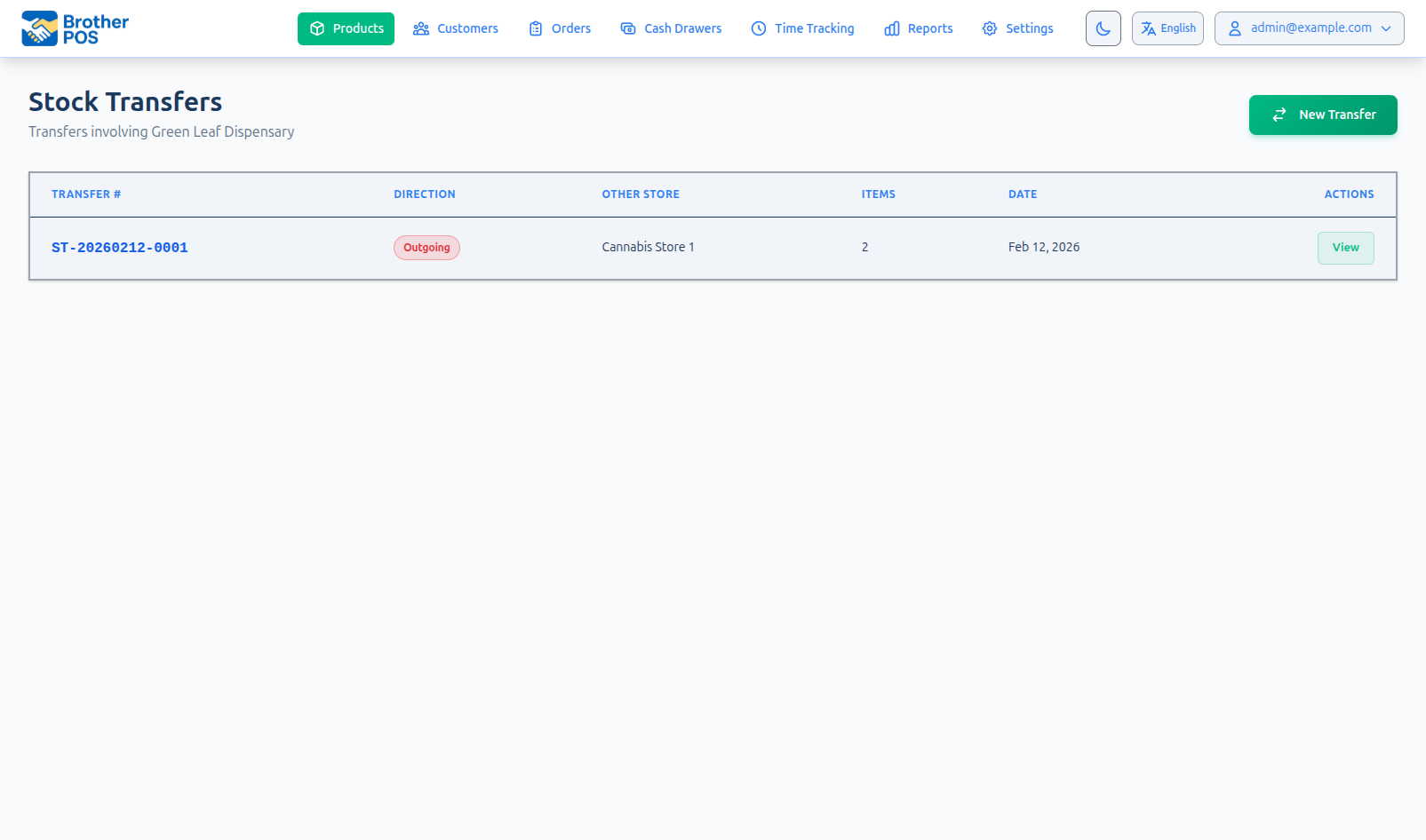
Transfers go from one store to another. They are not the way to move stock around inside a single store.
If either store keeps stock in more than one place (for example a Sales Floor and a Vault), the transfer also records which shelf the stock left and which shelf it landed on. To move stock between shelves inside one store without sending it anywhere, use the move tools at the register or on the product page instead — see Stock Adjustments.
Who Can Transfer Stock
Transfers are for the people who actually run the stores — not only the owner.
| You can… | If… |
|---|---|
| Open Stock Transfers at a store | You own that store, or you are an Admin or Manager there. Clerks can't. |
| Send stock from one store to another | You run both stores (own them, or are an Admin or Manager at each), and the two stores have the same owner. |
| Receive a transfer that is on its way | You run the store it is going to. |
| Cancel a transfer that is on its way | You run the store it came from. |
| Turn the receiving step on or off for a store | You own that store, or are an Admin there. |
An area manager — someone who is a Manager at several stores — can move stock between any of those stores, as long as they belong to the same owner. Owners give people roles at their stores under Owner portal → People.
The To list only offers stores you can send to. The store you are sending from is never in it.
Straight Away, or Counted In
Each store decides what happens to transfers coming to it:
| Receiving step | What happens when you send |
|---|---|
| Off (the default) | The stock leaves the sending store and lands at the receiving store at the same moment. The transfer is Completed straight away. |
| On | The stock leaves the sending store and the transfer shows as In transit. It lands at the receiving store only when someone there counts it in. Until then, it can be cancelled. |
To change it, open Stock Transfers and scroll to Receiving step at the bottom. Each store you can change shows Counts transfers in or Transfers land right away, with a Turn on / Turn off button.
Every line is checked before anything moves. If any line can't go through, nothing moves — not even the lines that were fine. You stay on the form with "The transfer wasn't sent — nothing moved." and the reason underneath, and you can fix it and try again.
More detail: every part of the transfer form
Sending a Transfer
- On the Products page, click More Actions, then Stock Transfers.
- Click New Transfer.
The form has four parts.
1. Where is it going?
- From is the store you are signed in to. (From the Owner portal you pick it, and a swap button flips From and To.)
- Pick the store in To.
- If either store keeps stock by location, Take from and Put into appear. See Choosing the shelves.
If the receiving store counts transfers in, a yellow note says so: the stock leaves when you send and shows as In transit until someone there receives it.
2. What are you sending?
Pick products the same way you browse the products page:
- Tap a category button to narrow the list, or All.
- Tap a product tile to add it. Tap it again to add one more. A badge shows how many are already in the transfer.
- Or type in the search box, or scan a barcode. A scanned code goes straight to the right product.
Only products with something to send are shown — on the shelf picked under Take from. Each tile shows its photo, SKU and stock, and at a store that keeps stock by location, its Floor · Back split.
3. In this transfer
Each line has the Quantity to send (with a Send all link) and Lands on, which shows which product the stock will go into at the other store before you send:
| Shown | Meaning |
|---|---|
| Same SKU | The other store has a product with the same SKU. The stock is added to it. |
| Same barcode | No SKU match, but the other store has a product with the same barcode. |
| Your pick | You chose the product yourself with Change. |
| New — A new product at … | Nothing matches, so a new product will be created at the other store. |
Products are never matched by name alone. If the other store has a product with the same name, the line asks "They have “Blue Dream” (BD-35) — add to that instead?" so you can decide.
Click Change to search the other store's products and pick one, choose Create new product, or go back to Match automatically.
A line with a problem is flagged in red, and the bar at the bottom says how many lines need fixing before the transfer can be sent.
4. Notes
Optionally add a note, such as Restock for the weekend, driver: Sam.
Send it
The bar at the bottom of the screen sums up the transfer — for example 3 products · 14 grams, 6 units → Main Street.
- If the receiving store lands transfers right away, the button reads Transfer now, and you're asked to confirm: "Move this stock to Main Street now? It lands right away."
- If it counts transfers in, the button reads Send transfer. A tick box, Receive it now too — I'm moving it myself, lets you skip the counting step when you are carrying the stock over yourself.
You land on the transfer's page with its number, for example ST-20260915-0001. Pressing the button twice never makes two transfers — the second press shows "… was already sent — nothing was sent twice."
Choosing the Shelves
These two fields appear only for stores that keep stock in more than one location, and only on the side of the transfer that does. Each lists that store's locations by name.
| Field | What it does | Starts on |
|---|---|---|
| Take from | The shelf at the sending store the stock comes off. Stock is taken from this spot only. | The store's main back room (the Vault, say), or the sales floor if there's no back room. |
| Put into | The shelf at the receiving store the stock lands on. | That store's main back room, or its sales floor. |
Whatever is picked under Take from has to hold the full quantity on its own — stock sitting on another shelf isn't pulled in to cover it. The product tiles show only what that shelf holds, and changing Take from refreshes the lines you've already added, so a line that is now short says so ("None in Vault to send — pick another spot under Take from.").
The transfer's page afterwards shows Taken from and Put into.
More detail: receiving and cancelling
Receiving a Transfer
When the receiving store counts transfers in, a yellow box at the top of Stock Transfers lists transfers on their way and waiting to be received, each with a Receive button. Owners also see them on their store cards in the Owner portal.
- Click Receive (or open the transfer).
- Under Receive this transfer, each line starts at the quantity that was sent. Change Arrived if less came — you can't enter more than was sent.
- Click Receive stock.
Only what you enter goes on hand. If anything was short, the transfer is marked Received short, the missing quantity shows on each line (for example 2 short), and it stays gone from the sending store — it doesn't go back automatically.
Cancelling
While a transfer is In transit, someone who runs the sending store can open it and click Cancel transfer (under Didn't go out after all?). Every product goes back on hand at the sending store, on the shelf it left. A received or cancelled transfer can't be changed again.
More detail: what gets refused and why
What Gets Refused
Brother POS checks every line before it moves anything, and the message tells you what to fix.
Not enough stock
| Message | What happened |
|---|---|
| "Blue Dream only has 8 at Main Street." | You asked for more than the sending store holds. |
| "Vault only has 3 of Blue Dream." | The shelf picked under Take from doesn't hold enough on its own. |
A product listed twice on the same transfer is checked against the combined quantity.
A product set to allow negative stock can still be sold past zero at the till, but it cannot be transferred past zero. Stock that isn't really there would otherwise appear out of thin air at the other store.
Whole numbers for countable products
Products counted in units, packs, boxes or cases move in whole numbers: "… is counted in units — send a whole number." Weight products can move part-grams.
Products that can't be transferred
Some products are refused at the sending store with "… can't be transferred because it …", and at the receiving store with "… at store can't take transferred stock because it …":
| Reason shown | What to do instead |
|---|---|
| is a bundle — its stock comes from its components | Transfer the components. |
| has variations — transfer a variation instead | Pick the individual variation (for example the 3.5g size), not the parent. |
| is an unsaved intake draft | Finish and save the product first. |
| has been deleted | Nothing to send. |
| is inactive | Reactivate the product if it should be transferable. |
These products are kept out of the product picker in the first place. An inactive product at the receiving store can still take stock.
Different units
If the product a line lands on counts stock differently, the transfer is refused:
Blue Dream at Main Street is counted in grams, but the stock being sent is counted in units. Pick a different product for it at Main Street, or choose “Create new product”.
This stops grams being poured into a product counted in units.
Other messages
| Message | What happened |
|---|---|
| "… is no longer available at the sending store." | The product was removed between opening the form and sending. |
| "The product chosen for … at … is no longer there." | The product you picked under Change was removed. Pick another, or create a new one. |
| "That location isn't at store." | The shelf picked doesn't belong to that store, or is no longer active. Reload the form and pick again. |
| "The stores were busy and the transfer couldn't finish." | Nothing moved. Send it again. |
More detail: what arrives at the other store
What Arrives at the Receiving Store
When a line lands on a product the other store already has, only the stock (and its cost) is added. That product keeps its own price and details.
When a line creates a new product, it arrives with nearly everything that describes it: name, SKU, barcode, price, cost, unit, brand, description, categories, potency, lot, tax settings and photos — plus:
- Pack and case levels (with their own prices), so a six-pack doesn't arrive selling singles only.
- Terpenes, effects, flavours and medical benefits.
- Extra barcodes and named options (like a "Strawberry" flavour).
- Weight and quantity-break pricing — see below.
A SKU or barcode the receiving store already uses for something else is not copied onto the new product (a SKU gets a suffix like -2), so no scan answers to two products. Brands and categories that don't exist there are created by name; a product with no category goes into Uncategorized. The new product never takes the sending store's stock history or its WooCommerce or Square links.
A variation arrives as a product of its own, not as a variation — its parent product stays behind at the sending store.
Flower and other weight products
A weight product's prices come with it:
- On a quality tier — if the receiving store has a tier with the same name, that tier's prices apply there, like every other product on that tier. If it doesn't, the tier itself is brought over (its name, prices and settings, but not the categories it applies to). The confirmation says so: "Set up the “AAA” quality tier at Main Street to price it." If quality tiers were switched off there, they are switched on, and the message adds "Quality tiers are now switched on there."
- Custom Weight (prices set per weight on the product) — the per-weight prices arrive as the new product's own prices.
Cost travels with the stock
What the stock was valued at the sending store is blended into the receiving product's average cost, weighted by how much was already on hand — the same way receiving a delivery works. If the sending product has no cost recorded, the receiving product's cost is left as it was.
Records at both ends
Both stores get a stock adjustment record for every line: a transfer out at the sending store and a transfer in at the receiving store, naming the other store and the transfer number.
A product created by a transfer uses the sending store's price and categories. Review it and set the local price if it should be different.
More detail: transfer history and export
Viewing Transfer History
Open Stock Transfers from the same More Actions menu. The list shows every transfer in or out of the store you are signed in to, 25 per page. Filter it with All, Incoming, Outgoing or In transit.
| Column | What it shows |
|---|---|
| Transfer | The transfer number. Click the row to open it. |
| From → To | The two stores. |
| Products | How many product lines. |
| Status | Completed, In transit, Received short or Cancelled. |
| Sent | When it was sent. |
| By | Who sent it. |
Click Export CSV to download the full list, including quantities sent and received, who sent and received each transfer, and when.
Each transfer's page shows the stores and shelves, a timeline (Sent, In transit or Landed right away, Received), any notes, and every product with its quantity sent, quantity received (when different) and the product it landed on at the other store — marked New product when the transfer created it.
More detail: troubleshooting and best practices
Troubleshooting
| Problem | Cause and fix |
|---|---|
| "Stock transfers are for the owner, admins and managers of this store." | Clerks and drivers can't use transfers. |
| "Stock transfers are for people who run this store and at least one other." | You don't run a second store of the same business. Ask the owner to give you a role at the other store in Owner portal → People. |
| "Pick two different stores that you run." | You tried to send to a store you don't run, or a store with a different owner. |
| There's no Stock Transfers item in More Actions. | You don't run this store plus another of the same business, and the store has no transfers yet. |
| A product isn't in the picker. | It has nothing on the shelf picked under Take from — change the shelf — or it is a bundle, a product with variations (pick the variation), inactive, deleted, or an unfinished intake draft. |
| "Only someone who runs … can receive this transfer." | Receiving is done by staff at the store the stock is going to. |
| The stock arrived on the wrong shelf. | Set Put into next time. To fix it now, move it between locations on the product page at the receiving store. |
| I sent it by mistake. | If the transfer is In transit, click Cancel transfer. If it already landed, send it back with a new transfer. |
Best Practices
- Write down the reason. A short note makes the transfer easy to understand later.
- Check the Lands on column before sending. Especially the first time you send a product — make sure it goes into the right product, or that creating a new one is what you want.
- Turn on the receiving step if stock travels by car. Counting it in catches anything that goes missing on the way.
- Review new products. If a transfer created a product at the receiving store, check its price and category there.
- Give shared products the same SKU at every store. Then every transfer finds the right product automatically.
What's Next?
- Owner Dashboard — Transfer between any of your stores and compare them side by side.
- Stock Adjustments — See the transfer in and out records, move stock between shelves, and fix any counts.
- Purchase Orders — Order new stock from a supplier instead.
- Low Stock Alerts — Spot products running low at a store.