Purchase Orders
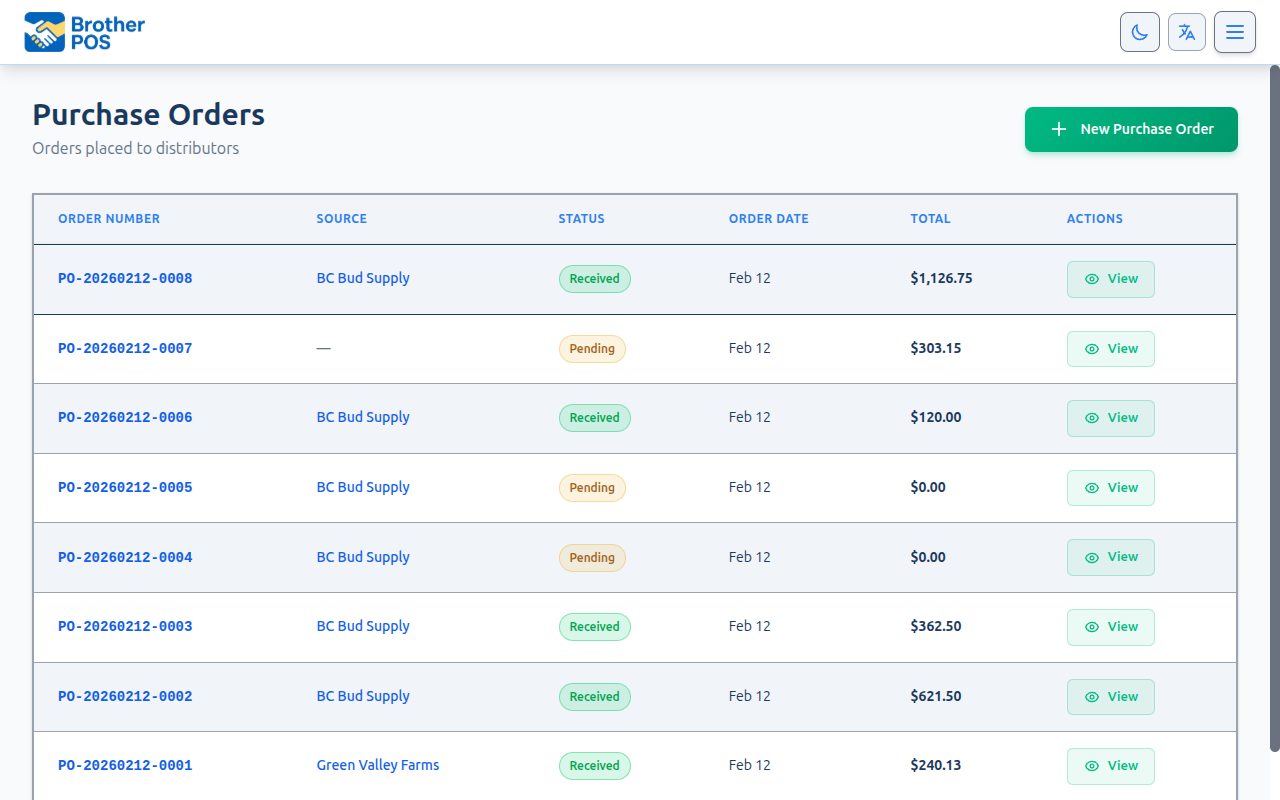
Use this page to write up an order for a supplier and then count the delivery into stock when it arrives.
Quick steps
To create a purchase order:
- Go to Products, click More Actions, then Purchase Orders (under Ordering & Transfers).
- Click New Purchase Order and pick the Supplier (optional).
- Click + Add Item, search for the product, and enter the Quantity and Unit Cost. Repeat for each product.
- Click Create Purchase Order. It is saved as Pending.
To receive the delivery:
- Open the purchase order and click Receive Order (or Receive Remaining Items if some already came in).
- Enter the Quantity Received for each line — what actually arrived, even if it differs from what you ordered.
- For any New product line, pick a Category and check Your price.
- Click Complete Receiving and confirm. Stock goes up right away.
Send the purchase order to your supplier yourself (email, phone, their portal). The list has an Export CSV button if you need it as a file.
Common questions
Only part of the order came in. What do I do? Receive what arrived. The order becomes Partially Received, and later you click Receive Remaining Items to count the rest.
More arrived than I ordered. Receive what is really in the box. The extra is added to stock and shows on the Receiving Variance report so you can settle it with the supplier.
Can I change an order after I create it? Yes — click Edit Order. Lines that have already been received are locked; on a fully received order only the notes can be changed.
How do I cancel an order? Open it and click Cancel Order. This only works while nothing has been received. After that, delete the order instead and choose Delete & Keep Stock or Delete & Reverse Stock.
I order from a distributor that also uses Brother POS. Don't use New Purchase Order — use the Order from [distributor] button on the Purchase Orders list so the order actually reaches them.
More detail: ordered, invoiced and received, and order statuses
Purchase orders (POs) formalize your requests to suppliers and provide a structured way to receive inventory into your store. When you receive a shipment against a PO, stock levels are updated automatically and the receiving details are recorded for your records.
Every line on a purchase order carries three quantities, and they are allowed to disagree:
| What it is | How it gets filled in | |
|---|---|---|
| Ordered | What you asked the supplier for. | You, when you create the PO. |
| Invoiced | What the supplier billed you for. | Uploading their invoice through Smart Receiving. |
| Received | What physically turned up and was counted in. | Receiving the order, or Scan to Receive pointed at the order. |
Where they disagree, the Receiving Variance report shows the gap and what it is worth in money.
Purchase Order Workflow
The typical purchase order lifecycle:
Pending  -->  Partially Received  -->  Received
         -->  Received
         -->  Cancelled
A purchase order you type in yourself stays Pending until you receive it (or cancel it) — you don't move it along by hand. Confirmed and Shipped are only filled in for you on an order placed with a distributor that also runs Brother POS, where the order follows the distributor's progress. An order created from a supplier invoice with Smart Receiving starts at Confirmed.
| Status | Meaning |
|---|---|
| Pending | PO has been placed and nothing has been received yet. |
| Confirmed | The distributor has approved the order (or it was created from a supplier invoice). |
| Shipped | The distributor has shipped the order. |
| Partially Received | Some line items were received but the order is not yet complete. Stock has been updated for the received items; the remaining items can still be received later. |
| Received | All items have been received. Stock has been updated. |
| Cancelled | PO was cancelled before completion. |
More detail: creating a purchase order, field by field
Creating a Purchase Order
- Go to the Products page, click More Actions, then Purchase Orders under Ordering & Transfers.
- Click New Purchase Order.
Step 1: Select the Supplier
- Choose the Supplier from the dropdown. It's optional — you can leave it on — No Supplier —.
- If the supplier does not exist, click the + New button next to the dropdown to create a supplier without leaving the PO form. Enter the supplier name and details, then click Create Supplier.
Tick Per-item suppliers to assign a different supplier to each line item on the same order.
Step 2: Add Line Items
-
Click + Add Item to add a product to the PO.
-
Search for an existing product by name or SKU, or create a new product directly from the PO form with the buttons beside the search box:
- + Product — Creates a simple product. Only the product name is required; additional fields (SKU, unit type, retail price, categories, brand) are available under "More Options".
- + Variable — Creates a parent product for variations.
- + Variation — Creates a child variation linked to an existing parent product.
Whatever you typed into the search box becomes the new product's Product Name, so you don't have to type it again. A name you've already entered is left alone.
-
If the product has variations, select the specific variation.
-
Enter the Quantity — how many units you want to order.
-
Enter the Unit Cost — the price per unit you expect to pay. This fills in with what you last paid for the product (from this supplier, if you've ordered it from them before), or else the product's saved cost, and shows Changed from saved cost if you enter something different.
-
The Line Total is calculated automatically (quantity x unit cost), but you can edit it directly if the actual total differs (e.g., for bulk pricing adjustments).
-
To remove a line item, click the remove button on the line item row.
-
Repeat for each product you want to order.
If consignment is enabled in your store, each line item has a Consign checkbox. Check this to flag the item as consignment stock. Consignment items are tracked separately from regular inventory when received. See Consignment for details.
Step 3: Add PO Details
| Field | Description |
|---|---|
| Order Date | When the order is placed. Starts on the current date and time. |
| Notes | Internal notes or special instructions for the order. |
| Shipping and Tax | Optional amounts added to the order's Total, under the line items. |
You don't enter a PO number: one is given to the order automatically when you create it (for example PO-20260923-0001).
Step 4: Submit the Order
Click Create Purchase Order. The PO is created with status Pending.
Brother POS does not send POs to suppliers. You handle delivery of the PO yourself. The Purchase Orders list has an Export CSV button if you need the orders as a file.
More detail: ordering from a distributor on Brother POS
Ordering From a Distributor on Brother POS
If your store is connected to a distributor or co-op that also runs Brother POS, don't type the order in with New Purchase Order — a typed-in PO is never sent to anyone. Order from the distributor's catalog instead:
- On the Purchase Orders list, click Order from [distributor]. There is one button for each active distributor you're connected to.
- Or open that distributor's orders (Orders from [distributor], from the Orders button on its card under My Distributor Connections) and click New order from [distributor].
Placing the order creates the purchase order for you, with the distributor's order number, prices and tax, and keeps its status in step with the distributor. A few things work differently on these orders:
| Order from a distributor on Brother POS | |
|---|---|
| Editing | No Edit Order and no removing lines — the lines and prices are the distributor's. |
| Cancelling | Only while the distributor hasn't approved it yet; it's cancelled at the distributor too. After that, ask the distributor. |
| Deleting | Only once the order is cancelled or finished with the distributor — and never once you've received any of it or the distributor has invoiced it. |
| Receiving | Only once the distributor has approved it. Products you don't stock yet are created with their photo, description and details, and you set Your price for each. |
| Invoice | The distributor's invoice appears in an Invoice box on the order, with its balance and due date. |
See Retailer Features for the whole flow.
More detail: receiving, costs, and variances
Receiving Inventory Against a PO
When a shipment arrives from the supplier:
- Go to the Products page, click More Actions, then Purchase Orders under Ordering & Transfers.
- Find the PO (filter by status, supplier or date).
- Click the PO to open it.
- Click Receive Order (or Receive Remaining Items on a partially received order).
The Receiving View
The receiving view analyzes line items for existing vs new products. It shows which items match existing products in your catalog and which would need to be created as new products.
Receiving the Order
- If your store tracks stock by location, pick where the delivery goes under Receive into. It starts on the Sales Floor, which is ready to sell; stock put in the back can be moved to the floor later.
- Review the line items and their product matches. Each line is marked Already stocked (it goes onto a product you already stock, with your Current and After stock shown) or New product (a product will be created).
- For each line item, enter the Quantity Received — it starts at what's still outstanding, and may differ from the ordered quantity. If the supplier sells by the case, the box is in cases and the page shows how many retail units that makes.
- Check the cost box beside it (Cost per unit, Cost per case for a case line, or Cost per g for a weighed product). It starts at the order's price. If the invoice says something different, type what you really paid: it becomes the line's price and the stock's cost. Leave it blank to keep the order's price. It has to be a plain number, like 12 or 4.50.
- A line set to 0, or left empty, is skipped: nothing on it is received.
- For a New product, pick its Category (if you don't, it goes under Uncategorized), and check Your price — the price it will sell for. It is filled in with the retail price on the order line if there is one (for a distributor on Brother POS, their suggested shelf price). Otherwise, once your store has enough priced products to work out your usual markup, it is filled in with that markup on the cost, rounded to .99. It shows your margin as you type. Leave it blank and the product is created but not for sale until you price it. (Products priced by quality tier don't show this box.)
- Click Complete Receiving and confirm.
Partial receiving is supported. You can receive fewer items than ordered on each line item. The system tracks the quantity received per line and updates stock accordingly.
When you click Receive Remaining Items, only the lines that still have something owed are shown, and each one starts at what's still outstanding — ordered 10, received 6, it offers 4. Lines already complete aren't received again. A quantity box you leave empty means none of that line arrived this time.
What Happens on Receipt
- Stock is updated — The received quantities are added to each product's current stock.
- PO status updates — The status changes to Received, or Partially Received if some lines are still outstanding.
- What you paid is recorded with the stock — Each received line records a cost per unit, taken from the line's Unit Cost (or the cost you typed while receiving). Where the line was priced by the case, that price is spread over the units that actually land on the shelf: a case of 12 at $60 records $5 a unit. A line with no unit cost records no cost at all, rather than showing the stock as free.
- The product's cost is updated — What you paid is averaged into the product's Cost per unit, weighted by how much you already had. With 10 on hand at $4 and 10 more received at $5, the cost becomes $4.50. A product created while receiving simply takes what you paid per shelf unit. If its line has no unit cost, its cost is left blank — the retail price on the line is used only as its selling price, never as its cost.
- Each line is flagged — Short, over, or exactly right. See Variances below.
- A stock history record is created — Each received line is recorded as a stock receive, with the user and the quantities ordered and received.
- A fully received order can't be received twice — Once the order is marked Received, pressing Receive again, or a retry of a slow page, does not add the stock a second time.
Each delivery's cost is also kept against that stock movement, so the product's Inventory tab shows what that delivery cost under Cost per unit and Value. See Stock Adjustments.
Variances: Short, Over and Never Ordered
Receiving records what actually arrived, even when that is not what the order said.
| Flag | When | What Brother POS does |
|---|---|---|
| Short | Fewer arrived than were ordered. | The line stays open so the rest can be received later. |
| Over | More arrived than were ordered. | The extra is added to stock and recorded, not trimmed away. Receiving used to cap at the ordered quantity, which left the surplus units invisible and your stock understated. |
| Never ordered | Something arrived that is on no line of the order. | When you receive with Scan to Receive pointed at the order, a new line is added to the order for it, so it is counted and visible rather than dropped. The Receiving Variance report marks that line Not ordered. |
If you ordered 10 and 12 arrived, receive 12. The two extra units are a real thing sitting on your shelf, and recording them is what keeps the shelf and the system agreeing. The over-shipment then shows on the Receiving Variance report so you can settle it with the supplier.
Matching Lines to Products
A line Brother POS could not tie to a product in your catalogue — typically a line read from a supplier invoice by Smart Receiving, or one that found no match when you completed receiving — appears at the top of the receiving screen under item(s) need matching before receiving. Nothing is received against those lines until you resolve them; the rest of the order can still be received. For each one you can:
- Click one of the suggested Match to products, if the guess is right.
- Type into the catalogue search box and pick the product it really is.
- Click Create as new product, for something you genuinely have never stocked.
Creating a new product for something you already sell splits your stock across two records. Use the search box first.
Whenever you resolve a line to an existing product, Brother POS remembers that supplier's code for it and, when the order has a supplier, their wording for it. The next delivery from the same supplier matches on its own. See Smart Receiving for how that learning works.
More detail: finding, editing and cancelling orders
Managing Purchase Orders
Viewing PO History
- Go to the Products page, click More Actions, then Purchase Orders under Ordering & Transfers.
- The PO list shows all purchase orders. Click the order number, order date or total column heading to sort by it.
- Opened from a distributor's Orders button, the list is titled Orders from [distributor] and shows only that distributor's orders. The filters stay on that distributor, and All purchase orders takes you back to the full list.
- Use filters to narrow the list:
- Status — Pending, Confirmed, Shipped, Partially Received, Received, Cancelled.
- Supplier — Filter by a specific supplier (not shown on a distributor's list).
- Date range — View POs within a specific time period.
Editing a PO
- Open the PO.
- Click Edit Order.
- Add, remove, or modify line items, quantities, costs, and notes.
- Save your changes.
Edit Order is offered on Pending, Confirmed, Shipped and Partially Received orders. It is not offered on a cancelled order, or on an order from a distributor on Brother POS (see Ordering From a Distributor on Brother POS).
A line that has been received keeps the quantity and cost the stock came in at. On a partially received order, those lines show Received X of Y — locked; you can still change the lines still to come, add lines and edit the notes. A fully received order offers Edit Notes instead of Edit Order: only its notes can be changed.
To correct what a received item cost, change the cost on the product's page. If a whole delivery was entered wrong, delete the order with Delete & Reverse Stock and enter it again.
Cancelling a PO
If you no longer need the order:
- Open the PO.
- Click Cancel Order.
- Confirm the cancellation.
- The status changes to Cancelled.
Cancel Order is only available while nothing on the order has been received — and, for an order from a distributor on Brother POS, only until the distributor approves it. For an order that has already received stock, use the delete option on the order instead: it asks whether to Delete & Keep Stock or Delete & Reverse Stock.
Purchase Order Reports
The Receiving Variance report (Reports > Receiving Variance) puts ordered, invoiced and received side by side for every line, filters by supplier, and totals the money at stake on short shipments, over shipments and items that were billed but never arrived. It exports to CSV for your bookkeeper or for the supplier's accounts department.
If you need to receive inventory quickly without creating a purchase order first, use Scan to Receive. It lets you scan barcodes, build a receiving list, and update stock in a single batch. Point it at a purchase order and the receipt is written onto that order's lines, with shortages, overages and unordered items flagged for you.
Smart Receiving reads a supplier invoice — a PDF, a scan, or a photo taken on your phone — and turns it into purchase order lines with the quantities and costs you were billed. It never touches stock; you still receive the delivery by counting it. If it is switched on for your store, it is the fastest way to get the invoiced column filled in.
Best Practices
- Always use POs for receiving. Avoid manually adjusting stock when receiving supplier shipments. POs create a proper paper trail.
- Verify counts at receiving. Count every item in the shipment. Do not assume the supplier sent the correct quantity.
- Note discrepancies. If the shipment quantity does not match the PO, receive what actually arrived and add a note to the order.
- Review pending POs regularly. Orders that have sat at Pending for a long time may indicate a supplier issue.
- Attach the supplier's invoice. Without it, Brother POS can only compare what you ordered against what arrived — it cannot tell you whether you were billed correctly, and the money figures on the variance report can only be estimated.
- Check the Receiving Variance report weekly. A short shipment is far easier to argue three days after it happened than at month end.
What's Next?
- Stock Adjustments — Correct stock manually when needed.
- Stock Transfers — Move stock between stores.
- Low Stock Alerts — Get notified when it is time to reorder.
- Smart Receiving — Upload a supplier invoice and have it read into purchase order lines.
- Receiving Variance — Ordered vs invoiced vs received, and what the gaps are worth.
- Scan to Receive — Fast barcode-driven receiving without creating a PO first.
- Categories & Brands — Set up suppliers before creating POs.
- Consignment — Track consignment inventory received through POs.