Categories & Brands
Use this page to set up the categories and brands that organize your products, so cashiers can find things fast on the register.
Quick steps
To add a category:
- Go to Products and click the Categories button at the top.
- Click New Category and type the Name (for example, "Edibles").
- To make it a subcategory, pick a Parent Category. Otherwise leave None (Main Category).
- Set the Sort Order (lower numbers show first) and tick Active.
- Click Create Category.
To add a brand:
- Go to Products > More Actions > Manage Brands.
- Click Add New Brand, type the Name, and click Create Brand.
To put a product in a category or brand: open the product, go to the Details tab, tick its categories, pick the Brand, and click Update Product.
Five to ten categories suits most stores. Too many clutters the register.
Common questions
Why is there no Delete button on my category? Delete only shows on a category with no products and no subcategories. Move its products to another category first.
Can a product be in more than one category? Yes. Tick every category it belongs to. Ticking a subcategory also ticks its parent.
How do I change the order on the register? On the Categories page, drag a category by its handle to where you want it. It moves with its subcategories.
Can I add a category to lots of products at once? Yes — use Products > More Actions > Bulk Operations and Assign category (admins). See Bulk Operations. There is no bulk brand change; use CSV Import for that.
I can't open the Categories page. You need the Manage Categories permission. Managers have it by default.
More detail: who can use these pages, and categories in full
The Categories page is open to Admins, storefront owners and any role with the Manage Categories permission, which Managers have by default. Everyone who can open the page sees the Categories button at the top of the Products page. Managers can also manage Brands and Suppliers.
Categories and brands are the primary tools for organizing your product catalog. Well-organized categories make it faster for cashiers to find products on the POS register, and brands help with supplier management, reporting, and customer-facing displays.
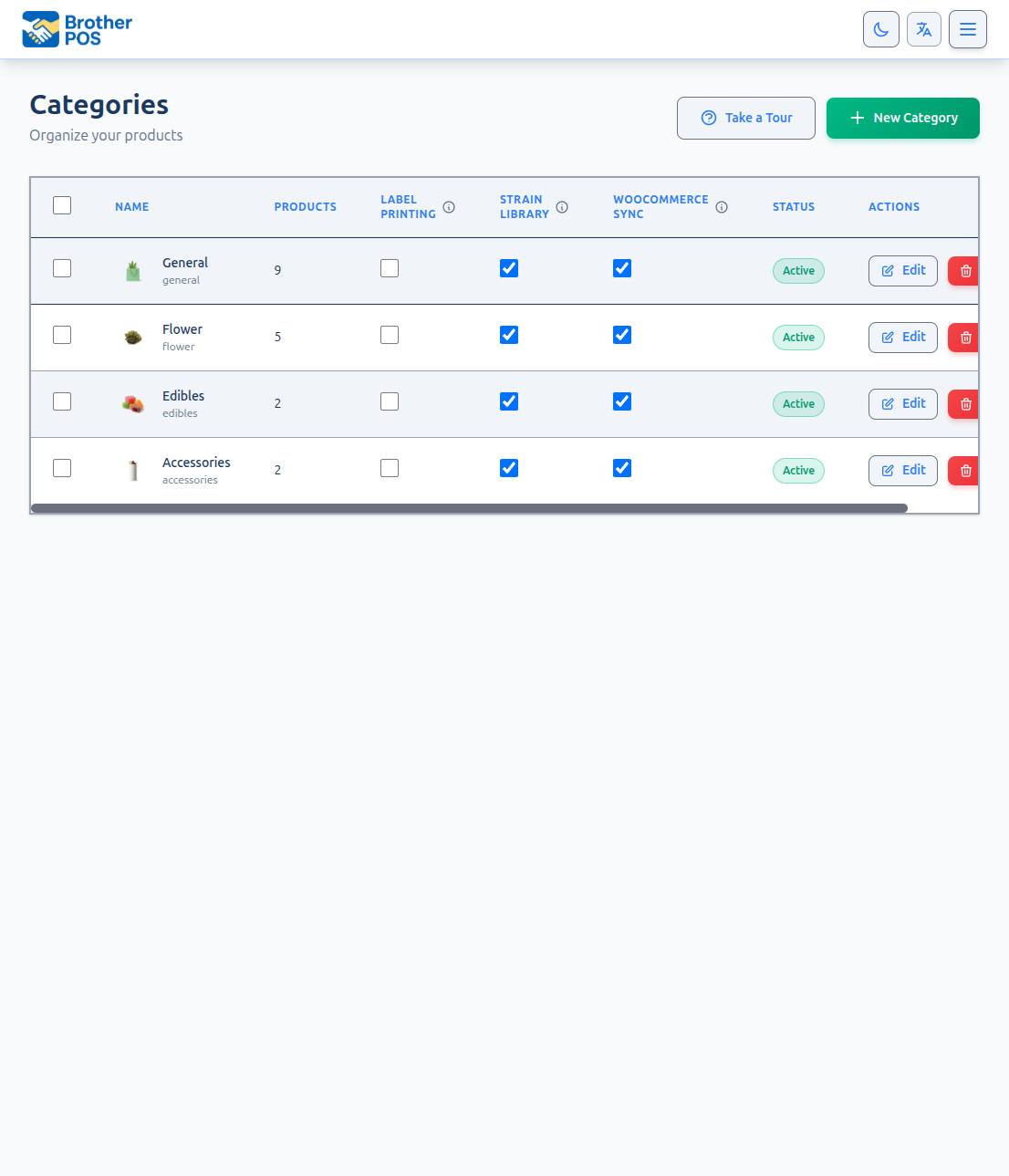
Categories
Categories group products by type. On the POS register, cashiers tap a category to narrow the product grid.
Typical Cannabis Dispensary Categories
| Category | Products |
|---|---|
| Flower | Dried cannabis buds (various sizes) |
| Pre-Rolls | Pre-rolled joints, multi-packs |
| Edibles | Gummies, chocolates, baked goods, beverages |
| Concentrates | Shatter, wax, live resin, hash |
| Vapes | Cartridges, disposable pens, pods |
| Topicals | Creams, balms, lotions, patches |
| Accessories | Papers, grinders, pipes, storage |
| Seeds | Cannabis seeds for home cultivation |
Your store can create any categories that make sense for your product mix.
Creating a Category
- Navigate to Products in the top navigation bar, then click the Categories button at the top of the page.
- Click New Category.
- Enter the Name (e.g., "Edibles").
- Optionally select a Parent Category to nest this as a subcategory. Leave it on None (Main Category) for a main category.
- For main categories, optionally pick a Category Icon.
- Set the Sort Order (lower numbers appear first), and the Active, Loyalty Eligible and Age Restricted checkboxes. Age Restricted makes the register ask to check the customer's age for the category's products when age verification is on (see Age Verification).
- Click Create Category.
The Category List
The Categories page lists your main categories with their subcategories indented underneath, and how many products each one has. A category that's switched off carries an Inactive badge. Depending on your store's features, switches on each row turn label printing, the strain library, WooCommerce sync, the storefront or online menu, and kitchen routing on or off for that category.
At the top are New Category and More Actions (Export CSV and the tour).
Changing the Order
Drag a category by its handle (Drag to reorder) and let go where you want it. A line shows whether it will go above or below the row you're over. A category always moves with all of its subcategories.
Dragging changes the order among categories at the same level. When you drag a main category over another category's subcategories, it's placed above or below that whole group. To move a category under a different parent, edit it and change Parent Category instead.
You can also set the order with Sort Order when you edit a category. Lower numbers come first.
Editing a Category
- Navigate to Products > Categories.
- Click Edit on the category's row.
- Update the name, parent category, icon, active status, or other fields.
- Click Update Category.
Renaming a category updates it everywhere — the product list, the POS register, and reports all show the new name.
Deleting a Category
- Navigate to Products > Categories.
- Click Delete on the category's row and confirm.
Delete only shows on categories with no products and no subcategories. To delete one that has them, move its products to another category and remove or move its subcategories first.
A category that a running deal or loyalty reward still uses can't be deleted either — the deal would quietly stop working. The message names the deal, for example "Flower is still used by Buy 2 oz Get 1. Change or end those deals first." Deals that have ended or been switched off don't count.
Ticking categories and clicking Delete Selected deletes the ones that are empty. Any category that still has products is kept, and the result names it: "Kept Vapes: they still have products. Move the products first, so they keep the right tax and rules." Products take things like additional tax, the age check and loyalty and kitchen rules from their category, so they aren't moved anywhere without you choosing where.
A category with subcategories but no products of its own is deleted, and its subcategories move up a level. A category that a running deal or reward still uses is kept too, and the result says so: "Kept Flower: a deal or reward still uses them." The Uncategorized category is never deleted.
Category Best Practices
- Keep it simple. Five to ten categories is ideal for most stores. Too many categories clutter the POS.
- Use clear names. Avoid abbreviations. "Pre-Rolls" is better than "PRs".
- Use categories effectively. Products can belong to multiple categories, which is useful when a product fits into more than one grouping (e.g., a pre-roll could be in both "Pre-Rolls" and "Indica"). However, avoid excessive cross-categorization that makes the catalog confusing.
- Review periodically. As your product mix evolves, consolidate or rename categories to keep the POS organized.
More detail: brands, and creating them on the fly
Brands
Brands identify the manufacturer or producer of a product. Brands are useful for:
- Filtering products by brand on the POS and in the admin panel.
- Brand reporting (e.g., which brands sell the most).
- Customer requests (e.g., "I want something from Brand X").
- Supplier management (brands often map to suppliers).
Creating a Brand
- Navigate to Products in the top navigation bar.
- Click the More Actions dropdown, then select Manage Brands.
- Click Add New Brand at the top of the page.
- Enter the brand Name (e.g., "Green Growers") and, optionally, a Description.
- Click Create Brand.
Editing a Brand
- Navigate to Products > More Actions > Manage Brands.
- Click the pencil icon on the brand's row.
- Update the name or description.
- Click Update Brand.
Deleting a Brand
- Navigate to Products > More Actions > Manage Brands.
- Click the trash icon on the brand's row and confirm.
Brands with products can't be deleted — the message tells you how many products still use it. Remove the brand from those products first. You can also tick several brands and click Delete Selected; any brand that still has products is skipped and named in the result.
Quick-Creating Categories and Brands
You do not always need to visit the dedicated management pages. Categories and brands can be created on the fly:
- While creating or editing a product — Click Add Category or Add Brand beside the category list or brand dropdown. A small window opens where you enter the name, and the new category or brand is ready to pick straight away.
- During CSV import — If a category or brand name in your CSV does not exist, the importer creates it automatically.
Creating categories and brands inline is convenient for one-offs. For bulk setup (e.g., when onboarding a new store), use the dedicated management pages for better control.
More detail: assigning categories and brands to products
Assigning Categories and Brands to Products
Single Product
- Open the product and go to the Details tab.
- Tick the categories the product belongs to.
- Select the Brand from the dropdown.
- Click Update Product.
The category list is a tree:
- Ticking a subcategory also ticks its parent — a product in "Sativa" is also in "Flower".
- Unticking a parent unticks every subcategory under it, so you can remove a category and its subcategories in one save.
The same rules apply in the category picker on the product list. In the new product wizard, ticking a subcategory ticks its parent and locks it — untick the subcategory first if you want to remove the parent.
Multiple Products (Bulk)
To add a category to many products at once, use Products > More Actions > Bulk Operations, pick the products, and use Assign category. The category is added to each product; categories they already have are kept. See Bulk Operations.
There is no bulk brand change. To change the brand on many products, edit each product or use CSV Import with an updated brand column.
Via CSV Import
Include the category and brand columns in your CSV file. Products are assigned to the specified category and brand during import.
See CSV Import for the full CSV format.
More detail: categories and brands in reports
Categories and Brands in Reports
The Sales report includes:
- Top Products — Your best sellers.
- Brand Performance — Revenue, items sold, number of sales, average sale value and share of revenue for each brand.
- Category Performance — The same figures for each category.
The Inventory report also shows Inventory Value by Category.
Accurate category and brand assignments lead to more useful reports.
More detail: suppliers
Suppliers
While not a category or brand, suppliers are a related organizational concept. Suppliers represent the companies you purchase inventory from. Admins and Managers can manage them.
Creating a Supplier
- Navigate to Products > More Actions > Suppliers.
- Click Add Supplier.
- Enter the supplier details:
- Name (required)
- Contact Person
- Phone
- Account Number — your account number with this supplier
- Address
- Notes — payment terms, delivery schedule, etc.
- Active
- Click Create Supplier.
Suppliers on Products
A product can have a Preferred Supplier, set on the product's Inventory tab. The new product wizard also offers Preferred supplier (optional) once you have at least one supplier. The preferred supplier is used when purchase orders are generated automatically.
Suppliers are also used when creating Purchase Orders.
What's Next?
- Creating Products — Create new products with categories and brands.
- Bulk Operations — Assign a category to many products at once.
- CSV Import — Import products with category and brand assignments.
- Managing Products — Browse your organized product catalog.
- Purchase Orders — Order from suppliers.