CSV Export
Use this page to download your product catalog as a spreadsheet file — for a backup, a price review, or to edit and import back.
Quick steps
- Go to Products.
- To export everything, clear any search or filters first. (A filtered list exports only the products shown.)
- Click More Actions (the ⋮ button).
- Under Export, click Product Catalog (CSV). The file downloads straight away.
- Open it in Google Sheets, Excel or another spreadsheet program.
To edit and bring the changes back in, save the file as CSV and use CSV Import. Products are matched by SKU.
Excel can turn a SKU like 007 into 7. Set the SKU and barcode columns to Text when you open the file.
Common questions
What's the difference between Product Catalog (CSV) and Inventory Report (CSV)? Product Catalog (CSV) is your full product list, ready to edit and re-import. Inventory Report (CSV) is a stock-value report (stock, cost, value) for checking or sending to an accountant — it isn't meant to be re-imported.
Are inactive products included? Yes, unless you've filtered the list to Active only.
How do I print a stock list for counting? Use More Actions > Inventory List (Print). It opens a printable list grouped by category. See Printing a stock list.
A column I expected isn't there. Some columns only appear when the matching feature is switched on for your store — for example, cannabis details or weight presets.
More detail: the export options and which products are included
CSV export downloads your product catalog as a spreadsheet file. Use it for backups, offline price reviews, bulk editing (re-import after changes), or sharing product data with suppliers and partners.
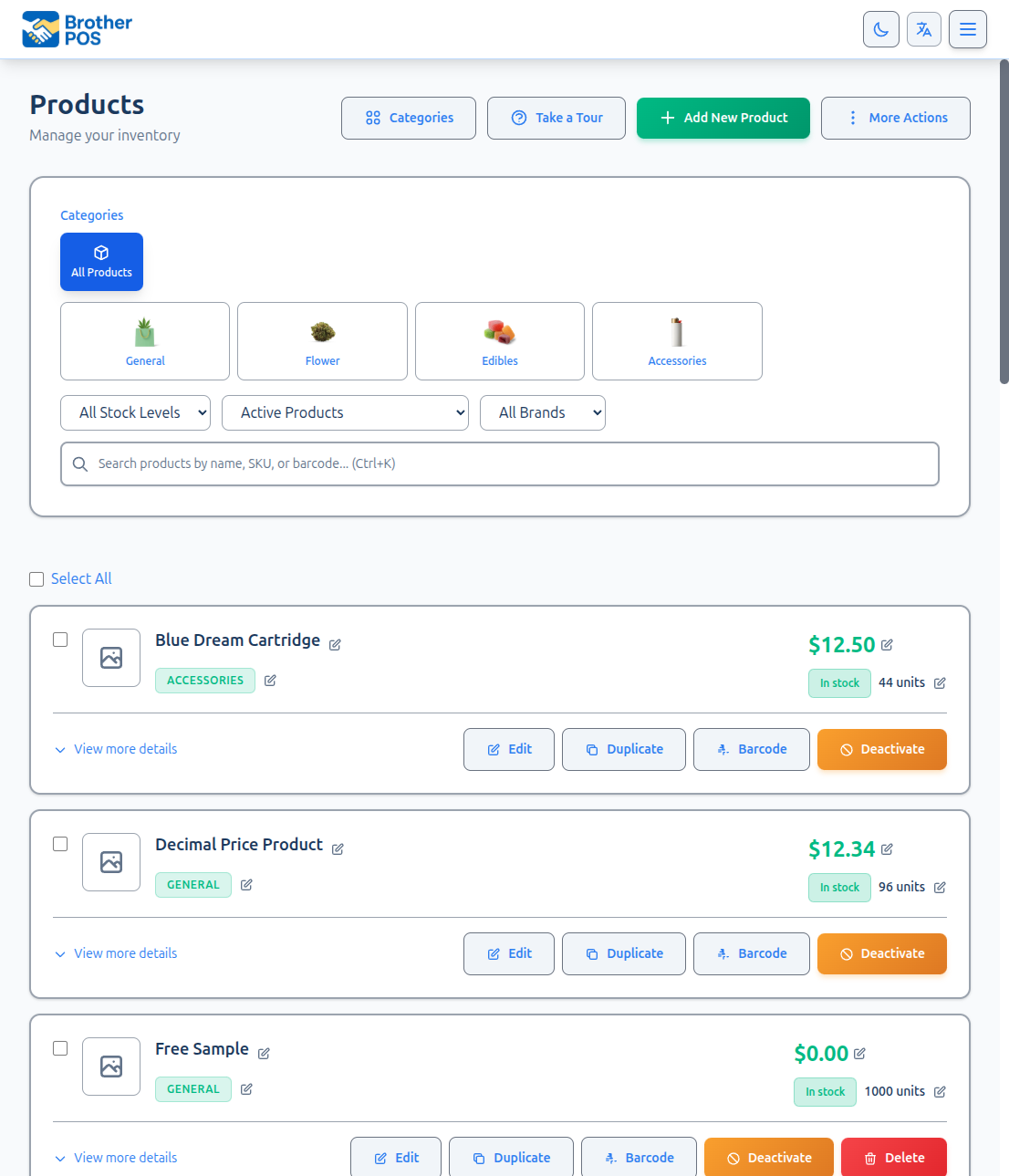
Exporting Your Catalog
- Go to Products in the top navigation bar.
- Click More Actions (the ⋮ button).
- Under Export, click Product Catalog (CSV).
The file downloads straight away — there's no options window and no column picker.
- Inventory Report (CSV) is a stock-on-hand valuation report: SKU, name, category, current stock, low stock level, unit cost, retail price and stock value. It isn't meant to be re-imported. Use Product Catalog (CSV) when you want to edit and re-import.
- Inventory List (Print) opens the same stock list in a new tab, laid out for paper. See Printing a stock list.
Which Products Are Included
Product Catalog (CSV) downloads the products the list is showing. With no search or filter, that is every product in your store, both active and inactive. With a search or filter on — a category, a brand, a stock status, Active only — the file holds just those products.
To export the whole catalog, clear the search and filters first.
Each product with variations is followed by its variations, one row each (for example the 1g, 3.5g and 7g options), with their own SKU, stock, price and cost. A variation's row has its parent's SKU in parent_sku and its own variation_name, so a re-import puts it back under the right product.
More detail: file format and every column
File Format
| Property | Details |
|---|---|
| File name | products-<date>.csv, e.g. products-2026-09-15.csv |
| Encoding | UTF-8 |
| Delimiter | Comma (,) |
| Header row | The first row holds the column names |
| Quoting | Every value is wrapped in double quotes |
| Rows | One row per product, and one per variation under its parent |
Columns Always Included
In this order:
| Column | Description |
|---|---|
sku | SKU |
name | Product name |
brand | Brand name |
description | Product description |
price | Pre-tax selling price |
cost | Cost |
unit_type | How the product is measured |
product_type | Product structure (for example simple or variable) |
category_names | Categories with their full path (e.g., "Cigarettes > Cigars > test"), separated by commas if there are several |
barcode | Barcode |
current_stock | Quantity on hand |
low_stock_threshold | Low stock alert level |
active | true or false |
parent_sku | Parent product SKU (blank for main products) |
variation_name | Variation name |
box_quantity | Box/case quantity |
primary_image_url | Link to the main product image |
gallery_image_urls | Links to gallery images, separated by vertical bars |
is_freebie_only | Whether the product is freebie-only |
auto_print_label_on_sale | Auto-print label setting |
sale_discount_type | Sale discount type |
sale_discount_value | Sale discount value |
sale_starts_at | Sale start (date and time) |
sale_ends_at | Sale end (date and time) |
sale_reason | Sale reason text |
Columns That Depend on Your Features
These are added after the columns above, in this order, only when the feature is on:
| When | Columns |
|---|---|
| Cannabis features on | is_cannabis_product, product_format, strain_type, package_size, thc_content, cbd_content, thc_unit, cbd_unit, thc_min, thc_max, cbd_min, cbd_max, dominant_terpene, effects_data, medical_benefits_data |
| Weight presets on | use_weight_presets, weight_display_unit, price_unit, weight_value, weight_preset_barcodes, weight_presets_data |
| Quality tiers on | quality_tier, uses_tiered_pricing, tiered_pricing_data |
| Always | uses_quantity_pricing, quantity_pricing_data, quantity_pricing_mode |
| Your store is a distributor, or distributor ordering is on | wholesale_price, wholesale_enabled, minimum_order_quantity, volume_pricing |
| An SLGA site ID is set, or compliance reporting is on | lot_number, expiry_date, lab_tested, equivalent_grams, pst_exempt |
| Multi-location inventory on | warehouse_location_name |
| Modifiers on | modifier_list_names (separated by vertical bars) |
| Units of measure on | uom_template, uom_levels — see CSV Import for the format |
Columns ending in _data, plus volume_pricing and weight_preset_barcodes, contain structured pricing or preset details. Edit them carefully — or leave them as they are — if you plan to re-import.
Example (first few columns only):
"sku","name","brand","description","price","cost"
"BD-001","Blue Dream","Green Farms","Sativa-dominant hybrid","12.99","8.00"
"GUM-010","Mango Gummies","Sweet Leaf","10 pack","6.50","3.25"
More detail: printing a stock list
Printing a Stock List
Products → More Actions → Inventory List (Print) opens a printable stock list in a new tab, with a Print button at the top. It covers every product in the store — your product list filters don't apply to it.
- Products are grouped by category, so the sheet can be read shelf by shelf.
- Each row shows SKU, Product, In stock, Cost, Price and Value. A ▼ marks a product at or below its low stock level.
- Each category ends with a Subtotal, and the last line is the Total value at cost.
The printout and Inventory Report (CSV) are built from the same figures, so they always agree. Value is stock × the product's average cost (or its typed cost when nothing has been received at a price). Bundles and products with variations are listed but valued at nothing — their components and variations are valued on their own rows — and stock below zero isn't valued.
More detail: working with the file, use cases and troubleshooting
Working with the Exported File
Opening in a Spreadsheet Application
- Google Sheets — File > Import > Upload > select the CSV file. Choose "Comma" as the separator.
- Microsoft Excel — File > Open > select the CSV file. If the Text Import Wizard appears, choose "Comma" delimited.
- LibreOffice Calc — File > Open > select the CSV file. Confirm UTF-8 encoding and a comma separator.
Microsoft Excel may strip leading zeros from SKUs and barcodes (e.g., changing 007 to 7). To prevent this, import through Data > From Text and set those columns to Text.
Editing and Re-Importing
- Export your catalog.
- Open it in a spreadsheet application.
- Make your changes (update prices, change categories, add new products).
- Save as CSV (UTF-8, comma-delimited).
- Import the updated CSV.
The importer matches rows to existing products by SKU, so existing products are updated and new SKUs create new products.
Use Cases
| Use Case | How to Do It |
|---|---|
| Catalog backup | Export and save the file somewhere safe. |
| Price review | Export, review and adjust the price column in a spreadsheet, then re-import. |
| Supplier reorder list | Export Inventory Report (CSV) and filter its Low Stock? column to "Yes" in your spreadsheet. |
| Migration to another system | Export, then reformat the columns to match the other system's import format. |
| Seasonal audit | Export, filter the spreadsheet to a category, and review for items to deactivate. |
| Share with your accountant | Use Inventory Report (CSV) for stock value. |
Troubleshooting
| Issue | Solution |
|---|---|
| Characters look garbled | The file was opened without UTF-8 encoding. Re-open it and choose UTF-8. |
| SKUs lost leading zeros | Set the SKU column to Text when opening the file (see the Excel tip above). |
| A column I expected isn't there | Some columns only appear when the matching feature is on — see the table above. |
What's Next?
- CSV Import — Re-import your edited CSV to apply changes.
- Managing Products — Browse your catalog in the admin panel.
- Bulk Operations — Make bulk changes without exporting and re-importing.