CSV Import
Use this page to add or update many products at once from a spreadsheet.
Quick steps
- Start from a file that already fits. On Products, open More Actions → Import from File, then download a template under Download Templates — or export your products and edit that file.
- Fill in one product per row. Each row needs at least a name and a price.
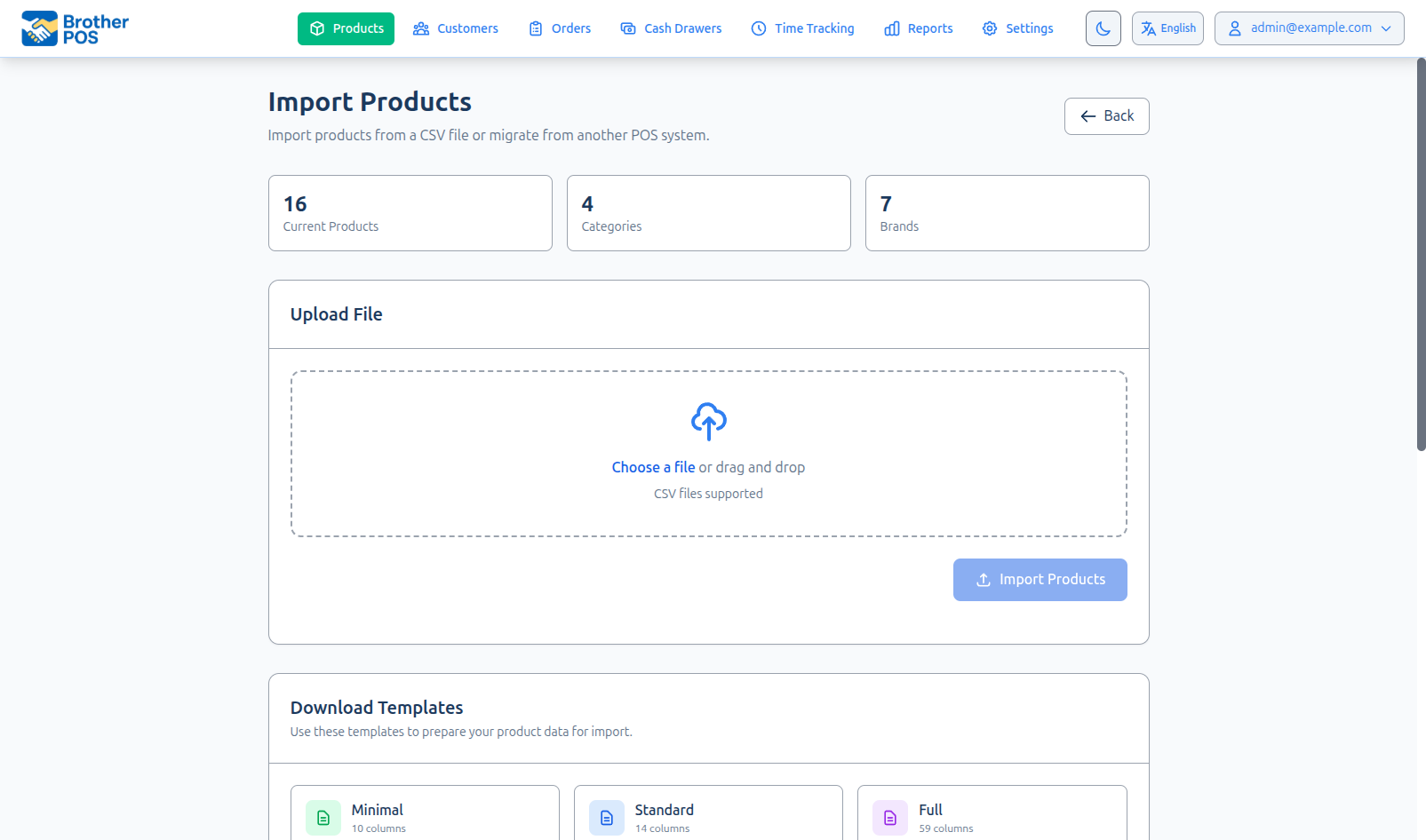
- Back on the Import Products page, click Choose a file (or drag the file onto the box). Excel
.xlsxfiles work too. - Check the Import Preview: how many are New, Updates, Restores and Errors. Rows with problems are listed underneath with their line number.
- Click Import Products. You can leave the page while it runs. At the end you'll see how many were imported and any rows that failed.
Import 5–10 products, check them on the Products page, then import the rest.
Common questions
Will it make duplicates of products I already have? No, if the SKU matches — a row with an existing SKU updates that product instead. Empty cells leave that field as it is.
Can I import from Square, Shopify or another system? Yes. Upload their export as-is — the importer recognises Square, Shopify, Lightspeed, WooCommerce, Squarespace, Wix and Clover files. See Clover POS Import for Clover.
Some rows were skipped. The error list gives the line number and reason for each. Fix those rows in your file and import it again.
Can I just update prices?
Yes. Export your products, keep only the sku, name and price columns, change the prices and import it back.
More detail: before you begin
CSV import lets you add or update many products at once by uploading a spreadsheet file. Anyone whose role has the Manage Products permission can use it. This is especially useful when onboarding a new store, migrating from another system, or receiving a large shipment from a supplier.
Before You Begin
Before importing, make sure you have:
- A CSV file formatted according to the requirements below.
- Categories and brands already created in Brother POS (or plan to let the import create them).
The easiest way to get the correct CSV format is to export your existing products first. The exported file uses the exact column structure the importer expects. Use it as a template.
Accessing the Import Tool
- Navigate to Products in the top navigation bar.
- Open the More Actions menu and click Import from File.
- The Import Products page opens. It also has Download Templates (Minimal, Standard and Full) you can fill in.
More detail: file format and every column
CSV File Requirements
File Format
| Requirement | Details |
|---|---|
| File type | .csv (comma-separated values) or .xlsx (Excel) |
| Encoding | UTF-8 (for CSV files) |
| Delimiter | Comma (,) for CSV files |
| Header row | Required — the first row must contain column names |
Main Columns
A file is read as a Brother POS file when its header row has both a name and a price column:
| Column Name | Description | Example |
|---|---|---|
name | Product display name | Blue Dream 3.5g |
price | Pre-tax selling price | 29.99 |
sku | Unique stock-keeping unit. If you leave it blank, a SKU is generated for you. Re-importing the same file then matches the product by its name (and variation name) instead of creating a copy. | BD-35-001 |
Every row needs at least a name or a sku; rows with neither are skipped.
Optional Columns
These columns are recognized by the importer but can be left empty:
| Column Name | Description | Example |
|---|---|---|
cost | Wholesale cost | 18.50 |
description | Product description text | Premium hybrid flower |
category_names | Category names, comma-separated for multiple (created if they do not exist). Write a subcategory as a path, such as Flower > Indica. category also works. | Flower |
brand | Brand name (created if it does not exist) | Green Growers |
supplier_name | Supplier name (free text field) | Valley Distributors |
unit_type | How the product is counted or measured (see below) | unit |
current_stock | Starting stock quantity | 50 |
low_stock_threshold | Low stock alert threshold | 10 |
active | Whether the product is active: true or false | true |
strain_type | Cannabis strain: indica, sativa, hybrid, balanced or cbd | hybrid |
thc_content | THC potency as a decimal | 22.5 |
cbd_content | CBD potency as a decimal | 0.8 |
weight_value | Product weight value | 3.5 |
barcode | The product's barcode | 628000123456 |
primary_image_url | Web address of the product's main photo | https://example.com/bd.jpg |
gallery_image_urls | More photo web addresses, separated by | |
When a row updates an existing product and names some categories in category_names, the product's categories are replaced with those — so list every category you want it to keep. A row with no categories (or a file with no category_names column at all) leaves an existing product's categories as they are. Categories are only changed once the row has saved successfully, so a row that fails never loses its categories.
A new product with no categories goes into Uncategorized.
Units of Measure (Pack, Case)
If your store uses units of measure, two more columns set a product's levels. The Standard and Full templates include them, and so does an export, so you can edit an export and import it back. The import page explains them too.
| Column Name | Description | Example |
|---|---|---|
uom_levels | Each level as name:units:price, separated by |. Add a barcode as a fourth part, and not sold as a fifth for a level you only receive in. | Case:24:72.00|Can:1:3.50 |
uom_template | The name of one of your unit of measure templates. It gives the product that template's levels; prices still come from uom_levels or the product's Units of Measure page. | Beverage case |
A barcode example: Case:24:72.00:61234567. Levels are matched by name: a level in the cell is added, or corrected if the product already has one with that name. Levels the cell doesn't mention are left alone — an import never removes a level. A row with a level written wrongly, or naming a template you don't have, is refused before anything is saved. A level barcode that another product or level already uses refuses the whole row too, before anything is saved.
Stock Locations
If your store tracks stock by location (a Sales Floor and back stock), the import page explains these extra columns:
- With no location column, stock for a new product goes on the Sales Floor, so it can be sold right away.
- A
locationcolumn puts a row's stock somewhere else. Use the location's name or code, for exampleSales FloororStorage. - Or split it with
floor_stockandback_stockcolumns:floor_stockgoes on the Sales Floor andback_stockto your back stock. The product's stock is the two added together. Don't uselocationand these two on the same row. - For a product you already have, a stock change in the file is made at the location you name.
A location name the store doesn't have gets the row skipped, and the message lists the names you can use.
Unit Type Spellings
Other systems write units in different ways, so the importer accepts the common spellings. Capitals don't matter.
| Unit | Also accepted |
|---|---|
unit | Each, EA, units, ct, count, item, items, piece, pieces, pc, pcs |
g | gram, grams, gr, gm, gms |
oz | ounce, ounces, ozs |
lb | pound, pounds, lbs |
kg | kilo, kilos, kilogram, kilograms, kgs |
weight | bulk |
box | boxes |
case | cases |
pack | packs, pk, pkg, package, packages |
litre | liter, litres, liters, l, ltr |
gallon | gallons, gal |
A spelling not in this list is not guessed at. That row fails with an error, so you can fix the cell and import it again.
Variation Rows
To import products with variations, use the parent_sku column to link variation rows to their parent product. Variations are linked to parent products using the parent_sku column, not by grouping rows by product name.
| Column Name | Description | Example |
|---|---|---|
parent_sku | SKU of the parent product this variation belongs to | BD-001 |
variation_name | Name for this variation | 3.5g |
Example with variations:
name,sku,price,cost,category_names,variation_name,parent_sku,current_stock
Blue Dream,BD-001,0,0,Flower,,,0
Blue Dream 1g,BD-001-1G,12.99,8.00,Flower,1g,BD-001,100
Blue Dream 3.5g,BD-001-35G,29.99,18.50,Flower,3.5g,BD-001,50
Blue Dream 7g,BD-001-7G,54.99,35.00,Flower,7g,BD-001,25
The importer uses the parent_sku value to associate each variation with its parent product. The parent must already exist, or its row must come before its variations in the file — otherwise the variation isn't linked to it.
More detail: the import step by step
Import Process
Step 1: Upload the File
- Click Choose a file or drag and drop your file onto the upload area.
- The system analyzes the file and shows an Import Preview.
Step 2: Automatic Format Detection
Brother POS auto-detects the file format by examining the header row and file structure. Supported formats are:
| Format | Detection Method |
|---|---|
| Brother POS | Standard column headers (at least name and price) |
| Square | Square export column names |
| Shopify | Shopify export column names |
| Lightspeed | Lightspeed export column names |
| WooCommerce | WooCommerce export column names |
| Squarespace / Wix | Their export column names |
| Clover POS | .xlsx file with Items and Modifier Groups sheets |
No manual column mapping is needed. If the file doesn't match any of these, Brother POS tries to work out which column is which for you. Import a few rows first to check the result. For Clover imports, see Clover POS Import for the full guide including modifier group mapping.
In addition to .csv files, you can upload .xlsx (Excel) files. This is required for Clover imports and optional for other formats.
Step 3: Preview and Validate
Before importing, the preview counts:
- New — products that will be created.
- Updates — products that match existing SKUs.
- Restores — previously deleted products that will come back. A SKU that a live product still uses counts as an Update, even if a deleted product once had it too.
- Errors — rows that will be skipped. They're listed underneath under These rows will be skipped:, each with its line number and the reason — for example price must be a number (got "abc").
For a file in the Brother POS format, the preview checks every number column (price, cost, stock and so on) and, on stores that track stock by location, the location columns. A row with no SKU is always counted as New here, even if the import will match it to an existing product by name, and some problems, such as an unknown unit type, only show up after the import runs.
For an export from Square, Shopify, Lightspeed, Wix or Squarespace, rows are not skipped. The import brings in every row and changes anything it can't read — a price of "abc" comes in as $0.00. The preview lists these rows under These rows will import, but check them first:, each with its line number and what will happen. It warns about:
- A price or cost that isn't a number, with what it would import as — for example price "abc" is not a number — it would import as $0.00.
- A stock count that isn't a whole number or is negative.
- A row with no product name.
- A SKU that appears on more than one line. The later line overwrites the earlier one.
- A barcode that appears on more than one line, or that another product already uses as its barcode, SKU or an extra barcode. Scanning one barcode must find one thing, so a Lightspeed row in that case imports without its barcode, and a Shopify row does not import until one of the two changes.
- A barcode that is already a unit of measure's barcode (a Case or Pack barcode) on another product. That row imports, but scanning the barcode could ring up the wrong thing, so change one of them.
Rows with no warning import as written. Fix the flagged rows in your file and choose it again, or import anyway and fix those products afterwards. WooCommerce and Clover files are not checked this way.
A row that fails (for example an unrecognized unit type) is skipped during the import and listed under Import Errors at the end. The rest of the file still imports.
Step 4: Run the Import
- Click Import Products.
- The import runs in the background. A progress page shows how many products have been processed, and you can safely navigate away.
- When complete, it shows how many products were Imported and Restored, and lists any Import Errors. If not a single row could be imported, the page shows Import Failed instead, with the reasons.
More detail: updating vs. creating products
Update vs. Create
The importer uses the SKU column to determine whether to create a new product or update an existing one:
- New SKU — A new product is created with all provided data.
- Existing SKU — The existing product is updated with the values from the CSV. Columns not in the CSV, and empty cells, leave that field unchanged — including
activeandcurrent_stock. To switch a product off, writefalsein itsactivecell. When a row does name categories, they replace the product's current ones (see the warning above).
The importer detects Square, Shopify, Lightspeed, WooCommerce, Squarespace, Wix and Clover exports from their column headers. You can also use .xlsx (Excel) files in addition to .csv.
The import can restore soft-deleted products by matching SKU. If a previously deleted product's SKU appears in the import file and no live product has that SKU, the deleted product is restored and updated with the imported data. If a live product already has the SKU, that live product is updated instead and the deleted one stays deleted.
To update prices for existing products, create a CSV with just the sku, name and price columns. The importer matches by SKU and updates the price; with no category_names column, every product keeps its categories. The easiest way to get that file is an export with the other columns deleted.
More detail: tips and what to do after the import
Tips for a Clean Import
- Use plain numbers — Dollar signs, thousands separators and spaces are ignored (
$1,299.00reads as 1299), and a % sign is fine on THC and CBD. Anything else that isn't a number, likeN/Aorten, gets the row skipped rather than saved as $0.00. A blank cell is fine: it leaves that field as it is. - Check for trailing spaces — Spaces at the end of SKUs or names can cause duplicates.
- Use consistent category names — Matching ignores capitals, so "flower" joins an existing "Flower", but a different spelling ("Flowers") creates a new category.
- Test with a small file first — Import 5-10 products to verify your column mapping before importing thousands.
- Save a backup — Export your existing catalog before importing. See CSV Export.
- UTF-8 encoding — If you see garbled characters after import, your file is likely not saved in UTF-8. Re-save it from your spreadsheet application with UTF-8 encoding.
After the Import
After a successful import:
- Navigate to Products to review the imported products.
- Spot-check a few products to verify names, prices, and stock levels.
- Add photos for the new products. A CSV can only point to photos already online (the
primary_image_urlandgallery_image_urlscolumns) — to upload photo files, see Images. - Assign any additional attributes (terpenes, effects, flavors) that were not in the CSV.
More detail: troubleshooting
Troubleshooting
| Issue | Solution |
|---|---|
| Import fails immediately | Check that the file is a valid CSV or XLSX file. Ensure proper UTF-8 encoding for CSV files. |
| Some rows skipped | Check the error report for the row numbers and reasons. Row numbers match the line numbers in your spreadsheet: the header is line 1, so the first product is line 2. Fix those rows and re-import them. |
| "Unit type is not included in the list" | The unit_type cell has a spelling the importer doesn't recognize. Change it to one from Unit Type Spellings. |
| A row fails with "... is already used by ..." | The row gives a product a SKU or barcode that another product already uses — as its SKU, its barcode or one of its extra barcodes. Capitals are ignored, so ab-100 and AB-100 count as the same code. Give the product a different code. |
| Negative stock imported as 0 | Negative current_stock values are set to 0 on import. |
| Categories created as duplicates | Check the spelling matches your existing category. Capitals don't matter, but spelling does. |
| New products landed in Uncategorized | Their rows had no category_names value. Fill in the categories and re-import, or set them on each product. |
| Stock levels are wrong | Verify the current_stock column has the correct values. Remember stock is set, not added. |
| Supplier name not appearing | The column name must be supplier_name (not supplier). It is a free text field, not a lookup. |
What's Next?
- Clover POS Import — Import products from a Clover POS export with modifier group mapping.
- CSV Export — Export your catalog as a CSV for backup or editing.
- Managing Products — Browse and manage the imported products.
- Images — Upload product photo files.
- Bulk Operations — Make bulk changes after import.