Product Images
Use this page to add, change or remove the photos on your products.
Quick steps
To add a photo to one product:
- Go to Products and open the product.
- On the Details tab, click Product Images (Optional).
- Under Upload Image File, choose a photo from your computer. Or scan the Upload from Phone QR code and take the photo on your phone.
- Click Update Product. (A phone photo saves by itself.)
To photograph lots of products from your phone:
- On the Products page, click More Actions → Bulk Photo Upload.
- Leave Products without images picked and scan the QR code with your phone.
- For each product shown, tap Take Photo, then Upload Photo. Tap Skip to leave one for later.
Tick Enable Product Images in your store settings, on the Products & Inventory tab.
Common questions
What kind of picture can I upload? A JPEG, PNG or WebP file up to 5 MB. Keep the product in the centre — the picture is cropped to fit the register tile.
The photo is sideways. Open Product Images (Optional), hover over the picture under Current Images and click the rotate button until it's upright.
The phone page says the link has expired. Get a fresh QR code. Single-product links last 1 hour, bulk links 4 hours.
The register still shows the old picture. Refresh the register's browser tab.
More detail: ways to add images and requirements
Product images help cashiers recognize products on the POS register, and they are sent to your online store if you use the WooCommerce integration. Each product has one primary image and can also have a gallery of additional images.
There are several ways to add images:
- File upload from your computer
- Image URL paste (e.g., from a supplier website)
- QR code phone upload to snap a photo directly from your phone's camera
- Bulk photo upload to photograph many products in one session from your phone
Image fields only appear when Enable Product Images is ticked in your store settings, on the Products & Inventory tab under Product Management Features. Untick it to hide image fields if you don't use product photos.
Image Requirements
| Requirement | Details |
|---|---|
| File formats | JPEG, PNG or WebP |
| Maximum file size | 5 MB per image |
| Shape | Any shape works, but the image is cropped to fit wherever it is shown, so keep the product centred |
More detail: every upload method
Where Images Live on the Product Page
Open a product and stay on the Details tab. Near the bottom, click Product Images (Optional) to open the image section. It contains:
| Field | What it does |
|---|---|
| Upload Image File | Choose one image from your computer to use as the primary image |
| Image URL | Paste a link to an image hosted online instead of uploading a file |
| Additional Images | Choose one or more files to add to the gallery |
| Upload from Phone | A QR code for taking a photo on your phone |
| Current Images | The images the product has now — the primary image is marked Primary |
Upload Methods
Method 1: File Upload from Computer
- Go to Products and open the product.
- On the Details tab, click Product Images (Optional).
- Under Upload Image File, choose an image from your computer.
- Click Update Product.
Method 2: Image URL
Paste a direct link to an image hosted online. This is useful for supplier-provided images.
- On the Details tab, click Product Images (Optional).
- In the Image URL field, paste the full link to the image (e.g.,
https://example.com/product.jpg). - Click Update Product.
When you pick a strain from the strain template browser on the Cannabis tab, its image link is put into Image URL for you. Picking a strain also replaces the product's name and description, so check those before you save. You can still replace the image with your own.
Method 3: QR Code Phone Upload (Single Product)
Upload a photo straight from your phone's camera without moving files to your computer.
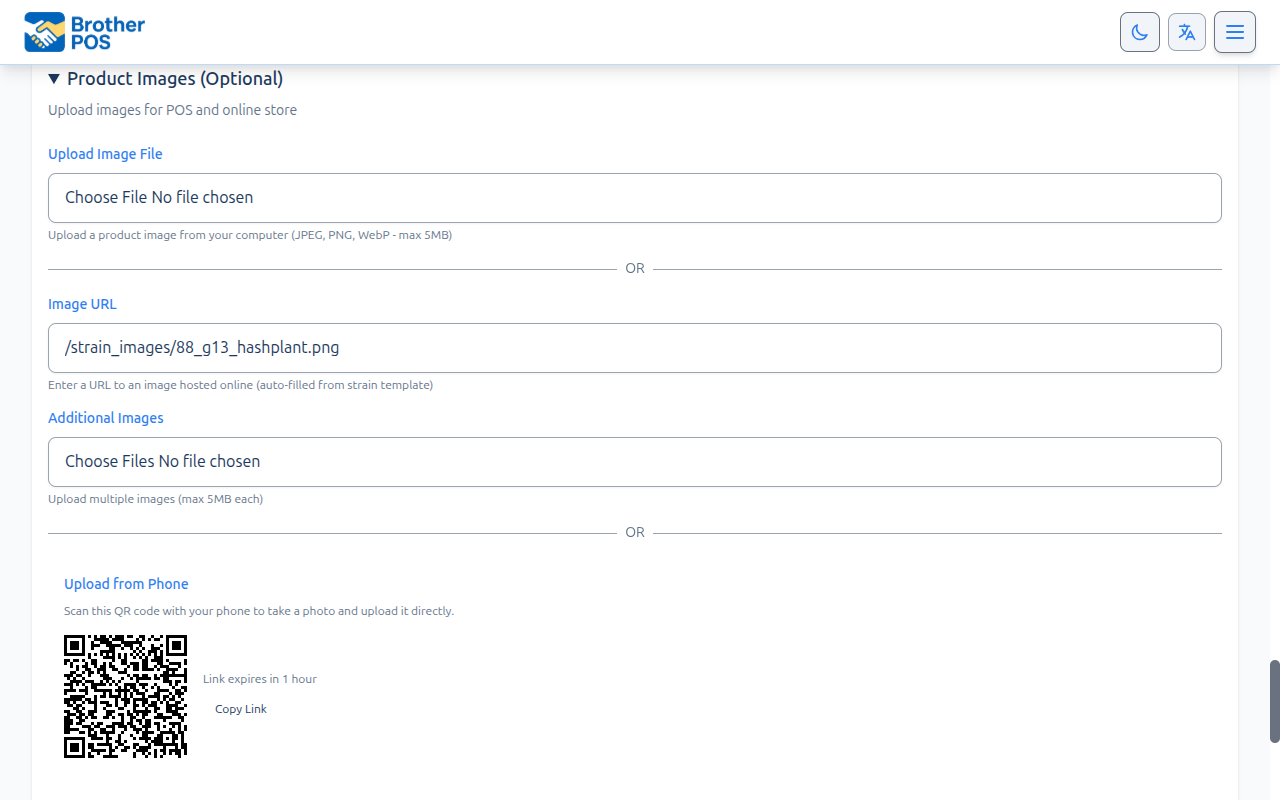
- On the Details tab, click Product Images (Optional).
- Find Upload from Phone. A QR code is shown.
- Scan the QR code with your phone's camera, or click Copy Link and open the link on your phone.
- On your phone, choose Take Photo to use the camera, or Choose from Gallery to pick an existing photo.
- Check the preview and tap Upload Photo.
- The photo becomes the product's primary image. On the product page, a Photo uploaded! message appears and the preview updates without a page refresh.
Key details:
- The upload link expires in 1 hour.
- No login is needed on the phone — the link itself gives access to this one product's photo.
- Large photos are shrunk to a maximum of 1200 pixels on the longest side, and sideways phone photos are turned upright.
- A phone photo replaces the primary image. To add gallery images, use Additional Images.
You don't have to save the product first. When you add a new product, the details step has its own Upload from Phone QR code. The photo you take is attached when you create the product.
Method 4: Bulk Photo Upload (Multiple Products)
When you need photos for many products, use Bulk Photo Upload. You scan one QR code and then photograph products one after another from your phone.
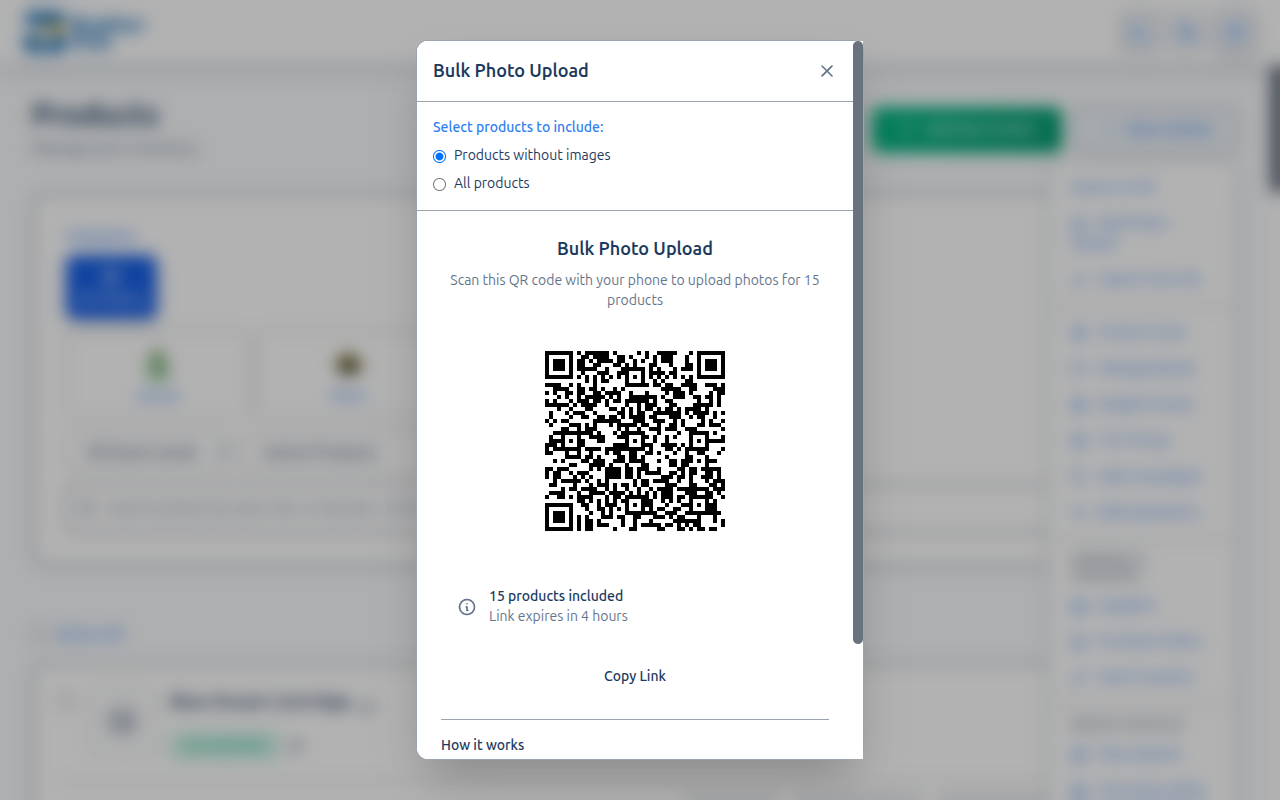
- Go to the Products page.
- Click More Actions and select Bulk Photo Upload.
- Under Select products to include, choose:
- Products without images (default) — only products that don't have a primary image yet.
- All products — every product, including ones that already have an image.
- Scan the QR code with your phone, or click Copy Link.
- On your phone, products are shown one at a time with their name, SKU and category. For each product:
- Tap Take Photo or Choose from Gallery.
- Tap Upload Photo, then move to the next product.
- Tap Skip to leave a product for later.
- A progress bar tracks how far you are.
- When you finish, an All Done! screen shows how many photos you uploaded and how many you skipped.
Key details:
- The bulk upload link expires in 4 hours.
- Only active products are included. Variations are not included.
- Each photo becomes that product's primary image.
Create all your products first (or use CSV import), then use Bulk Photo Upload with Products without images to photograph them all in one go.
More detail: changing, rotating and removing images
Changing an Image from the Product List
You can change a product's primary image without opening the product:
- On the Products page, hover over a product's image (or the empty image placeholder).
- Click the camera icon that appears.
- Choose a file, or paste a link under or paste URL. For products in a category that uses the strain library, a Browse Strain Library button is also shown.
- Click Save, or Cancel to close without changing anything.
Rotating an Image
Occasionally a photo comes in sideways — usually an older computer file. You don't need to re-shoot it:
- Open the product and, on the Details tab, click Product Images (Optional).
- Under Current Images, hover over the primary image and click the rotate button in its corner.
- Each click turns the image 90° clockwise. Click again until it's upright.
The rotated image saves straight away — you don't need to click Update Product.
Rotate only works on an image that was uploaded to Brother POS. An image that comes from an Image URL can't be rotated.
Photos taken through the QR phone upload are turned upright automatically, so portrait and landscape shots land the right way up. The rotate button is the fallback for the rare file that still comes in sideways.
Managing the Image Gallery
The gallery lets you attach several images to one product, such as different angles or the packaging.
Adding Gallery Images
- Open the product and, on the Details tab, click Product Images (Optional).
- Under Additional Images, choose one or more files.
- Click Update Product.
Removing Images
- Open the product and, on the Details tab, click Product Images (Optional).
- Under Current Images, hover over the image you want to remove and click the trash icon.
- Confirm. The image is removed straight away — you don't need to click Update Product.
If you use the WooCommerce integration, the primary image and gallery images are sent to your WooCommerce product when the product is pushed to WooCommerce.
More detail: how images show on the register, and troubleshooting
How Images Appear on the POS
On the POS register, the primary image fills the top of each product tile. It is cropped to fit the tile, so keep the product in the centre of the photo. A product without an image shows its category's icon instead.
Troubleshooting
| Issue | Solution |
|---|---|
| No image section on the product | Tick Enable Product Images in your store settings on the Products & Inventory tab. |
| Save fails with an image error | The file must be a JPEG, PNG or WebP under 5 MB. Shrink or convert the image and try again. |
| Image is cropped oddly on the POS | Re-upload a photo with the product centred and some space around it. |
| POS still shows the old image | Refresh the POS browser tab. |
| QR code does not work on phone | Make sure your phone has an internet connection. The link points to your store's normal web address, so it doesn't need to be on the same Wi-Fi. |
| Phone page says the link has expired | Go back to the product page or the Bulk Photo Upload window to get a fresh QR code. Single product links expire in 1 hour, bulk links in 4 hours. |
| Bulk upload not showing my product | If you chose Products without images, products that already have an image are left out — choose All products. Inactive products and variations are never included. |
| Rotate shows "No primary image to rotate" | The image comes from an Image URL. Upload the image as a file to be able to rotate it. |
What's Next?
- Creating Products — Full guide to creating a new product.
- Variations — Add size and weight variations to products.
- CSV Import — Bulk import products.
- Managing Products — Browse and manage your full catalog.