Feature Flags
Use this page to switch optional features — delivery, shipping, time tracking, label printing, gift cards, promo games and more — on or off for your store. A feature that's off is hidden from menus and the register.
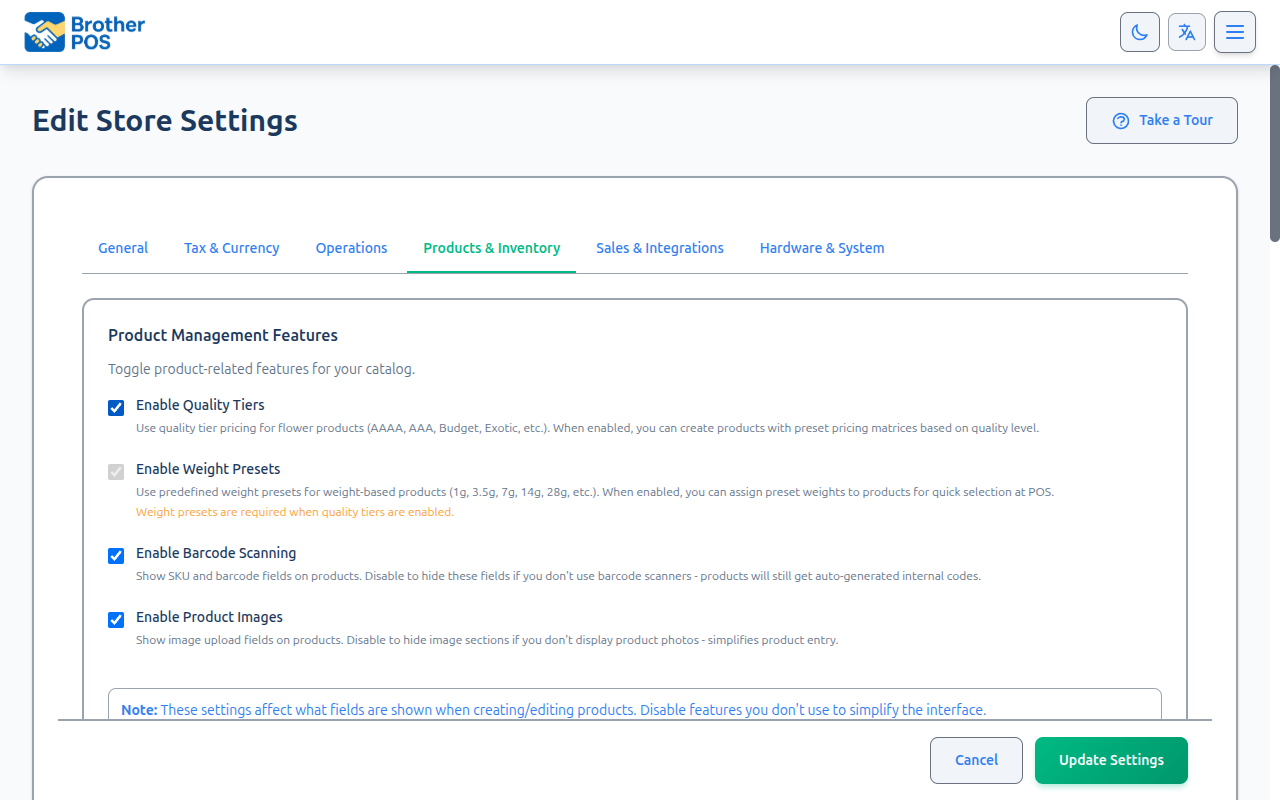
Quick steps
- Go to Settings and click Edit Settings.
- Open the tab the feature lives on (see the table below).
- Tick the feature's checkbox to turn it on, or untick it to turn it off.
- Click Update Settings at the bottom of the page. The feature's menus and screens appear (or disappear).
- Finish the feature's own setup — for example, turning on delivery still needs delivery zones and drivers.
| Feature | Tab |
|---|---|
| Additional tax, age verification | Tax & Compliance |
| Time tracking, consignment, payouts, promo games, gift cards, store credit, house accounts | Operations |
| Pricing templates, weight presets, cannabis detail fields, product bundles, combo choice slots | Products & Inventory |
| Storefront, customer display, menu boards, local delivery, shipping, wholesale | Sales & Integrations |
| Receipt printing, label printing, scale, camera barcode scanning | Hardware & System |
| Email receipts, report digests | Notifications |
Common questions
If I turn a feature off, do I lose what I set up? No. It's hidden, not cleared. Delivery zones, for example, are still there when you turn delivery back on.
Can a manager turn features on or off? No. Only admins can open store settings.
I can't find the cannabis features switch. Cannabis mode, wholesale receiving, buying spins and your store type are set by Brother POS support. Contact support to change them.
Can each of my stores have different features? Yes. Features are set per store.
Is there a list of what's on? Open Settings (the summary view). It lists each setting as Enabled or Disabled.
More detail: where each feature is, and how flags work
Accessing Feature Flags
- Log in to the Admin Panel.
- Click Settings in the navigation bar.
- Click Edit Settings.
- Feature flags are spread across the settings tabs:
| Flag group | Tab |
|---|---|
| Additional tax, age verification | Tax & Compliance |
| Time tracking, consignment, payouts, promo games | Operations |
| Payment methods (gift cards, store credit, house accounts) | Operations (payment methods section) |
| Pricing templates, weight presets, cannabis detail fields (THC/CBD, strain type, effects, helps with, terpenes), product bundles, combo choice slots | Products & Inventory |
| Storefront, customer display, digital menu boards, local delivery, shipping, wholesale features | Sales & Integrations |
| Receipt printing, label printing, scale, camera barcode scanning | Hardware & System |
| Email receipts, report digests | Notifications |
Some features are not yours to toggle — they are set when your store is created and don't appear in your settings. These include cannabis features, wholesale receiving, buying spins, and your store type. Contact Brother POS support if you need any of these changed.
How Feature Flags Work
Each feature flag is a simple on/off checkbox. When a feature is turned off, its menu items and register buttons are hidden.
Turning a feature off hides it rather than clearing out what you set up. For example, if you configured delivery zones and then turned off delivery, the zones are still there when you turn it back on.
More detail: cannabis features
Cannabis Features
These flags live on the Products & Inventory tab. Enable Pricing Templates and Enable Weight Presets appear for every store, since any store that sells by weight or by tiers can use them. The cannabis detail fields only appear when cannabis features are on for your store.
Whether your store runs in cannabis mode is set by Brother POS support when your store is created. It cannot be changed from your store settings. If you need to switch between cannabis and general retail mode, contact support.
Enable Pricing Templates
Use pricing templates for weight-based products (for example, Flower Premium or Concentrates Budget). When on, you can create shared weight/price tables that apply to every product in a category. This setting is sometimes called "Quality Tiers."
Enable Weight Presets
Use set weights (1g, 3.5g, 7g, 14g, 28g and so on) for weight-based products, so staff can pick a weight quickly at the register. Weight presets are required when pricing templates are on.
Cannabis Detail Fields
These checkboxes choose which cannabis fields show on your products. Turn off fields you don't track to make product entry simpler.
| Setting | What it shows |
|---|---|
| Show THC/CBD Fields | THC % and CBD % fields |
| Show Strain Type | The strain type field (Indica, Sativa, Hybrid) |
| Show Strain Library | The strain library when creating new products |
| Show Effects | The effects list (Relaxed, Happy, Euphoric, and so on) |
| Show Helps With | The "Helps With" field (Stress, Pain, Anxiety, and so on) |
| Show Terpenes | The terpene profile field |
More detail: operational features
Operational Features
Enable Local Delivery
On the Sales & Integrations tab. Turns on local delivery with driver assignment, route management and delivery zones. Manage it from Orders → Fulfillment, Orders → More Actions → Delivery Routes and Customers → More Actions → Delivery Zones. Drivers are staff members with the Driver role and a PIN (see Drivers).
See Delivery Zones for configuration.
Enable Shipping
On the Sales & Integrations tab. Lets you set up shipping zones and rates for orders that are shipped. Shipping Zones appears under More Actions on the Customers page, and admins and managers get a Fulfillment button on the Orders page, whose Shipping tab lists the orders still to ship.
Enable Employee Time Tracking
On the Operations tab. Lets employees clock in and out and track breaks. Admins and managers can view timesheets and run reports.
Enable Label Printing
On the Hardware & System tab. Allows printing product labels. Requires a label printer that has been set up.
See Label Printers for hardware setup.
Enable Scale Integration
On the Hardware & System tab. Connect a scale to the register for live weight readings: a USB or RS-232 scale in Chrome or Edge or in the Android app, or a Wi-Fi scale (USR-W610) from the iPad app or a computer running the printer bridge.
See Scales for hardware setup.
Enable Payouts
On the Operations tab. Cashiers record cash payouts (lottery winnings, vendor refunds and so on) on the register's Cash Drop screen. Those payout options are there for every store, whether or not this box is ticked. What the box does control is Enable Slot Machine Payouts, which only stays on while Payouts is on.
More detail: B2B and wholesale features
B2B and Wholesale Features
These are on the Sales & Integrations tab under Wholesale Feature Controls. Which ones you see depends on whether your store is set up as a retailer or a distributor.
Enable Distributor Connections (ordering)
Retailer stores. Connect to distributors and place wholesale orders with them. Adds the Distributor Connections menu.
Enable Wholesale Portal
Distributor stores. Lets your wholesale buyers place orders through a web portal. Adds the Wholesale Orders menu and Web Portal Access.
Enable Retailer Connections (B2B)
Distributor stores. Shows your connected retailers and accepts orders from them. Adds Retailer Connections to the menu.
Wholesale receiving is set by Brother POS support when your store is set up. It doesn't appear in your own settings. Contact support if you need it changed.
See B2B & Wholesale for the full setup guide.
More detail: sales, service and promotional features
Sales & Service Features
Enable Gift Card Payments
Located in the payment methods section of the Operations tab. Turning this on:
- Shows the Gift Cards admin page and its navigation link
- Adds gift card as a payment button on the register
- Lets you track card balances and export your gift cards to CSV
See Gift Cards (Admin) and Gift Cards (POS) for details.
Enable Age Verification
Located on the Tax & Compliance tab, below the Additional Tax settings. Prompts clerks to check a customer's age when selling age-restricted products:
- Minimum Age (default 19, any age from 1 to 99)
- Verification Mode: "When adding to cart" or "At checkout"
See Age Verification for configuration.
Promotional Features
Enable Promo Games
On the Operations tab. Turns on promo games (spinning wheel, scratch cards, slot machines, plinko):
- Create and manage games with prizes you choose
- Completed sales can trigger a game
- Games play on the customer display
- A history of wins
See Promo Games for configuration.
Interactive Promo Games
Lets customers play the game themselves on the customer display (tap to spin, scratch to reveal) instead of it playing on its own. Each game must also have Interactive Mode turned on in its own settings.
Letting customers buy game plays is set by Brother POS support. Contact support if you need it turned on for your store.
More detail: storefront and other features
Storefront Features
Enable Storefront
On the Sales & Integrations tab. Turns on your customer-facing online storefront:
- Public product catalog with themes and sections you can customize
- Age gate for age-restricted stores
- Custom domain (requires the Commerce tier)
- Announcement bar, featured products, deals section
See Storefront for configuration.
Other Features
Enable Consignment Tracking
On the Operations tab. Track vendor consignment inventory — products a vendor owns that you sell for them — along with the amounts you owe and your payments. Once on, Consignment appears under More Actions on the Orders page (admins only).
Enable Additional Tax
On the Tax & Compliance tab. Adds an extra tax for specific products (for example, a vapour products tax). See Tax Configuration for details.
Enable Product Bundles
Found on the Products & Inventory tab. Lets you create bundle products — one item made from other products, such as a gift set, a combo, a build-your-own platter or a bucket of beers. When a bundle sells, stock comes out of the products inside it. See Bundles, Combos & Buckets.
Enable Combo Choice Slots
Found on the Products & Inventory tab, just below Enable Product Bundles. For combos where the customer picks part of what they get — "chicken, fries and a pop: which pop?". Only the option chosen comes out of stock. Needs Enable Product Bundles turned on. See Bundles, Combos & Buckets.
More detail: enabling, disabling and checking features
Enabling a Feature
- Go to Settings > Edit Settings and open the relevant tab.
- Find the feature you want to turn on.
- Tick its checkbox.
- Click Update Settings at the bottom of the page.
- Once saved, the feature's menu items and screens appear.
Turning a feature on makes it visible, but most features need more setup before they are fully working. For example, turning on delivery makes the Delivery menu appear, but you still need to set up delivery zones and add drivers.
Disabling a Feature
- Go to Settings > Edit Settings and open the relevant tab.
- Find the feature you want to turn off.
- Untick its checkbox.
- Click Update Settings.
- Once saved, the feature's menu items and screens are hidden.
Checking Which Features Are Active
Feature flags are spread across the settings tabs (General, Tax & Compliance, Operations, Products & Inventory, Sales & Integrations, Hardware & System, Notifications). There is no separate Feature Flags page. To check which features are on, go to Settings > Edit Settings and review each tab, or open Settings (the summary view), which lists settings by section and marks each one Enabled or Disabled.
More detail: more questions
Common Questions
Can different stores in a multi-store setup have different features enabled? Yes. Feature flags are set per store. Each store can have its own set of features turned on.
Can a manager change feature flags? No. Only Admins can open store settings. Managers cannot turn features on or off.
What's Next?
- Product Display — Fine-tune which product fields appear in the POS.
- Registers — Set up named registers for multi-register stores.
- General Settings — Configure your store identity and regional settings.