Label Printers
Use this page to set up a thermal label printer so you can print product labels with barcodes and prices. Label printer settings belong to each register.
Start with Set Up Your Printer: pick what your register runs on (computer, iPad or Android) and see which printers work and how they connect.
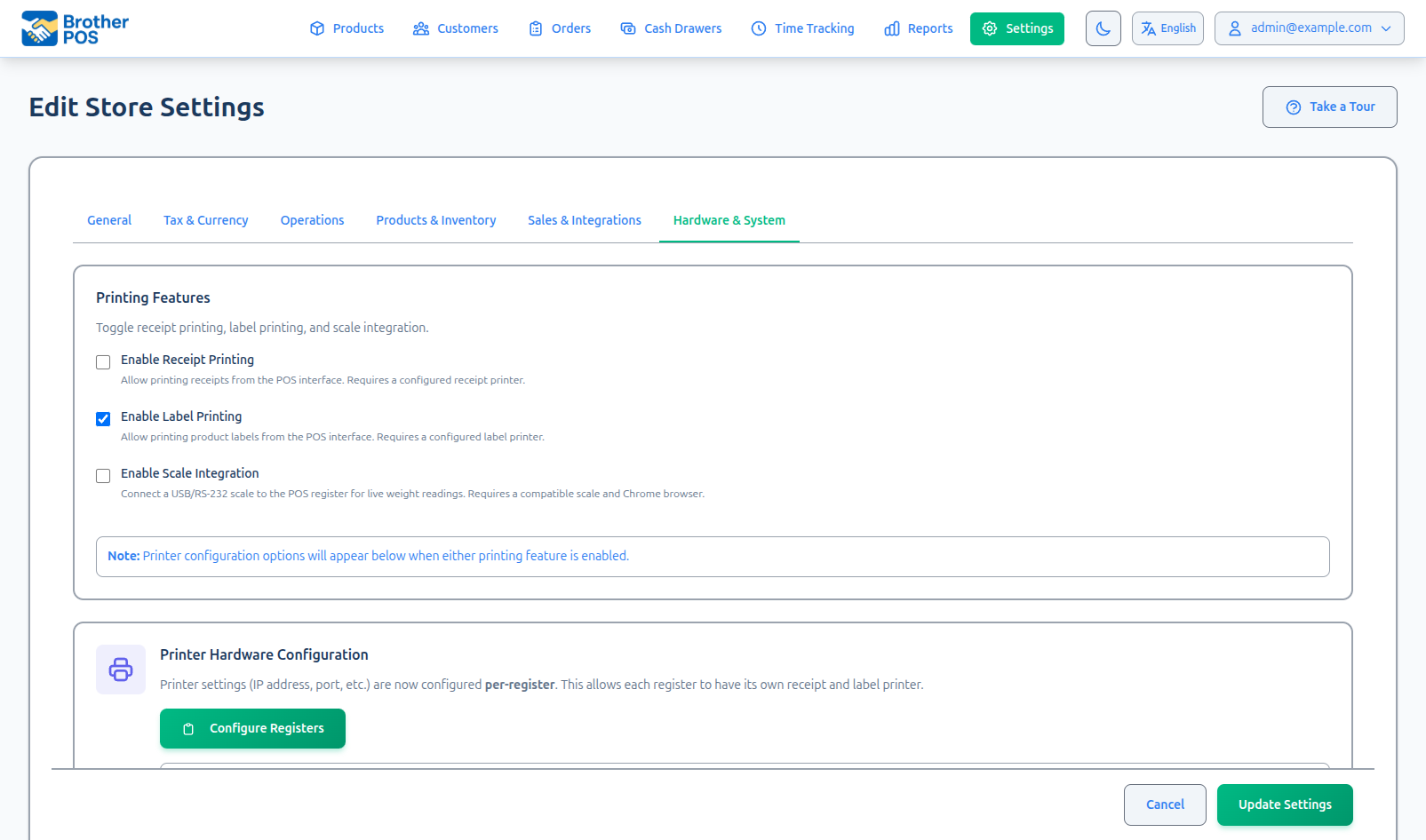
Quick steps
- In the admin, tick Enable Label Printing under Settings → Edit Settings → Hardware & System, and click Update Settings.
- Connect the printer. On a computer: plug it in by USB and run the Printer Bridge, picking the printer in its Label Printer section. On a tablet: see the Bluetooth and network sections below, or Brother QL-810W.
- On the register, tap the gear (Settings) button in the top bar. Under Label Printer, tick Enable label printer for this register.
- Choose the Printer Type (Zebra, Munbyn, Dymo, Brother or Generic ESC/POS) and fill in the printer or bridge address.
- Tap Test Label Print. A short test label should print.
- To print, open the ⋯ menu on a product card in Products and click Barcode, or tap Print Label on a product at the register.
Common questions
Can I design what the label looks like? Yes. Open Label Templates from the menu on the Products page. See Label Templates.
Why doesn't the label show the sale price? Labels always print the regular price, so they stay right after a sale ends.
Can I print labels from an iPad or Android tablet? Yes. The apps print to a network label printer or a Brother QL-810W over Wi-Fi, and the Android app can also use a Zebra Bluetooth printer. A web browser needs the Printer Bridge.
I don't have a label printer. Print barcodes on standard Avery sheets with any office printer — see Barcode Labels.
More detail: before you start, and supported printers
Prerequisites
Before setting up a label printer:
- Tick Enable Label Printing under Settings > Edit Settings > Hardware & System.
- Make sure your printer is one of the supported types below.
- Decide how it will connect: through the Printer Bridge on a computer, over Bluetooth to the Android app, or on your network.
Supported Printers
| Printer type (as shown in settings) | Printer language | Ways to connect |
|---|---|---|
| Zebra | ZPL | Printer Bridge on a computer; network, from the iPad or Android app; Bluetooth, from the Android app |
| Munbyn | TSPL | Printer Bridge on a computer; network, from the iPad or Android app |
| Dymo | Dymo | Printer Bridge on a computer |
| Brother | Brother QL | Wi-Fi, from the iPad or Android app; Printer Bridge on a computer. See Brother QL-810W Label Printer. |
| Generic ESC/POS | ESC/POS | Printer Bridge on a computer |
More detail: setting up a label printer on a computer
Setting Up a Label Printer on a Computer
Step 1: Connect the Printer
- Plug the label printer into the computer by USB, power it on and load labels.
- Install and start the Printer Bridge on that computer, and pick the label printer in the bridge's Label Printer section.
Step 2: Configure the Register
- In the admin, open Registers (click Manage Registers on the Cash Drawer Sessions page, or Configure Registers under Settings > Edit Settings > Hardware & System).
- Edit the register.
- Under Label Printer, tick Enable label printer for this register.
- Set Label Printer Type to match your printer: Generic ESC/POS, Munbyn, Zebra, Dymo or Brother.
- Under Printer Bridge Connection, enter the bridge's address (
localhostif the bridge runs on this computer) and port. The label printer's bridge port is 9101. - Tick Auto-print labels after sales if you want labels to print automatically after each sale.
- Click Update Register.
Staff can make the same settings at the till in the POS Settings (gear button in the top bar), under Label Printer: Enable label printer for this register, Use a printer bridge (USB printer on this or another PC), Printer Type, the bridge or printer address and port, and Test Label Print.
Step 3: Test Print
In the POS Settings (gear), tap Test Label Print. A short test label should print. If it does, the printer is ready.
Printing loyalty cards from the admin uses the label printer listed on the Printers page (add /printers to your store's address). Click Add Label Printer, tick Use Printer Bridge, and enter the Bridge IP Address and Bridge Port (9101). The card goes from your browser straight to the bridge on that computer. If no label printer is set up on the Printers page, a register's label printer is used instead. The Printers page has no Test Print button: to test a printer, use Test Print on the register form or in the POS Settings (gear).
More detail: Bluetooth and network printing from the iPad or Android app
Bluetooth Label Printing (Android App)
Stores running the POS Android app can pair a Zebra Bluetooth label printer directly to the tablet, with no network setup, no Printer Bridge, and no static IP. This suits mobile or counter-only setups where running a network cable to the label printer isn't practical.
Zebra Bluetooth label printing is not currently available in the iPad app, so the Zebra Bluetooth section doesn't appear in the iPad's printer settings. On an iPad, use a network label printer or a Brother QL-810W over Wi-Fi instead.
One-time pairing
- Power on the Zebra printer and put it into pairing mode (see the printer's manual).
- On the Android tablet, open Settings > Bluetooth and pair the printer when it appears in the list.
- Open the POS app and sign in.
- Open the POS Settings (gear), tick Enable label printer for this register, set Printer Type to Zebra, and in the Zebra Bluetooth section tap Find Zebra Printers. Tap your printer to connect.
- Tap Test Label. A sample label should print.
The app only lists paired Bluetooth devices whose name looks like a Zebra printer (for example a name containing "Zebra", "ZQ", "ZD" or "ZT"). Check the printer is paired in the tablet's Bluetooth settings first.
Auto-reconnect on app launch
Every time the app starts, it quietly reconnects to the last Zebra printer you connected. You should not need to touch printer settings between sessions. If a label won't print the first time after a fresh install, close the app completely and reopen it.
When admin label prints are used
Label prints started from admin pages inside the app (for example Barcode in a product card's ⋯ menu on the Products list, or Quick Add) go to the same Bluetooth printer. You do not need a network printer to print product labels from the tablet.
Bluetooth printing only works in the Android app. A web browser can't reach Bluetooth printers.
Network Label Printers on the iPad or Android App
The iPad and Android apps can print straight to a label printer on your network (for example a networked Zebra or other ZPL or TSPL printer), with no Bluetooth pairing and no Printer Bridge. In Settings (gear), under Label Printer, choose the Printer Type and enter the printer's Printer IP Address and Printer Port (usually 9100).
You don't need to know the address. Under the IP box, tap Find printers on the network. The app looks for printers on the tablet's Wi-Fi network and lists them, Zebras first with their model. Tap one to fill in its address and port. A printer that isn't a Zebra is marked Not a Zebra — probably a receipt or office printer, and a Zebra that prints at a different resolution (for example a 300 dpi model) carries a warning that labels will print smaller — let support know if you see it.
If nothing is found, check the printer is switched on and on the same network as the tablet (not a guest Wi-Fi), or type its IP instead. Finding printers only works in the iPad and Android apps; in a web browser you type the address.
Test Label Print sends a real test label in the printer's own language, the same way labels are sent, so if the test prints, labels will too.
On the iPad and Android apps, labels go to the printer address on screen. A Use a printer bridge setting left over from a computer set-up (it's hidden in the app) is cleared when you save, and ignored when printing (unless your store has been set up to print through a remote bridge).
More detail: label templates and sizes
Label Templates
Label templates control the layout and content of your printed labels. If no template is set up, Brother POS prints a simple built-in label.
Customizing Label Templates
Open Label Templates from the menu on the Products page. Each template has:
| Setting | What it does |
|---|---|
| Type | Product Label, Shelf Tag, Customer Card or Custom |
| Width (mm) and Height (mm) | The size of your label stock |
| Safe margin (mm) | Keeps text and barcodes this far inside each edge; text wraps inside it |
| Decorative Border | An optional border around the label |
| Label Image / Logo | An image, converted to black and white for printing (PNG works best) |
| Label Elements | Text and barcodes you place on the label with + Add Text/Barcode and + Add Image |
A text or barcode element can show the product name, price, SKU, barcode, strain type, THC/CBD, package size, brand, weight or your own custom text. Elements can print in Black or Red (red only prints on a Brother printer with DK-2251 black/red rolls). Drag elements on the Live Preview to position them. See Label Templates for the full guide.
Label Dimensions
Measure your label stock and enter the width and height in millimetres. The template editor has quick buttons for 60 x 30mm, 50 x 30mm, 50 x 40mm and 70 x 50mm; for anything else, type the size. Typical label stock sizes:
- 2" x 1" (50mm x 25mm) — Small product labels
- 2" x 1.5" (50mm x 38mm) — Standard dispensary labels
- 3" x 2" (76mm x 50mm) — Larger labels with more information
- 4" x 2" (100mm x 50mm) — Shelf labels
New products get an 8-digit number in their Barcode field automatically. A barcode element prints whichever field you pick (usually Barcode or SKU), and scanning it at the POS finds the product. Make sure each code is unique.
More detail: printing labels
Printing Labels
From the Product List
- Go to Products in the admin.
- Open the ⋯ menu on the product's card and click Barcode (it shows when label printing is on).
- Choose a variation or weight if asked.
- Set Quantity per Label and print. If the quantity is left empty, one label prints.
The labels go to the label printer of the register this browser's POS is set to — the same printer Test Print on the Label Templates page uses.
For a weight product you can pick one of its weights or type a weight into Or Enter Custom Weight. The label shows the price the register charges for that weight, worked out from the product's weight prices or quality tier — not the per-gram price multiplied out.
The price on a label is always the regular price. A sale campaign or sale discount running today isn't printed, so labels stay right after the sale ends. When no weight is chosen:
- A product sold by weight at a simple per-gram price shows its price with /g after it, for example $10.00/g.
- A product with no single price of its own — for example flower priced only by its weight options or quality tier — shows From and its cheapest option, for example From $12.00, instead of $0.00.
Pick a template in the Label Template list to print every selected product with it. Left on Each product's usual template, labels use the product's own label template if it has one, otherwise your store's default product template.
From the POS
- Open the product's detail view in the POS.
- Tap Print Label.
- Enter how many labels to print and confirm.
On wider screens, each cart line also has a Print label button. See Label Printing.
More detail: printer maintenance
Label Printer Maintenance
Paper Loading
- Open the printer cover.
- Load the label roll with labels facing up.
- Thread the label stock through the guides.
- Close the cover and press the feed button to advance to the first label.
Calibration
If labels are printing misaligned or the printer is skipping labels, run the printer's calibration. On many Zebra printers you hold the feed button while powering on; check your printer's manual for the exact steps. Then print a test label to check alignment.
Print Head Cleaning
If labels appear faded or have streaks:
- Power off the printer and open the cover.
- Clean the print head with an isopropyl alcohol wipe.
- Allow to dry for 30 seconds.
- Close the cover and power on.
- Print a test label to verify quality.
More detail: troubleshooting
Troubleshooting
Labels Not Printing
- Check power and status lights on the printer.
- Check the bridge — on a computer, make sure the Printer Bridge is running and the label printer is picked in it.
- Check paper — ensure labels are loaded and the cover is fully closed.
- Check the register — Enable label printer for this register is ticked, the Printer Type matches your printer, and the bridge port is 9101.
Barcode Not Scanning
- Check the code — make sure the product has a barcode or SKU in the field the template prints.
- Check the size — a barcode squeezed onto a small label may not scan. The template editor warns you when a barcode sits too close to the edge.
- Check print quality — a faded or streaked barcode will not scan. Clean the print head.
Label Alignment Issues
- Run the printer's calibration.
- Check the template's width and height match your physical label stock.
- Make sure the label roll is loaded straight.
More detail: no thermal printer
No Thermal Printer? Print on Avery Sheets
If you do not have a thermal label printer at all, the Barcode Labels tool prints product barcodes onto standard Avery label sheets using any inkjet or laser printer.
What's Next?
- Receipt Printers — Set up your receipt printer.
- Printer Bridge — Install the bridge for USB printers.
- Label Templates — Create and customize label layouts.
- Barcode Labels — Print barcodes on Avery sheets without a thermal printer.
- Product Management — Set up barcodes and SKUs.