Activity Logs
Use this page to see who did what, and when, in your store — sign-ins, sales, voids, product edits and more.
Quick steps
- In the admin, type Activity Logs into the admin search and pick it. (It isn't in the main menu.)
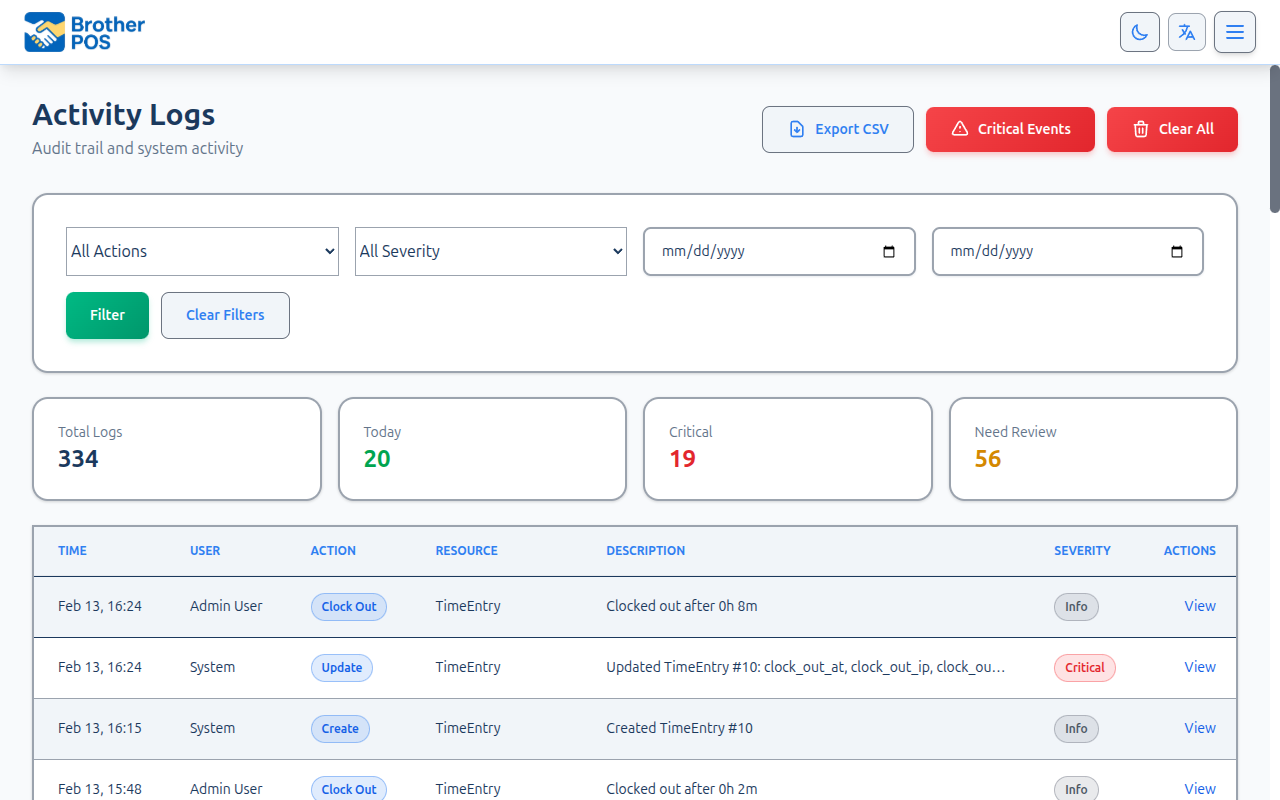
- The newest events are at the top. Each row shows the Time, User, Action, Resource and Description.
- To narrow the list, choose an action (for example Void) and a severity, set a Start Date and End Date, and click Filter.
- Click View on a row for the full details.
- To keep a copy, click Export CSV. It downloads the entries you filtered to.
Common questions
Who can see activity logs? Admins only.
What is Critical Events? A list of just the high-severity events. Open an event and click Mark as Reviewed once you've looked into it.
How is this different from the Audit Trail? The activity log shows actions ("Jane voided a sale"). The Audit Trail shows exactly which field changed, from what to what.
Can I delete old logs? Yes, with Clear All — but it deletes every entry permanently. Click Export CSV first. A new entry records who cleared the logs.
More detail: what's in each entry, and why it matters
Activity logs record who did what and when in your Brother POS system. Every significant action — logging in, creating a sale, editing a product, adjusting stock — is captured in the activity log with a timestamp, the user who performed the action, and relevant details.
Why Activity Logs Matter
- Accountability — Know which user made a specific change.
- Troubleshooting — Trace the steps that led to an issue.
- Security — Detect unauthorized access or suspicious activity.
- Training — Review new employee actions to identify areas for coaching.
- Compliance — Demonstrate a record of actions for regulatory audits.
Accessing Activity Logs
- Log in to the Admin Panel.
- Type Activity Logs into the admin search bar and select it. The page has no link in the main navigation menu.
- The activity log page loads with the most recent events at the top.
Understanding Log Entries
Each log entry contains:
| Field | Description |
|---|---|
| Time | Date and time of the action (displayed in your store's local timezone). |
| User | Name of the user who performed the action. |
| Action | What was done (e.g., "Create", "Update", "Delete", "Login"). |
| Resource | The type of record affected (e.g., "Product", "Sale", "User"). |
| Description | Additional context about the action. |
| Severity | The severity level of the event. |
| Actions | View details for the log entry. |
Example Entries
2026-02-13 14:32:05  Jane Smith   Updated   Product #1042   "Changed price from $29.99 to $34.99"
2026-02-13 14:28:17  John Doe     Created   Sale #8847      "Sale completed, total $67.50"
2026-02-13 14:15:03  Jane Smith   Logged In                  "Login from POS terminal"
2026-02-13 13:58:41  Admin        Deleted   User #15        "Deactivated user: Mike Wilson"
More detail: filtering and exporting
Filtering Activity Logs
Use the filter controls to find specific events:
By Action Type
Filter by the type of action using the Action dropdown:
- All Actions — Show all log entries.
- Create — New records created.
- Update — Existing records modified.
- Delete — Records deleted or deactivated.
- Login — User login events.
- Void — Voided transactions.
By Severity
Filter by severity level to focus on critical events or routine actions.
By Date Range
- Set the Start Date and End Date.
- Click Filter. The log shows only events within that range. Clear Filters resets it.
Combining Filters
Filters stack. For example, you can view all Create actions with a specific severity within a date range.
Exporting Activity Logs
To export log data for external analysis or archival:
- Apply any desired filters.
- Click Export CSV.
- The filtered log entries download as a CSV file.
Export activity logs monthly and archive them. If you need to investigate an incident months later, having local copies ensures the data is available regardless of system retention settings.
More detail: what to watch for
Key Events to Monitor
Security Events
- Failed Logins — Multiple failed login attempts may indicate a brute-force attack or a user who needs a password reset.
- After-Hours Logins — Logins outside business hours may warrant investigation.
- Permission Changes — Track when user roles or permissions are modified.
- Password Resets — Monitor who is resetting passwords and for whom.
Financial Events
- Manual Discounts — Track who is applying manual discounts and how often.
- Void Transactions — Monitor voided sales for patterns of abuse.
- Cash Adjustments — Cash drawer adjustments outside of normal operations.
- Price Changes — Unexpected price changes may indicate errors or unauthorized modifications.
Inventory Events
- Stock Adjustments — Manual stock changes without a corresponding receiving or sale.
- Product Deletions — Products removed from the catalog.
- Cost Changes — Wholesale cost modifications that affect margin reporting.
If you see patterns of unusual activity (e.g., frequent voids by the same cashier, stock adjustments at unusual hours), investigate promptly. The activity log is a detection tool, but it requires human review to be effective.
Activity Logs vs. Audit Trail
Brother POS has two related but distinct tracking systems:
| Feature | Activity Log | Audit Trail |
|---|---|---|
| Focus | User actions and events | Field-level data changes |
| Detail | What action was taken | Exactly what changed (old value to new value) |
| Scope | All system events | Record modifications only |
| Use Case | "Who logged in at 3am?" | "Who changed the price from $10 to $5?" |
Use activity logs for event-level investigation and the audit trail for field-level change tracking.
More detail: clearing logs, and good habits
Clearing Activity Logs
Activity logs can be cleared when no longer needed:
- Click the Clear All button on the activity logs page.
- Confirm the action when prompted.
- All activity log entries are permanently deleted. A single new entry is added recording who cleared them and how many were removed.
Export your activity logs to CSV before clearing them. Once cleared, the data cannot be recovered. If your industry requires long-term retention (e.g., cannabis regulations may require 1-2 years of records), export logs regularly before clearing.
Best Practices
- Review daily — Spend 5 minutes each morning reviewing the previous day's activity log. Look for anything unusual.
- Use the Critical Events view — Focus on high-severity events that require immediate attention.
- Export monthly — Download and archive activity logs monthly for long-term record keeping.
- Investigate promptly — When you spot something unusual, investigate the same day. Memories are fresh and evidence is available.
- Correlate with other data — Use activity logs alongside sales reports and cash drawer reports for a complete picture.
- Limit access — Only Admins should have access to activity logs. This prevents users from checking whether their actions are being monitored.
What's Next?
- Audit Trail — View detailed field-level change history on records.
- Time Tracking — Monitor employee clock-in/clock-out events.
- Product Issues — Track flagged product quality and data issues.