Audit Trail
Use this page to see exactly what changed on a record — a product, customer, sale or setting — who changed it, and to undo a change if needed.
Quick steps
- Click Reports, then the Audit Trail card. The newest changes are at the top.
- To narrow it down, pick a Model Type (for example Product), an Action, a Changed By person or a From Date, and click Apply Filters.
- Click View on a row to see what the record was before and what it became.
- To reverse a change, click Undo on the row (or Undo This Change on the detail page) and confirm.
Open the product and use its History tab. It shows its recent changes, like Price $12.00 → $14.00.
Common questions
Who can open the audit trail? Admins always can. Managers can while their role has the View Activity Log permission (on by default). It is included on higher plans.
Why was my Undo refused? The record no longer exists, or it has been changed again since. The message tells you what changed.
Does Undo erase the history? No. The undo is recorded as a new change, so the history shows both.
How is this different from Activity Logs? The audit trail shows field-by-field changes. Activity Logs show actions and events, like sign-ins.
More detail: how it works and who can open it
The audit trail provides a change history for records in Brother POS. When a tracked record is created, changed or deleted, Brother POS keeps a snapshot of what it looked like and who made the change. This gives you a history of how your data has changed over time.
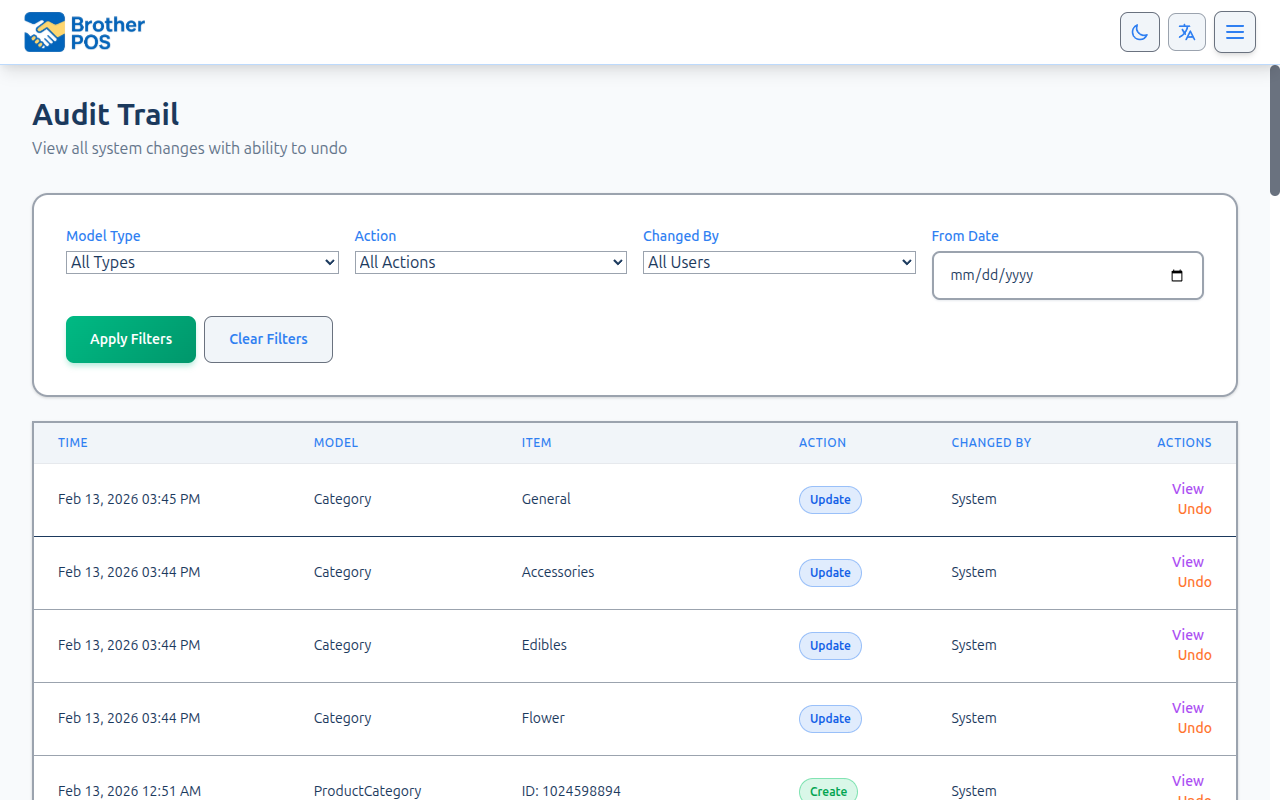
How the Audit Trail Works
When a tracked record is created, updated, or deleted:
- The audit trail system creates a version entry.
- The version records:
- The time of the change.
- Who made the change.
- The type of event (Create, Update, Destroy).
- What the record looked like before the change.
- There is no screen for editing or deleting entries.
Changes are recorded against the person who made them — whether the change came from the admin panel or from the POS register. The Changed By column shows that person's email address. Entries with no identifiable user (for example, automatic background tasks) are shown as "System".
Accessing the Audit Trail
- Log in to the Admin Panel as an admin or manager.
- Go to Reports and click the Audit Trail card.
- The audit trail loads, showing the most recent changes first, 50 per page.
Managers can open the audit trail because the Manager role has View Activity Log by default. If an admin unticks that box for the Manager role on the Role Permissions page, the Audit Trail card disappears from Reports for managers and the page can't be opened. Admins can always open it. See Roles & Permissions.
The audit trail is part of the advanced reports included on higher plans. If your plan does not include it, opening it takes you back to the Reports page with a message saying it is available on a higher plan.
The audit trail shows only your own store's history. Every entry, filter option, detail page and undo is limited to your store, so you never see another store's product names, sales, customers, or user emails. Trying to open or undo an entry that belongs to a different store returns "Record not found".
More detail: reading an entry, and which records are tracked
Understanding Version Entries
Each version entry shows:
| Field | Description |
|---|---|
| Time | When the change occurred. |
| Model | The kind of record (e.g., Product, Sale, Customer). |
| Item | A human-readable name for the record (see below). |
| Action | Create, Update, or Destroy. |
| Changed By | Who made the change. |
| Actions | View the details or Undo the change. |
Human-Readable Item Names
The Item column shows a meaningful name instead of a bare database ID:
- Product in Category — A product's membership in a category.
- Sale — The receipt number, or Sale #N.
- Adjustment: Product — A stock adjustment and the product it was for.
- Return #N — A return.
For anything else, the trail uses the record's name. Records that no longer exist are shown as Deleted (ID: N).
Version Detail Page
When you click View, the detail page is built to be readable by non-developers:
- Summary — For common events, the page shows a one-sentence description instead of a list of fields. Examples: "Added Product to category Category", "Removed Product from category Category", "Created product Name", "Created customer Name", "Deleted product Name", "Deleted customer Name", "Completed Sale #N ($total)". For deletions, the name is recovered from the saved snapshot, so the summary still makes sense even though the record is gone.
- What changed (updates) — For update events, the page shows a Field / Before / After table listing only the fields whose values actually changed. Differences that don't mean anything — timestamp-only changes, a number saved as text versus as a number, and blank versus empty values — are left out. If only timestamps changed, the page says "No visible field changes (only timestamps differ)."
- Created with these values (creates) — For create events, the page shows the record's current values.
- Deleted record (last known state) (deletes) — For destroy events, the page shows what the record looked like before it was deleted.
- Show raw JSON — The complete data is still available behind a Show raw JSON link for the rare case a developer needs it.
Tracked Record Types
The audit trail page shows changes to these record types:
| Record Type | Examples |
|---|---|
| Products | Product details, plus which categories a product is in |
| Categories and Brands | Names and settings |
| Customers | Customer details |
| Sales and Returns | Sales and returns |
| Stock Adjustments | Manual stock changes, write-offs |
| Store Settings | Changes made on the Settings page |
| Registers and Printers | Register and printer setup |
| Loyalty | Loyalty tiers and rewards |
| Pricing | Pricing templates, weight presets, sale campaigns |
| Modifiers | Modifier lists and modifiers |
| Time Entries | Clock-in and clock-out records |
| Wholesale Orders | Wholesale order changes |
More detail: filtering, and a product's own history
Filtering the Audit Trail
Set any of the filters, then click Apply Filters. Clear Filters resets them.
By Record Type
- Open the Model Type dropdown.
- Select the type you want to view (e.g., "Product").
By User
- Open the Changed By dropdown.
- Select the user whose changes you want to review.
By Event Type
Use the Action dropdown to filter by change type:
- Create — New records only.
- Update — Modifications only.
- Destroy — Deletions only.
By Date
Set a From Date to show only changes made on or after that day.
If you need to find when a particular field was changed (e.g., "When was this product's price last changed?"), filter by Model Type and scan the entries for that record. For products, the product's own History tab (below) is quicker.
A Product's Own History
For a single product, the quickest view is the History tab on the product's edit page. It lists the 25 most recent changes, and each row shows:
- Who made the change (or "System" for automatic changes)
- For each field that changed, what it was and what it became — for example Price
$12.00→ $14.00, or BrandOld Brand→ New Brand using names rather than numbers - Product created for the row where the product was first added
Edits saved before this detail was recorded show detail not recorded instead of the before-and-after values.
Damaged and Defective Write-Offs
Reporting a product issue (damaged, defective, moldy) that takes a unit out of inventory records one stock adjustment for that unit, so shrinkage figures built from adjustments count it once.
More detail: undoing changes
Undoing Changes
The audit trail includes an Undo button that can reverse changes. It is on each row of the list, and on the detail page as Undo This Change.
On the list, each row has two separate buttons: View (grey) and Undo (red), spaced apart so a tap meant for View on a tablet does not land on Undo. Clicking Undo asks you to confirm before anything is reverted.
Undo can be refused. For example, it is blocked when the record no longer exists, or when the record has been changed again since the entry you are trying to undo — the message tells you what changed.
When undoing a change, consider the impact on related records. For example, undoing a product price change will not undo sales that were already made at the changed price.
More detail: compliance, storage and activity logs
Audit Trail and Compliance
The audit trail is particularly useful for regulated industries:
- Cannabis compliance — Regulators may ask for a history of inventory and sales changes during an audit.
- Financial audits — The trail shows price, cost, and store setting changes.
- Employee disputes — If there is a disagreement about who made a change, the trail shows who did it.
Undoing a change does not erase the original entry. The undo itself is a new change, so the history shows both what happened and that it was reversed.
Storage
Audit trail entries are not cleared automatically. There is no clear-all option for the audit trail, unlike Activity Logs.
Audit Trail vs. Activity Logs
| Feature | Audit Trail | Activity Logs |
|---|---|---|
| Granularity | Field-level (what exactly changed) | Event-level (what action was taken) |
| Scope | Record modifications | All system events (logins, exports, etc.) |
| Retention | Not cleared automatically | Clearable via Clear All action |
| Use Case | "What was this product's price last month?" | "Who logged in at 3am?" |
Both systems complement each other. Use activity logs for event investigation and the audit trail for data change investigation.
More detail: good habits
Best Practices
- Use the audit trail when investigating discrepancies — Before assuming anyone made an error, check the audit trail. It shows exactly what changed and who changed it.
- Review settings changes regularly — For cannabis retailers, filter by Model Type to review changes to store settings and stock adjustments.
- Document restorations — When you manually restore a value from the audit trail, add a note explaining why (e.g., "Restored price to $29.99 per manager request").
- Educate your team — Let employees know that the audit trail exists. Awareness of tracking encourages careful, deliberate changes.
- Use the Undo feature carefully — The Undo button is powerful. Only use it when you are certain you want to revert a change.
What's Next?
- Activity Logs — Track user actions and system events.
- Product Issues — Flag and track product data quality issues.
- Compliance — Cannabis regulatory compliance tools.