Consignment
Use this page to sell goods on behalf of someone else (a consignor), keep track of what you owe them, and record when you pay them.
Quick steps
- Turn it on once: Settings > Edit Settings > Operations, find Consignment Tracking, tick Enable Consignment Tracking and save.
- Go to Orders, open More Actions and click Consignment. Click Add Consignor, fill in the Name and click Create Consignor.
- When stock comes in, click View on the consignor, then Receive Consignment. Enter the Quantity and the Vendor Cost Per Unit (what you owe for each one sold), pick the product under Link to Product, and click Receive Consignment.
- Sell as normal at the register. The consignor's page shows Total Owed, Total Paid and Balance Due.
- When you pay them, click Record Payment on their page, enter the Amount and Payment Method, and click Record Payment.
Pay the consignor yourself. A Cash payment needs an open cash drawer and comes off that drawer's expected cash.
Common questions
Sales aren't counting against the consignor. The item is probably Unlinked. Click Link Product on its row once the product exists.
A customer returned a consigned item. Process the return as normal. The refunded units come off what you owe the consignor, whether or not you restock.
How do I give unsold stock back? Click Return on the item and confirm. All remaining units of that item go back and come out of stock.
Who can use consignment? Admins only.
More detail: how consignment works, and finding it
Consignment lets you sell products on behalf of third-party suppliers (consignors) without buying the inventory upfront. The consignor owns the goods until they sell. You then pay the consignor the agreed cost for each unit sold and keep the difference.
Consignment is only available once it is switched on. Go to Settings → Edit Settings → Operations tab, find the Consignment Tracking section, and tick Enable Consignment Tracking. Only admins can use the consignment pages.
How Consignment Works in Brother POS
- Receive consignment stock. A consignor drops off products. You record how many came in and what you will owe the consignor for each one sold.
- Sell normally. Consignment products appear on the POS register alongside regular inventory. Cashiers do not need to know which items are consigned.
- Track sales. When a product linked to consignment stock sells, Brother POS counts it against that product's consignment batches, oldest batch first, and adds it to what you owe the consignor.
- Pay the consignor. When you pay, you record the payment so the balance due goes down.
Accessing Consignment
- Log in to the admin panel as an admin.
- Open Orders from the main navigation.
- Open More Actions at the top of the Orders page and click Consignment. (It only shows when consignment is switched on.)
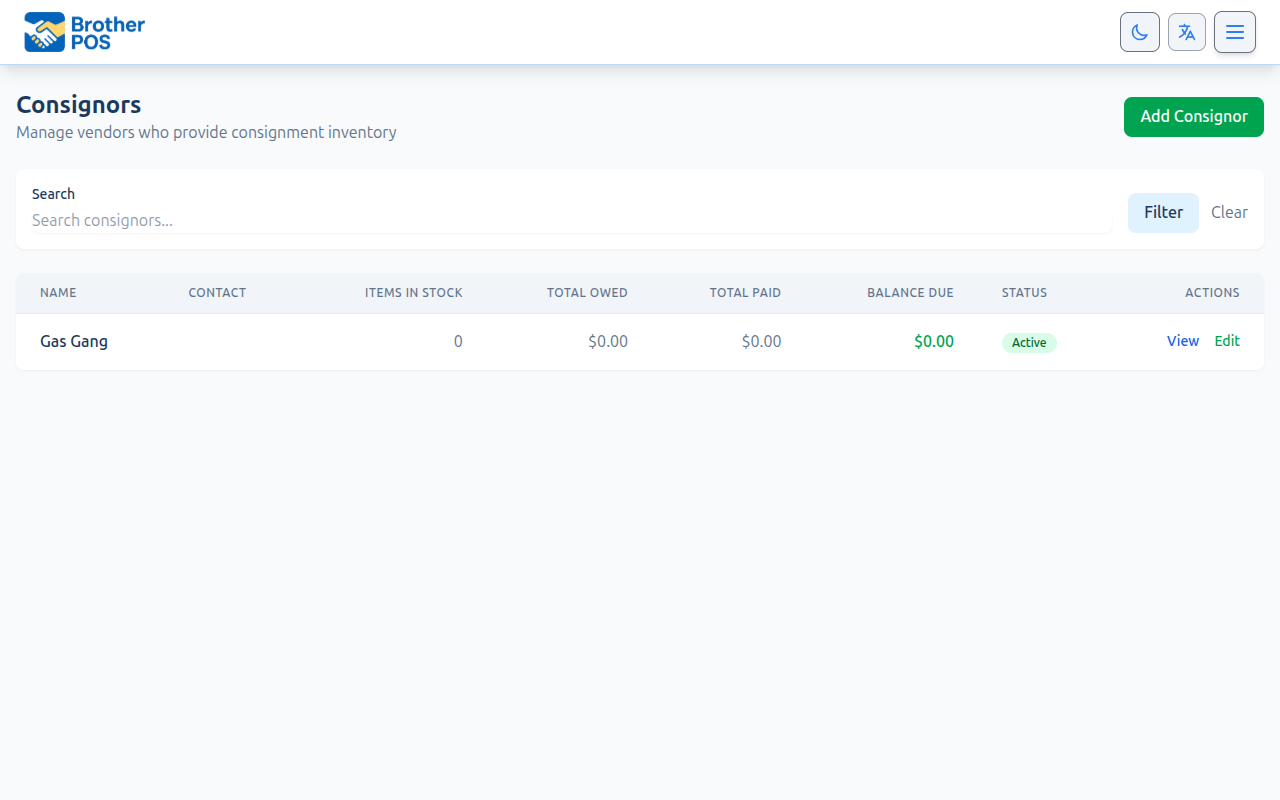
- The Consignors list loads. For each consignor it shows Items in Stock, Total Owed, Total Paid and Balance Due.
More detail: adding and editing consignors
Managing Consignors
Adding a Consignor
- On the Consignors list, click Add Consignor.
- Fill in:
| Field | Required | Notes |
|---|---|---|
| Name | Yes | The consignor's business name |
| Contact Person | No | Primary contact |
| No | ||
| Phone | No | |
| Notes | No | Payment preferences, terms, and so on |
| Active | — | Tick to mark the consignor as active |
- Click Create Consignor.
Editing a Consignor
- On the Consignors list, click Edit next to the consignor (or open the consignor and click Edit).
- Update any fields.
- Click Update Consignor.
More detail: receiving consignment stock
Receiving Consignment Inventory
You receive consignment stock from the consignor's detail page. Each receiving records one product.
- On the Consignors list, click View next to the consignor.
- Click Receive Consignment.
- Fill in:
| Field | Notes |
|---|---|
| Product Name | Describe what the consignor dropped off (for example, "Blue Dream 3.5g") |
| Link to Product (optional) | Pick the product it sells as. Choose Link later if the product does not exist yet. A Create product link opens the new-product page in a new tab. |
| Quantity | How many units came in |
| Vendor Cost Per Unit | What you owe the consignor for each unit sold. This is not the selling price. |
| Received Date | Defaults to now |
| Notes | Optional |
- Click Receive Consignment.
If you linked a product, its stock goes up by the quantity received straight away. If you chose Link later, the item shows an Unlinked badge on the consignor page and no stock is added. Click Link Product on that row when the product exists. Linking it adds the remaining quantity to stock.
Only linked items count sales. Until an item is linked to a product, sales at the register cannot be matched to it.
Consignment vs. Regular Inventory
| Aspect | Regular Inventory | Consignment |
|---|---|---|
| Ownership | You own it | Consignor owns it |
| What you pay | Paid upfront | Vendor cost per unit, owed after each unit sells |
| POS display | Normal | Identical (no difference to the cashier) |
| Where to see it | Standard inventory and reports | The consignor's detail page |
| Customer refunds | Comes out of your sales | The refunded units come off what you owe the consignor |
More detail: tracking sales and recording payouts
Tracking Consignment Sales
Open the consignor's detail page. The top of the page shows three totals:
- Total Owed: units sold × vendor cost per unit, across all of this consignor's items
- Total Paid: every payment you have recorded for this consignor
- Balance Due: Total Owed minus Total Paid
Below that, Active Consignment Items lists each batch with Qty Received, Qty Sold, Qty Remaining, Unit Cost, Amount Owed and Received date.
Example: you received 50 pre-rolls at a vendor cost of $4.00. 20 have sold, so the row shows Qty Remaining 30 and Amount Owed $80.00.
Recording Payouts
When you pay a consignor:
- Open the consignor's detail page and click Record Payment. If money is owed, the page shows the current balance due.
- Fill in:
| Field | Notes |
|---|---|
| Amount | The payment amount |
| Payment Method | Cash, E-Transfer, Cheque, Bank Transfer, or Other |
| Reference # (optional) | Cheque number, transaction ID, and so on |
| Payment Date | When the payment was made |
| Notes | Optional |
| Cash Drawer | Shown when a drawer is open. Choose the drawer the cash comes out of. |
- Click Record Payment. The payment appears under Payment History and the balance due goes down.
Brother POS keeps a record of the payout. It does not transfer funds. Pay the consignor yourself (e-transfer, cheque, and so on).
Cash payouts are the exception. They need an open cash drawer, and the amount is taken off that drawer's expected cash. If no drawer is open, the payment is refused until you open one.
More detail: returns, voids and giving stock back
Customer Returns and Voids on Consigned Items
When a customer returns a consigned item:
- Process the return normally.
- When the return is completed, the refunded units are taken back off the consignor's record, so you no longer owe them for those units.
- Only the quantity actually refunded is reversed. If a customer bought 3 and returns 1, the consignor is still owed for the 2 they kept.
- This happens whether or not you choose to restock the item.
- It also happens when the rest of that batch has already been returned to the consignor. The refunded units still come off what you owe.
Voiding a sale, or voiding a single line from a sale, that included a consigned item reverses what you owe the consignor in the same way.
Returning Unsold Stock to the Consignor
On the consignor's detail page, each active item that still has stock has a Return button.
- Click Return on the item.
- Confirm the prompt ("Return 30 units to vendor?").
- All remaining units of that item are marked as returned and taken out of stock. You cannot return part of a batch this way.
The item then leaves the Active Consignment Items list. Units that already sold still count toward what you owe.
More detail: receiving consignment on a purchase order
Consignment via Purchase Orders
You can also receive consignment stock through a Purchase Order:
- Create or edit a purchase order.
- On each line that is consignment stock, tick the Consign checkbox. (This column only appears when consignment is switched on.)
- When the PO is received, each ticked line becomes a consignment item and the stock is added. The line's unit price becomes the vendor cost per unit.
- The PO's supplier becomes the consignor. If that supplier is not already a consignor, Brother POS creates one using the supplier's name and contact details.
This is handy when one delivery mixes regular stock and consignment stock.
More detail: good habits
Best Practices
- Set clear terms upfront. Agree on vendor cost, payout schedule, and what happens to unsold stock before accepting consignment goods.
- Link products when you receive. Unlinked items do not count sales, so link them as soon as the product exists.
- Receive accurately. Double-check quantities and vendor cost. Mistakes carry straight into what you owe.
- Pay on schedule. Stick to the agreed payment terms to keep good relationships with consignors.
- Keep your own books separate. Record consignment payouts clearly in your accounting system.
- Review slow-moving stock. Consigned products that do not sell take up shelf space. Return slow movers to the consignor.
- Use notes. Add context to receivings and payments in the notes field.
What's Next?
- Purchase Orders — Receive consignment stock through POs.
- Activity Logs — Track consignment-related actions.
- Audit Trail — View the change history on consignment records.
- Managing Products — Manage consignment products alongside regular inventory.