Label Printing
Use this page to print barcode and price labels for products from the register.
Quick steps
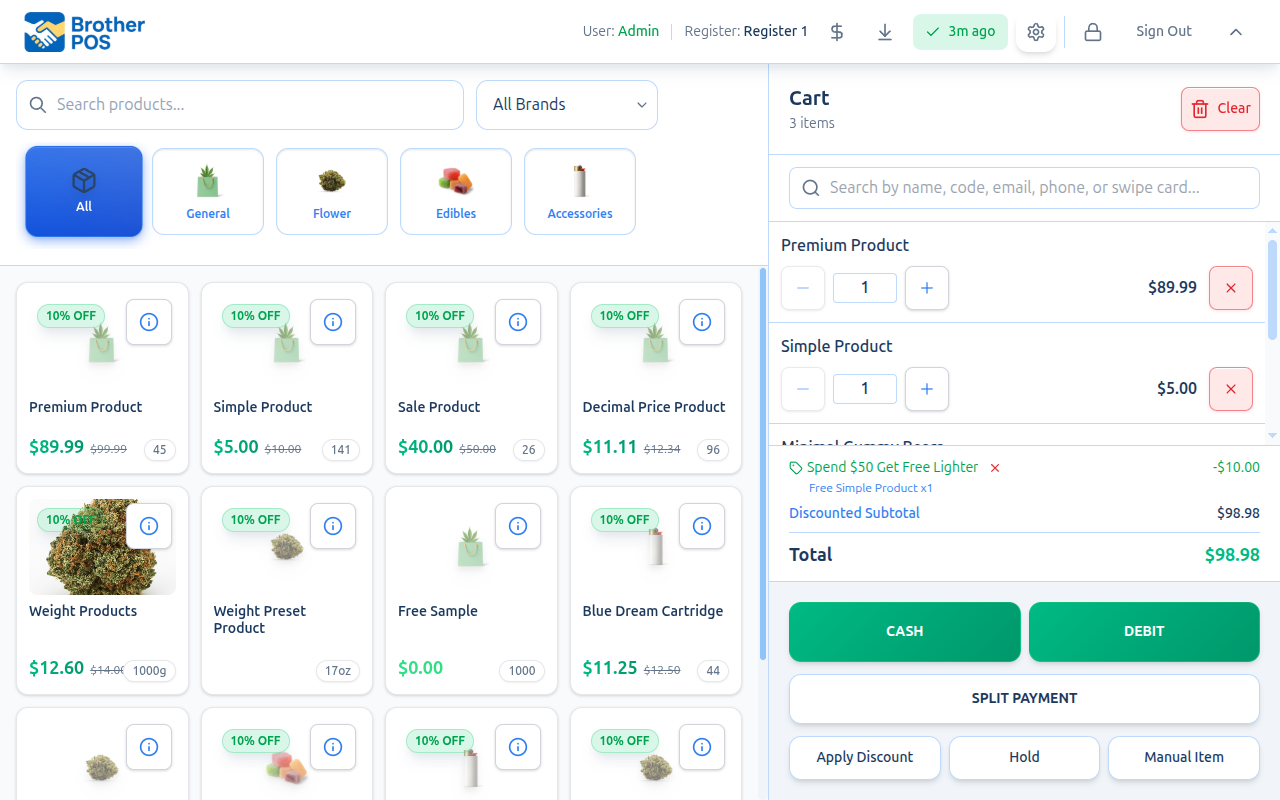
- Find the product on the register and tap the info button (the i) on its card.
- Tap Print Label. For a product with sizes or weights, tap the size or weight you want a label for instead.
- Under How many labels to print?, enter the Quantity.
- Tap Print 1 Label (or Print N Labels). The labels come out of this register's label printer.
Already rang it up? On a wide screen, tap the printer icon on the cart line (Print label) to print a label for that item.
Common questions
I don't see Print Label. Label printing has to be switched on for your store, and this register needs a label printer. A manager can set it up in the gear menu (Settings) under Label Printer.
The label layout is wrong. The label's layout (the template) is set up in the admin. Ask your admin to change it — and check the template size matches your label roll.
Can I print many labels at once from the office? Yes. In the admin, go to Products, open the More menu on the product's row and click Barcode.
Does it work when the internet is down? Yes, as long as the label printer is on the same local network as the register.
More detail: before you begin, printers and what's on a label
Brother POS can print product labels with barcodes, prices, product names and other details. Labels print on Zebra, Munbyn, Dymo, Brother and generic ESC/POS label printers. Label templates are set up in the admin, and labels can be printed from both the POS register and the admin.
Before You Begin
- Label printing must be switched on for your store (Enable Label Printing in the admin settings).
- A label printer must be set up for your register, in the admin under Registers or in the POS Settings (gear).
- Label templates are managed in the admin under Label Templates, opened from the menu on the Products page.
- Products need a barcode or SKU for the barcode element to print correctly. New products get an 8-digit barcode automatically.
Label printing is an optional feature. If you do not see label printing options in the POS, ask your admin to enable it in store settings.
Supported Printers
Brother POS supports these label printer types:
| Printer type | Printer language | Notes |
|---|---|---|
| Zebra | ZPL | Through the Printer Bridge, on your network, or over Bluetooth in the Android app |
| Munbyn | TSPL | Through the Printer Bridge or on your network |
| Dymo | Dymo | Through the Printer Bridge |
| Brother | Brother QL | Over Wi-Fi in the iPad or Android app, or through the Printer Bridge. See Brother QL-810W Label Printer. |
| Generic | ESC/POS | Through the Printer Bridge |
Label Contents
A product label can include any combination of the following, depending on your template:
| Element | Description | Example |
|---|---|---|
| Product name | The full product name | "Blue Dream 3.5g" |
| Price | The retail price | "$35.00" |
| SKU | The product's stock keeping unit | "BD-001-35G" |
| Barcode | A scannable barcode | (barcode graphic) |
| Brand | The product brand | "Aurora" |
| Strain type | Indica, Sativa, or Hybrid (cannabis) | "Sativa" |
| THC/CBD | Cannabinoid values (cannabis) | "THC: 22% / CBD: 0.5%" |
| Package size | Package size | "3.5g" |
| Weight | The weight being sold | "3.5g" |
| Custom text | Any text you type into the template | "Sale!" |
For weight-based cannabis products, a label can also carry that weight's own barcode (see Weight Preset Barcodes below).
Label Templates
Label templates are set up in the admin and define the size and content of printed labels.
Template Properties
| Property | Description |
|---|---|
| Name | A descriptive name for the template (e.g., "Standard Shelf Label") |
| Type | Product Label, Shelf Tag, Customer Card or Custom |
| Width (mm) / Height (mm) | The size of your label stock |
| Safe margin (mm) | Keeps text and barcodes inside the edges |
| Label Elements | The text, barcodes and image placed on the label |
Element Settings
Each element on the template has:
- Position — Where it sits on the label
- Size — Font size for text
- Bold — Whether text is bold
- Alignment — Left, center, or right
- Width — How wide the element can be; longer text wraps
- Color — Black, or red on Brother black/red rolls
Templates are managed by your admin. If you need a different label layout, ask your store's admin.
More detail: printing from the register and the admin
Printing Labels From the POS
Single Product Label
- Find the product in the POS product grid or search.
- Tap the info button on the product card to open the product's details.
- Tap Print Label. For a product with variations or weights, tap the variation or weight you want a label for instead.
- Under How many labels to print?, enter the Quantity (up to 100 at a time).
- Tap Print 1 Label (or Print N Labels) to send them to the label printer. Your store's default product label template is used.
From a Cart Line
On wider screens, each cart line has a printer icon (Print label, or Reprint label once it has printed). Free items added by a promotion have one too. The icon only shows when label printing is on for your store and this register's label printer is switched on (Enable label printer for this register in the POS Settings). It prints the same label as Print Label in the product's details, filled from the product's full details, including strain type, THC/CBD, brand and package size. The price comes from the cart line, and a weighed line shows the line total. A regular line prints one label per item on the line.
Printing Labels From the Admin Panel
Managers and admins can also print labels from the admin:
- Go to Products.
- Open the More menu on the product's row and click Barcode.
- Choose a variation or weight if asked.
- Set Quantity per Label and print.
Labels use the product's own label template if it has one, otherwise your store's default product template.
Weight Preset Barcodes
For weight-based cannabis products, Brother POS creates a separate barcode for each weight preset. It's the product's barcode followed by the weight:
| Weight | Barcode |
|---|---|
| 1g | 12345678-1G |
| 3.5g | 12345678-3.5G |
| 7g | 12345678-7G |
| 14g | 12345678-14G |
| 28g | 12345678-28G |
When a cashier scans a weight barcode, the product goes into the cart at that weight.
Print weight-specific labels for pre-packaged items. The scanner picks up both the product and the weight in one scan.
When you print a label from a weighed cart line, the label carries that weight's barcode and the line total.
More detail: setting up the label printer
Printer Configuration
Label Printer on a Computer
- Plug the label printer into the computer by USB and start the Printer Bridge on it.
- Tap the gear button (Settings) in the POS top bar. This window is where the printer settings live (called Printer Settings on this page).
- Under Label Printer, tick Enable label printer for this register.
- Tick Use a printer bridge (USB printer on this or another PC).
- Choose the Printer Type (Generic ESC/POS, Munbyn, Zebra, Dymo or Brother).
- Enter the Bridge IP Address (or tap Auto-Detect) and Bridge Port. The default label bridge port is 9101.
- Tap Test Label Print, then save.
Admins can make the same settings in the admin under Registers. See Label Printers.
Zebra Bluetooth Label Printers
In the Android app, a Zebra label printer can connect over Bluetooth, with no network or Printer Bridge needed. This isn't currently available in the iPad app. See Label Printers for setup.
Network Label Printers on the iPad or Android App
In the iPad or Android app, a label printer on your network (for example a networked Zebra or other ZPL or TSPL printer) can print straight from the tablet with no Printer Bridge. In Settings (gear), under Label Printer, choose the Printer Type and enter the printer's Printer IP Address and Printer Port (usually 9100).
You don't have to look up the IP address. Tap Find printers on the network under the IP box. The tablet looks for printers on its Wi-Fi network and lists them, Zebra printers first with their model. Tap one to fill in its IP address and port. Nothing prints while it searches.
- If nothing is found, make sure the printer is on and on the same network as the tablet (not a guest Wi-Fi).
- If a Zebra is listed as a 300 dpi model, labels will print smaller than designed. Let support know.
- This button is only in the iPad and Android app. On a web browser, type the IP address.
Then tap Test Label Print. The test label is sent the same way a real label is, in your printer's own language, so if the test prints, real labels will too.
Offline Label Printing
Labels printed from the POS keep working when the internet is down. Your label templates and product details are saved on the device, and the label is built on the device and sent straight to the Printer Bridge or printer on your local network. The printer must be on the same local network as the register.
Image Support
Label templates can include an image, such as your store logo. Images are resized to fit and converted to black and white for thermal printing. PNG images work best.
More detail: troubleshooting and best practices
Troubleshooting
| Problem | Solution |
|---|---|
| Print Label not visible | Label printing isn't enabled for your store, or the product has variations or weights (tap the variation or weight in the product's details instead). Out-of-stock products don't show it. |
| Labels print blank | Check that the template's elements are placed inside the label. Check the Printer Type matches your printer (for example Zebra vs. Munbyn). |
| Barcode does not scan after printing | Check the product has a barcode or SKU. A dirty print head or low-quality labels can produce unscannable barcodes. |
| Weight label prints the product's main barcode instead of the weight one | Print from the product's weight option or from a weighed cart line, so Brother POS knows which weight the label is for. |
| Wrong label size | The template's width and height don't match your label stock. Adjust them in the admin. |
| Label content is cut off | Elements sit outside the printable area. Reduce font sizes or move elements inside the label. |
| Printer not responding | Check the printer is on, the Printer Bridge is running (on a computer), and the address and port are correct in the POS Settings. |
| No print icon on cart lines | Label printing must be on for your store and Enable label printer for this register must be ticked in the POS Settings. |
| Image not printing | Use a PNG image and keep the file reasonably small. |
Best Practices
- Use consistent label stock. Standardize on one label size across your store to avoid template confusion.
- Print weight-specific barcodes for pre-packaged cannabis. It speeds up checkout.
- Test print before bulk runs. Print one label and check alignment, content, and barcode scanning before printing a large batch.
- Clean the print head regularly. Thermal print heads collect residue that degrades print quality.
- Keep label stock stocked. Running out of labels during a price change or new inventory arrival causes delays.
- Review templates periodically. Make sure label content meets current regulatory requirements, especially for cannabis.
What's Next?
- Barcode Scanner — Scan the barcodes you print
- Receipt Printing — Configure receipt printers for sale receipts
- Scale — Weigh products and print weight-specific labels