Receipt Printers
Use this page to connect a receipt printer to a register and print a test receipt. Each register has its own printer settings.
Start with Set Up Your Printer: pick what your register runs on (computer, iPad or Android) and see which printers work and how they connect.
Quick steps
On a computer (register in a web browser):
- Plug the printer into the computer, turn it on and load paper.
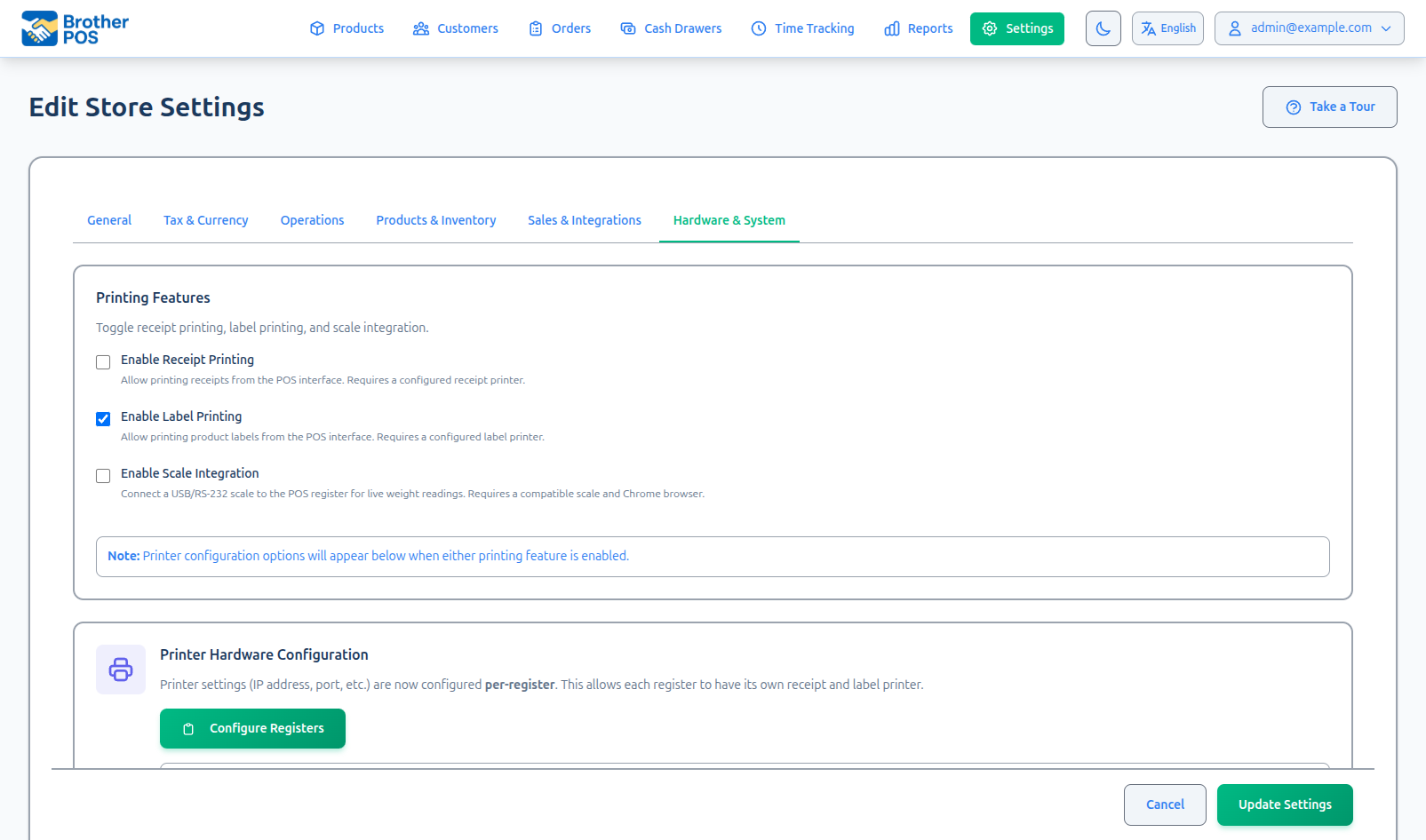
- In the admin, open Registers (from Settings → Edit Settings → Hardware & System → Configure Registers) and edit the register.
- Under Receipt Printer, tick Enable receipt printer for this register. If the Printer Bridge isn't installed, download it from the button there, run it, then click Check Again.
- Click Auto-Detect, then Test Print. A test page should come out.
- Click Update Register.
On an iPad or Android tablet:
- For a network printer (for example an Epson TM-m30II or a Star), plug it into your router or join it to your Wi-Fi, on the same network as the tablet. For a Bluetooth printer, pair it in the tablet's Bluetooth settings (iPad).
- On the register, tap the gear (Settings) button in the top bar and find Receipt Printer (Bluetooth / Network).
- Tap Search for Receipt Printers, then tap your printer. When it says Connected, tap Test Print.
Common questions
Which printer should I buy? The Epson TM-m30II is recommended. It also has a port for a cash drawer.
The printer was off during a sale. Is the sale lost? No. The sale is completed and saved. Reprint the receipt from Sales History once the printer is back.
My Star printer prints garbage from a computer. Star printers don't understand the commands most receipt printers use. On a computer: on Linux the Printer Bridge recognizes a Star on your network by itself and prints full receipts; on Windows install Star's Windows driver and tick Use Windows Driver (for Star/network printers) in the Printer Bridge, which prints plain text only. For full receipts on a Star, the iPad or Android app is the simplest.
Do I need printer drivers? On a tablet, no. On a computer, the printer needs to be installed so the Printer Bridge can see it.
More detail: how the printer is reached, and supported printers
How the Printer Is Reached
Brother POS runs in the cloud, so it can't talk to a printer sitting on your counter by itself. The printing always happens from the device at the till:
| You run the POS on... | How the receipt printer connects |
|---|---|
| A computer (web browser) | Through the Printer Bridge, a small program you install on that Windows or Linux computer. |
| The iPad or Android app | Straight to the tablet: a printer on your network (Epson, Star and other receipt printers), or a Bluetooth printer. |
Supported Printers
| Printer | Works with | Notes |
|---|---|---|
| Epson TM-m30II | Printer Bridge (USB), or the iPad or Android app (network) | Recommended. Has a cash drawer port. On a tablet, connect it to your network and find it with Search for Receipt Printers. |
| Other ESC/POS receipt printers (most Epson and generic thermal printers) | Printer Bridge (USB), or the iPad or Android app (network) | On a computer, choose the ESC/POS (Epson, etc.) printer type. A tablet reaches them on your network on port 9100. |
| Star printers (TSP100 series, TSP143 and others) | iPad or Android app (Bluetooth or network); Linux Printer Bridge (network); Windows Printer Bridge (plain text only) | In the apps, connect them in the Receipt Printer (Bluetooth / Network) section. Star printers don't understand ordinary ESC/POS text, so the app (and the Linux bridge) sends them the receipt as an image. |
| Bluetooth ESC/POS printers (for example Munbyn, Epson TM-P20) | iPad or Android app | Connect them in the Receipt Printer (Bluetooth / Network) section. |
If you're buying new, the Epson TM-m30II is the recommended receipt printer for Brother POS.
Star CloudPRNT isn't something you can switch on yourself. If you think you need it, contact support.
More detail: setting up a receipt printer on a computer
Setting Up a Receipt Printer on a Computer
Step 1: Connect the Printer
- Plug the printer into the computer by USB (or put it on your network).
- Power it on and load paper.
- Make sure Windows (or Linux) can see the printer.
Step 2: Configure the Register
- In the admin, open Registers. You can get there from the Cash Drawers page (Manage Registers) or from Settings > Edit Settings > Hardware & System (Configure Registers).
- Edit the register this printer belongs to.
- Under Receipt Printer, tick Enable receipt printer for this register.
- If the Printer Bridge isn't installed yet, use the Windows, 32-bit or Linux download button shown there, install it and start it. Click Check Again once it's running.
- Under Printer Bridge Connection, click Auto-Detect, or fill in:
- Bridge Host —
localhostif the bridge runs on this same computer, otherwise that computer's IP address. - Port —
9100for the receipt printer.
- Bridge Host —
- Click Test Print. A test page should come out.
- Leave Auto-print receipts after sales ticked if you want a receipt after every sale.
- Click Update Register.
Staff can make the same settings at the till: tap the gear (Settings) button in the POS top bar. There you'll find Printer IP Address (with Auto-Detect), Printer Port, Printer Type, Print receipts after sales, Open drawer without printing (cash sales only) and Test Print. Settings saved there are stored on the register and shared by every device using it. Printer Type offers ESC/POS (Epson, etc.); a register that was already set to Star Raster (TSP100, TSP143) keeps that choice.
Keep the Address From Changing
If the Printer Bridge runs on a different computer from the POS, that computer's IP address must not change, or printing stops. Ask whoever manages your router to give it a DHCP reservation (a fixed address).
USB Printers (via Printer Bridge)
If your receipt printer connects by USB, you need the Printer Bridge running on the computer it's plugged into. See Printer Bridge for the full setup guide.
More detail: network and Bluetooth printers in the iPad or Android app
Network and Bluetooth Printers in the iPad or Android App
In the iPad or Android app, a receipt printer can connect straight to the tablet: a printer on your network (an Epson TM-m30II, a Star, or another network receipt printer), or a Bluetooth printer. You set this up on the tablet itself. Tap the gear (Settings) button in the POS top bar and find the Receipt Printer (Bluetooth / Network) section. It shows once receipt printing is turned on for your store and a register is selected.
- A network printer has to be on the same network as the tablet (plugged into the same router, or on the same Wi-Fi). On an iPad, allow Local Network access if asked. A Bluetooth printer has to be paired in the iPad's Settings > Bluetooth first.
- Tap Search for Receipt Printers and give it a few seconds.
- The list shows printers first. A Bluetooth search also picks up watches, earbuds and other tablets nearby, so anything that doesn't look like a printer is tucked behind Show N other nearby device(s).
- Tap your printer to connect. Once it shows Connected, tap Test Print.
For a network printer the search doesn't find, type its IP address under Or connect a network printer by its IP address and tap Connect. Most receipt printers print their IP address if you hold the feed button while turning them on.
A network printer also opens a cash drawer plugged into it, and prints Z-reports and kitchen tickets sent to the receipt printer.
The app remembers the printer and reconnects to it when it starts.
The app decides what looks like a printer from its name. A printer with an unusual name (for example "BT-04A") can land under Show N other nearby device(s), so tap that to see everything. If nothing found looks like a printer, the list says No obvious printer — showing everything found and shows it all.
After a search, you can tap Printer search details to see what the Star printer search tried and what came back. If a Star printer won't show up, share these details with support.
More detail: multiple registers, and the Printers page
Configuring for Multiple Registers
Each register has its own printer settings, so each till can print to its own printer:
- Connect each printer to its own till (or give each its own bridge computer).
- Edit each register under Registers and set its printer, as above.
The Printers Page
There is also a Printers page in the admin (add /printers to your store's address; it isn't in the main menu). It keeps a list of receipt and label printers with Add Receipt Printer and Add Label Printer buttons. Receipts at the till are sent using the register's printer settings described above, so set the register up first. The Printers page has no Test Print button: to test a printer, use Test Print on the register form or in the POS Settings (gear).
More detail: troubleshooting
Troubleshooting
Printer Does Not Print
- Check power — Is the printer on and the ready light solid?
- Check paper — Is there paper loaded? Is the cover closed securely?
- Check the bridge — On a computer, is the Printer Bridge running?
- Check the register — Is Enable receipt printer for this register ticked, and are the bridge host and port right?
- Test — Click Test Print on the register (or in the POS Settings (gear)) to see whether the problem is the printer or the sale.
Partial or Garbled Print
- Make sure the printer supports ESC/POS commands. Star printers print garbage from ESC/POS. On a computer: on Linux the Printer Bridge recognizes a Star on your network by itself and prints full receipts; on Windows install Star's Windows driver and tick Use Windows Driver (for Star/network printers) in the Printer Bridge, which prints plain text only. For full receipts on a Star, the iPad or Android app is the simplest.
- In the POS Settings (gear), check that Printer Type is set to ESC/POS (Epson, etc.).
Slow Printing
- If the bridge computer and printer are on Wi-Fi, try a network cable.
- Check that no other device is sending large jobs to the same printer.
If the printer is offline during a sale, the sale is still completed and saved. Reprint the receipt from Sales History once the printer is back. A missing receipt does not mean a lost sale.
More detail: more questions
Common Questions
Do I need to install printer drivers? On an iPad or Android tablet, no. On a computer, the printer needs to be installed so the Printer Bridge can see it and pick it in its window.
Can I print to a regular office printer? Receipt printing is designed for thermal receipt printers. For full-page reports, use your browser's print function.
What's Next?
- Label Printers — Set up label printers for product labels.
- Cash Drawers — Connect a cash drawer to your receipt printer.
- Printer Bridge — Install the bridge for USB printers.
- Registers — Per-register printer and auto-print settings.